
presenton
Open-Source AI Presentation Generator and API (Gamma, Canva, Beautiful AI, Decktopus, Presentations AI Alternative)
Install with your AI
Paste into Claude Code, Cursor, or any agent — it reads the repo and wires the tool into your project.
Install and set up presenton (npm project) into my current project.
Found on https://claudeers.com/presenton
Repo: https://github.com/presenton/presenton
Homepage/docs: https://presenton.ai
Detected install method: npm → npm install presenton
Category: automation. Platforms: api, desktop, web.
Read the repo's README for exact setup and env vars, then install it and wire it into my project.

Claudeers Health Verdict:
active; community-verified: false. Confirm the source before running anything.
npm install presenton
git clone https://github.com/presenton/presenton
// compatibility
| Platforms | api, desktop, web |
|---|---|
| Operating systems | — |
| AI compatibility | claude |
| License | Apache-2.0 |
| Pricing | open-source |
| Language | TypeScript |

Quickstart · Docs · Youtube · Discord
Open-Source AI Presentation Generator and API (Gamma, Canva, Beautiful AI, Decktopus, Presentations AI Alternative)
Discover what Presenton can do from AI-powered presentation generation to editing, exporting, and flexible model providers.
✨ Why Presenton
No SaaS lock-in · No forced subscriptions · Full control over models and data
What makes Presenton different?
- Use Fully self-hosted in Web through Docker Package
- Or Download Desktop App (Mac, Windows & Linux)
- Works with Ollama, LM Studio, OpenAI, Gemini, Vertex AI, Azure OpenAI, Amazon Bedrock, Fireworks, Together AI, Anthropic, or any other OpenAI compatible providers
- Comes with AI Presentation Generation API
- Fully open-source (Apache 2.0)
- Works with your own design/templates
- Fully editable PPTX export
[!TIP] Star us! A ⭐ shows your support and encourages us to keep building! 😇
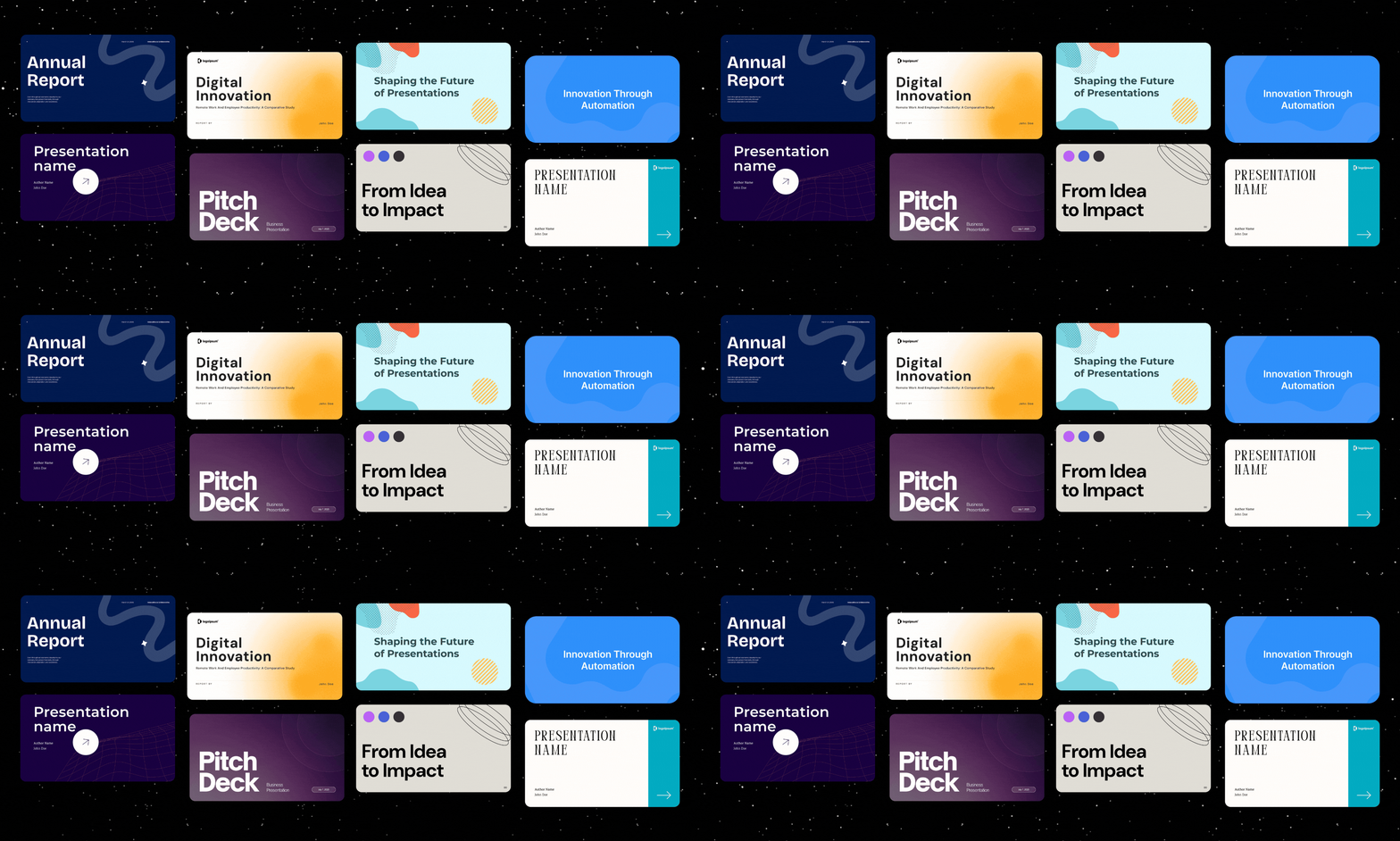
🎛 Features
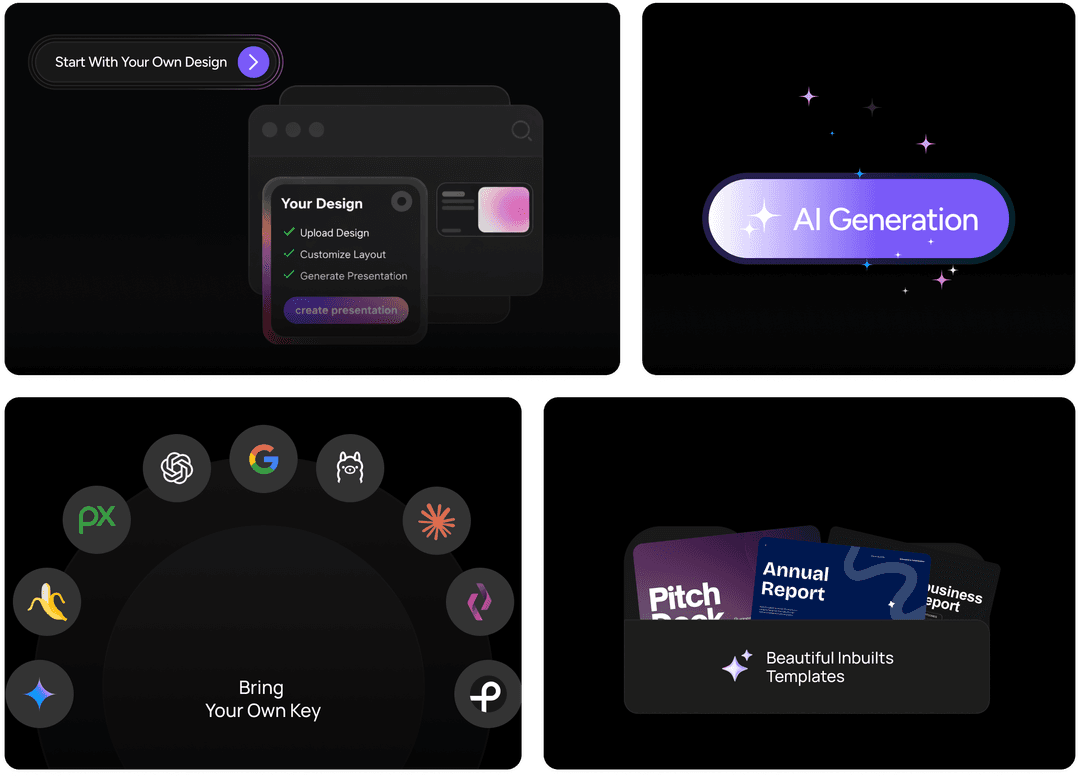
💻 Presenton Desktop
Create AI-powered presentations using your own model provider (BYOK) or run everything locally on your own machine for full control and data privacy.
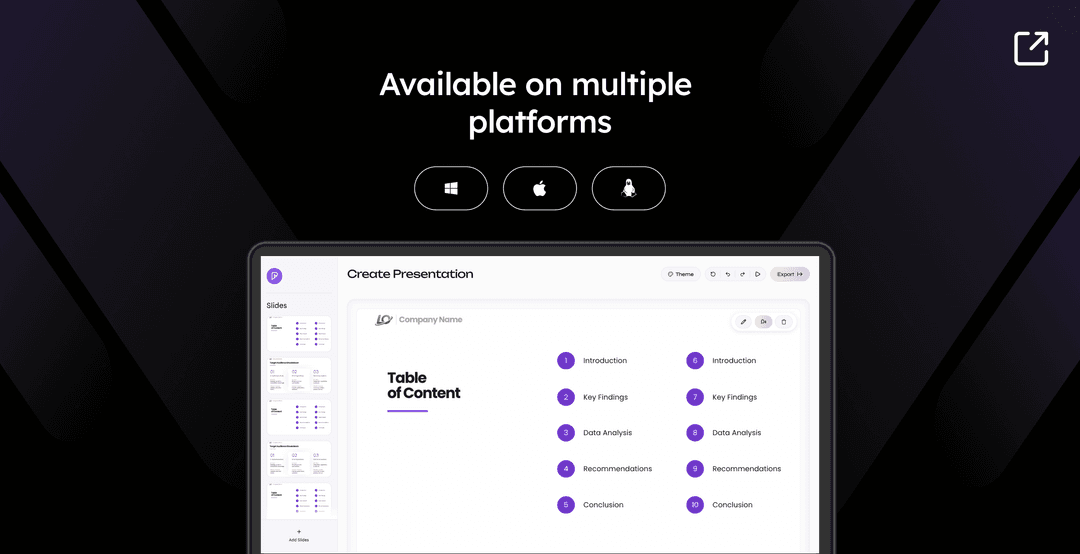
Available Platforms
| Platform | Architecture | Package | Download |
|---|---|---|---|
| macOS | Apple Silicon / Intel | .dmg | Download ↗ |
| Windows | x64 | .exe | Download ↗ |
| Linux | x64 | .deb | Download ↗ |
Deploy to Cloud Providers


Presenton gives you complete control over your AI presentation workflow. Choose your models, customize your experience, and keep your data private.
- Custom Templates & Themes — Create unlimited presentation designs with HTML and Tailwind CSS
- AI Template Generation — Create presentation templates from existing Powerpoint documents.
- Flexible Generation — Build presentations from prompts or uploaded documents
- Export Ready — Save as PowerPoint (PPTX) and PDF with professional formatting
- Built-In MCP Server — Generate presentations over Model Context Protocol
- Bring Your Own Key — Use your own API keys for OpenAI, Google Gemini, Vertex AI, Azure OpenAI, Anthropic Claude, or any compatible provider. Only pay for what you use, no hidden fees or subscriptions.
- Ollama Integration — Run open-source models locally with full privacy
- OpenAI API Compatible — Connect to any OpenAI-compatible endpoint with your own models
- Multi-Provider Support — Mix and match text and image generation providers
- Versatile Image Generation — Choose from DALL-E 3, Gemini Flash, Pexels, or Pixabay
- Rich Media Support — Icons, charts, and custom graphics for professional presentations
- Runs Locally — All processing happens on your device, no cloud dependencies
- API Deployment — Host as your own API service for your team
- Fully Open-Source — Apache 2.0 licensed, inspect, modify, and contribute
- Docker Ready — One-command deployment with GPU support for local models
- Electron Desktop App — Run Presenton as a native desktop application on Windows, macOS, and Linux (no browser required)
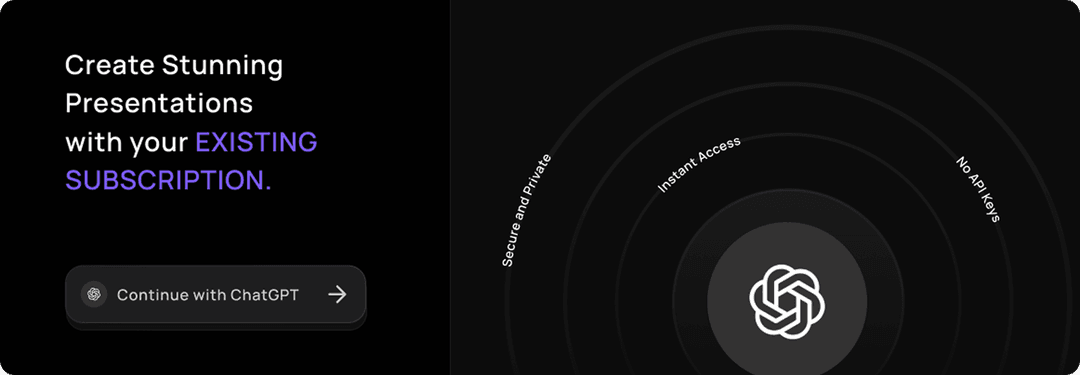
- Sign in with ChatGPT — Use your free or paid ChatGPT account to sign in and start creating presentations instantly — no separate API key required
☁️ Presenton Cloud
Run Presenton directly in your browser — no installation, no setup required. Start creating presentations instantly from anywhere.
⚡ Running Presenton
You can run Presenton in two ways: Docker for a one-command setup without installing a local dev stack, or the Electron desktop app for a native app experience (ideal for development or offline use).
Option 1: Electron (Desktop App)
Run Presenton as a native desktop application. LLM and image provider (API keys, etc.) can be configured in the app. The same environment variables used for Docker apply when running the bundled backend.
Prerequisites: Node.js (LTS), npm, Python 3.11, and
uv
(for the shared FastAPI backend in servers/fastapi).
-
Setup (First Time)
cd electron
npm run setup:env
This installs Node dependencies, runs
uv syncin the FastAPI server, and installs Next.js dependencies. -
Run in Development
npm run devThis compiles TypeScript and starts Electron. The backend and UI run locally inside the desktop window.
-
Build Distributable (Optional) To create installers for Windows, macOS, or Linux:
npm run build:all
npm run dist
Output files are written to
electron/dist(or as configured in yourelectron-buildersettings).
Option 2: Docker
-
Start Presenton Linux/MacOS (Bash/Zsh Shell):
docker run -it --name presenton -p 5001:80 -v "./app_data:/app_data" ghcr.io/presenton/presenton:latestWindows (PowerShell):
docker run -it --name presenton -p 5001:80 -v "${PWD}\app_data:/app_data" ghcr.io/presenton/presenton:latest -
Open Presenton
Open http://localhost:5001 in the browser of your choice to use Presenton.
Note: You can replace
5001with any other port number of your choice to run Presenton on a different port number. If you use Docker Compose, setPRESENTON_HTTP_HOST_PORT, for examplePRESENTON_HTTP_HOST_PORT=8080 docker compose up production.
⚙️ Deployment Configurations
The lists below match the environment variables forwarded in this repository’s docker-compose.yml (production, production-gpu, development, and development-gpu). Put values in a .env file next to the compose file, or export them before docker compose up. The Electron app backend can read the same names when run outside Docker.
Other optional variables exist in code (for example advanced Mem0 paths, LiteParse runners, or FAST_API_INTERNAL_URL when Next.js and FastAPI are not same-origin); they are not wired in docker-compose.yml. Supported names are discoverable from servers/fastapi/utils/get_env.py and the Next.js server utilities under servers/nextjs/.
LLM and API keys
- CAN_CHANGE_KEYS=[true/false]: Set to false if you want to keep API keys hidden and make them unmodifiable.
- LLM=[openai/deepseek/google/vertex/azure/bedrock/openrouter/fireworks/together/cerebras/anthropic/litellm/lmstudio/ollama/custom/codex]: Select the text LLM.
- OPENAI_API_KEY: Required if LLM is openai.
- OPENAI_MODEL: Required if LLM is openai (default:
gpt-4.1). - DEEPSEEK_API_KEY: Required if LLM is deepseek.
- DEEPSEEK_MODEL: Required if LLM is deepseek (default:
deepseek-chat). - DEEPSEEK_BASE_URL: Optional if LLM is deepseek (default:
https://api.deepseek.com). - GOOGLE_API_KEY: Required if LLM is google.
- GOOGLE_MODEL: Required if LLM is google (default:
models/gemini-2.0-flash). - VERTEX_MODEL: Required if LLM is vertex (default:
gemini-2.5-flash). - VERTEX_API_KEY: Optional auth path for LLM=vertex (Vertex Express).
- VERTEX_PROJECT / VERTEX_LOCATION: Optional auth path for LLM=vertex when using GCP project credentials (do not combine with
VERTEX_API_KEY). - VERTEX_BASE_URL: Optional Vertex gateway/base URL override.
- AZURE_OPENAI_MODEL: Required if LLM is azure (deployment/model name).
- AZURE_OPENAI_API_KEY: Required if LLM is azure.
- AZURE_OPENAI_API_VERSION: Required if LLM is azure (for example
2024-10-21). - AZURE_OPENAI_ENDPOINT / AZURE_OPENAI_BASE_URL: At least one is required if LLM is azure.
- AZURE_OPENAI_DEPLOYMENT: Optional deployment override for LLM is azure.
- BEDROCK_REGION: Optional if LLM is bedrock (default:
us-east-1). - BEDROCK_MODEL: Required if LLM is bedrock. Use a standard model ID (example:
us.anthropic.claude-3-5-haiku-20241022-v1:0) or a full inference profile ARN for newer models (example: Claude Sonnet 4.6). Passed through to Bedrock Converse asmodelId. See Amazon Bedrock guide. - BEDROCK_API_KEY: Optional if LLM is bedrock (API key auth; alternative to AWS keys).
- BEDROCK_AWS_ACCESS_KEY_ID / BEDROCK_AWS_SECRET_ACCESS_KEY: Required together if LLM is bedrock and
BEDROCK_API_KEYis not set. - BEDROCK_AWS_SESSION_TOKEN: Optional session token for LLM is bedrock.
- BEDROCK_PROFILE_NAME: Optional AWS profile name for LLM is bedrock.
- OPENROUTER_API_KEY: Required if LLM is openrouter.
- OPENROUTER_MODEL: Required if LLM is openrouter (default:
openai/gpt-4o). - OPENROUTER_BASE_URL: Optional if LLM is openrouter (default:
https://openrouter.ai/api/v1). - FIREWORKS_API_KEY: Required if LLM is fireworks.
- FIREWORKS_MODEL: Required if LLM is fireworks (example:
accounts/fireworks/models/llama-v3p1-8b-instruct). - FIREWORKS_BASE_URL: Optional if LLM is fireworks (default:
https://api.fireworks.ai/inference/v1). - TOGETHER_API_KEY: Required if LLM is together.
- TOGETHER_MODEL: Required if LLM is together (example:
openai/gpt-oss-20b). - TOGETHER_BASE_URL: Optional if LLM is together (default:
https://api.together.ai/v1). - CEREBRAS_API_KEY: Required if LLM is cerebras.
- CEREBRAS_MODEL: Required if LLM is cerebras (default:
llama-3.3-70b). - CEREBRAS_BASE_URL: Optional if LLM is cerebras (default:
https://api.cerebras.ai/v1). - ANTHROPIC_API_KEY: Required if LLM is anthropic.
- ANTHROPIC_MODEL: Required if LLM is anthropic (default:
claude-3-5-sonnet-20241022). - CODEX_MODEL: Required if LLM is codex (Codex OAuth flow; compose maps host port 1455 for the callback).
- CUSTOM_LLM_URL: OpenAI-compatible base URL if LLM is custom.
- CUSTOM_LLM_API_KEY: API key if LLM is custom.
- CUSTOM_MODEL: Model id if LLM is custom.
- LITELLM_BASE_URL: LiteLLM proxy or gateway base URL if LLM is litellm.
- LITELLM_API_KEY: Optional API key if LLM is litellm.
- LITELLM_MODEL: Required if LLM is litellm (default:
gpt-4.1). - LMSTUDIO_BASE_URL: Optional LM Studio base URL if LLM is lmstudio (default:
http://localhost:1234/v1;/v1is auto-appended when omitted). - LMSTUDIO_API_KEY: Optional API key if LLM is lmstudio.
- LMSTUDIO_MODEL: Required if LLM is lmstudio (example:
openai/gpt-oss-20b). - DISABLE_THINKING=[true/false]: If true, disables “thinking” for providers that support it (including DeepSeek).
- WEB_GROUNDING=[true/false]: If true, enables web search by default.
- WEB_SEARCH_PROVIDER=[auto/native/searxng/tavily/exa]: Selects the web search mode.
autouses native search for OpenAI, Google, and Anthropic, and otherwise leaves web search off unless you choose an external provider.
- WEB_SEARCH_MAX_RESULTS: Maximum external search results to add to model context (default
5, maximum10). - SEARXNG_BASE_URL: Base URL for a self-hosted SearXNG instance.
- TAVILY_API_KEY, EXA_API_KEY: Credentials for optional hosted search APIs.
- EXTENDED_REASONING=[true/false]: Enables extended reasoning where supported by the configured stack.
Ollama
Use when LLM is ollama:
- OLLAMA_URL: Base URL of the Ollama HTTP API (e.g.
http://host.docker.internal:11434from Docker). - OLLAMA_MODEL: Model name in Ollama (e.g.
llama3.2:3b). - START_OLLAMA=[true/false]: Container entrypoint (
start.js): optional install +ollama serve. Default false (development/productioncompose).
Presentation memory (Mem0 OSS)
Mem0 uses local Qdrant + SQLite (OSS); memory is scoped per presentation.
By default the Docker runtime now points Mem0 at a local Ollama-compatible LLM endpoint, so it no longer needs an OpenAI key just to initialize. If you want to use OpenAI instead, set MEM0_LLM_BASE_URL/MEM0_LLM_API_KEY to your OpenAI-compatible endpoint and key.
Docker images install the default spaCy model (en_core_web_sm) during build so Mem0 can start without extra setup on each run.
| Variable | Purpose |
|---|---|
| MEM0_ENABLED | true/false (compose default true). |
| MEM0_LLM_MODEL | Mem0 LLM model name (compose default llama3.1:latest or OLLAMA_MODEL). |
| MEM0_LLM_API_KEY | Mem0 LLM API key placeholder for OpenAI-compatible clients (compose default ollama). |
| MEM0_LLM_BASE_URL | Mem0 LLM base URL (compose default OLLAMA_URL or http://host.docker.internal:11434). |
| MEM0_DIR | Root directory (compose default /app_data/mem0). |
| MEM0_EMBEDDER_PROVIDER | Embedder backend (compose default fastembed). |
| MEM0_EMBEDDER_MODEL | Model id (compose default BAAI/bge-small-en-v1.5). |
| MEM0_EMBEDDING_DIMS | Vector size (compose default 384). |
| MEM0_SPACY_MODEL | Optional spaCy model override (default en_core_web_sm). |
| MEM0_REQUIRE_SPACY_MODEL | Keep as true (default). Set to false only if you intentionally want Mem0 to run without spaCy lemmatization. |
Document parsing (LiteParse)
| Variable | Purpose |
|---|---|
| LITEPARSE_DPI | OCR render DPI (compose default 120). |
| LITEPARSE_NUM_WORKERS | Worker count (compose default 1). |
Database
- DATABASE_URL: SQLAlchemy URL; if unset, the app falls back to SQLite under app data.
- MIGRATE_DATABASE_ON_STARTUP: Compose sets
truefor all services so migrations run on startup.
Image generation
These variables match docker-compose.yml. IMAGE_PROVIDER selects the backend (pexels, pixabay, gemini_flash, nanobanana_pro, dall-e-3, gpt-image-1.5, comfyui, open_webui). Use OPENAI_API_KEY for OpenAI image modes and GOOGLE_API_KEY for Gemini image modes (same keys as the LLM section).
- DISABLE_IMAGE_GENERATION=[true/false]: Disable slide image generation.
- IMAGE_PROVIDER: Provider id (see enum above).
- PEXELS_API_KEY: Pexels stock images.
- PIXABAY_API_KEY: Pixabay stock images.
- DALL_E_3_QUALITY=[standard/hd]: Optional for dall-e-3 (default
standard). - GPT_IMAGE_1_5_QUALITY=[low/medium/high]: Optional for gpt-image-1.5 (default
medium). - COMFYUI_URL / COMFYUI_WORKFLOW: Self-hosted ComfyUI workflow JSON.
- OPEN_WEBUI_IMAGE_URL / OPEN_WEBUI_IMAGE_API_KEY: Open WebUI–compatible image endpoint.
- OPENAI_COMPAT_IMAGE_BASE_URL / OPENAI_COMPAT_IMAGE_API_KEY / OPENAI_COMPAT_IMAGE_MODEL: Required if using openai_compatible to send image requests to any OpenAI-compatible
/v1/images/*endpoint (LiteLLM, Azure, vLLM Gateways, etc.).
Telemetry
- DISABLE_ANONYMOUS_TRACKING=[true/false]: Set to true to disable anonymous telemetry.
Authentication (web login)
Presenton uses a single admin account per instance. Credentials live in app_data (hashed; see userConfig.json). Pass these with -e or via .env for compose:
- AUTH_USERNAME / AUTH_PASSWORD — Preseed the admin login on first boot (password at least 6 characters). Ignored if a user already exists unless AUTH_OVERRIDE_FROM_ENV is set.
- AUTH_OVERRIDE_FROM_ENV=[true/false] — If true, replace stored credentials from the env vars on every FastAPI startup and rotate the session signing secret (invalidates existing sessions). Remove after a one-off rotation.
- RESET_AUTH=[true/false] — If true, clear stored credentials on startup. Use for a single boot to recover access, then unset.
Examples
docker run -it --name presenton -p 5001:80 -v "./app_data:/app_data" ghcr.io/presenton/presenton:latest
docker run -it --name presenton -p 5001:80 -e AUTH_USERNAME=admin -e AUTH_PASSWORD=changeme123 -v "./app_data:/app_data" ghcr.io/presenton/presenton:latest
docker run -it --name presenton -p 5001:80 -e AUTH_USERNAME=admin -e AUTH_PASSWORD=changeme123 -v "${PWD}\app_data:/app_data" ghcr.io/presenton/presenton:latest
docker stop presenton && docker rm presenton && docker run -it --name presenton -p 5001:80 -e AUTH_USERNAME=admin -e AUTH_PASSWORD=newcred456 -e AUTH_OVERRIDE_FROM_ENV=true -v "./app_data:/app_data" ghcr.io/presenton/presenton:latest
docker stop presenton && docker rm presenton && docker run -it --name presenton -p 5001:80 -e RESET_AUTH=true -v "./app_data:/app_data" ghcr.io/presenton/presenton:latest
docker stop presenton && docker rm presenton && docker run -it --name presenton -p 5001:80 -e AUTH_USERNAME=admin -e AUTH_PASSWORD=changeme123 -v "./app_data:/app_data" ghcr.io/presenton/presenton:latest
Manual reset: stop the container, edit ./app_data/userConfig.json, delete AUTH_USERNAME, AUTH_PASSWORD_HASH, and AUTH_SECRET_KEY, save, and start again.
Sign out from the app: Settings → Other → Sign out.
MCP authentication
When auth is configured (AUTH_USERNAME / AUTH_PASSWORD), the MCP endpoint at /mcp now requires authentication as well.
- Log in once to get a bearer token:
curl -s -X POST http://localhost:5001/api/v1/auth/login \
  -H "Content-Type: application/json" \
  -d '{"username":"admin","password":"changeme123"}'
The response includes:
access_token(session token)token_type(bearer)
- Configure your MCP client to send that token on every request:
{
  "mcpServers": {
    "presenton": {
      "url": "http://localhost:5001/mcp",
      "headers": {
        "Authorization": "Bearer <access_token>"
      }
    }
  }
}
Notes:
- If you rotate credentials with
AUTH_OVERRIDE_FROM_ENV=true, previously issued session tokens are invalidated. - MCP is not available in the Electron desktop app (
PRESENTON_ELECTRON=true). Electron runs withDISABLE_AUTH=trueby default, and the MCP server is disabled there to avoid auth conflicts.
Note: LLM and image variables above are forwarded from
docker-compose.ymlwhen set in.env.
Docker Run Examples by Provider
Same variables as compose; use -e instead of .env when running docker run directly.
-
Using OpenAI
docker run -it --name presenton -p 5001:80 -e LLM="openai" -e OPENAI_API_KEY="******" -e IMAGE_PROVIDER="dall-e-3" -e CAN_CHANGE_KEYS="false" -v "./app_data:/app_data" ghcr.io/presenton/presenton:latest -
Using Google
docker run -it --name presenton -p 5001:80 -e LLM="google" -e GOOGLE_API_KEY="******" -e IMAGE_PROVIDER="gemini_flash" -e CAN_CHANGE_KEYS="false" -v "./app_data:/app_data" ghcr.io/presenton/presenton:latest -
Using Vertex AI (API key mode)
docker run -it --name presenton -p 5001:80 -e LLM="vertex" -e VERTEX_API_KEY="******" -e VERTEX_MODEL="gemini-2.5-flash" -e IMAGE_PROVIDER="gemini_flash" -e CAN_CHANGE_KEYS="false" -v "./app_data:/app_data" ghcr.io/presenton/presenton:latest -
Using Azure OpenAI
docker run -it --name presenton -p 5001:80 -e LLM="azure" -e AZURE_OPENAI_API_KEY="******" -e AZURE_OPENAI_MODEL="gpt-4.1" -e AZURE_OPENAI_API_VERSION="2024-10-21" -e AZURE_OPENAI_ENDPOINT="https://YOUR-RESOURCE.openai.azure.com" -e IMAGE_PROVIDER="pexels" -e PEXELS_API_KEY="******" -e CAN_CHANGE_KEYS="false" -v "./app_data:/app_data" ghcr.io/presenton/presenton:latest -
Using Amazon Bedrock (on-demand model ID) — see docs/amazon-bedrock.md for inference profiles, IAM, and troubleshooting.
docker run -it --name presenton -p 5001:80 -e LLM="bedrock" -e BEDROCK_REGION="us-east-1" -e BEDROCK_AWS_ACCESS_KEY_ID="******" -e BEDROCK_AWS_SECRET_ACCESS_KEY="******" -e BEDROCK_MODEL="us.anthropic.claude-3-5-haiku-20241022-v1:0" -e IMAGE_PROVIDER="pexels" -e PEXELS_API_KEY="******" -e CAN_CHANGE_KEYS="false" -v "./app_data:/app_data" ghcr.io/presenton/presenton:latest -
Using Amazon Bedrock (inference profile ARN, e.g. Claude Sonnet 4.6)
docker run -it --name presenton -p 5001:80 -e LLM="bedrock" -e BEDROCK_REGION="us-east-1" -e BEDROCK_AWS_ACCESS_KEY_ID="******" -e BEDROCK_AWS_SECRET_ACCESS_KEY="******" -e BEDROCK_MODEL="arn:aws:bedrock:us-east-1:YOUR_ACCOUNT_ID:inference-profile/us.anthropic.claude-sonnet-4-6" -e IMAGE_PROVIDER="pexels" -e PEXELS_API_KEY="******" -e CAN_CHANGE_KEYS="false" -v "./app_data:/app_data" ghcr.io/presenton/presenton:latest -
Using Fireworks
docker run -it --name presenton -p 5001:80 -e LLM="fireworks" -e FIREWORKS_API_KEY="******" -e FIREWORKS_MODEL="accounts/fireworks/models/llama-v3p1-8b-instruct" -e IMAGE_PROVIDER="pexels" -e PEXELS_API_KEY="******" -e CAN_CHANGE_KEYS="false" -v "./app_data:/app_data" ghcr.io/presenton/presenton:latest -
Using Together AI
docker run -it --name presenton -p 5001:80 -e LLM="together" -e TOGETHER_API_KEY="******" -e TOGETHER_MODEL="openai/gpt-oss-20b" -e IMAGE_PROVIDER="pexels" -e PEXELS_API_KEY="******" -e CAN_CHANGE_KEYS="false" -v "./app_data:/app_data" ghcr.io/presenton/presenton:latest -
Using Ollama
docker run -it --name presenton -p 5001:80 -e LLM="ollama" -e OLLAMA_MODEL="llama3.2:3b" -e IMAGE_PROVIDER="pexels" -e PEXELS_API_KEY="*******" -e CAN_CHANGE_KEYS="false" -v "./app_data:/app_data" ghcr.io/presenton/presenton:latest -
Using Anthropic
docker run -it --name presenton -p 5001:80 -e LLM="anthropic" -e ANTHROPIC_API_KEY="******" -e IMAGE_PROVIDER="pexels" -e PEXELS_API_KEY="******" -e CAN_CHANGE_KEYS="false" -v "./app_data:/app_data" ghcr.io/presenton/presenton:latest -
Using LM Studio (local)
docker run -it --name presenton -p 5001:80 -e LLM="lmstudio" -e LMSTUDIO_BASE_URL="http://host.docker.internal:1234" -e LMSTUDIO_MODEL="openai/gpt-oss-20b" -e IMAGE_PROVIDER="pexels" -e PEXELS_API_KEY="******" -e CAN_CHANGE_KEYS="false" -v "./app_data:/app_data" ghcr.io/presenton/presenton:latest -
Using OpenAI Compatible LLM API
docker run -it -p 5001:80 -e CAN_CHANGE_KEYS="false" -e LLM="custom" -e CUSTOM_LLM_URL="http://*****" -e CUSTOM_LLM_API_KEY="*****" -e CUSTOM_MODEL="llama3.2:3b" -e IMAGE_PROVIDER="pexels" -e PEXELS_API_KEY="********" -v "./app_data:/app_data" ghcr.io/presenton/presenton:latest -
Running Presenton with GPU Support To use GPU acceleration with Ollama models, you need to install and configure the NVIDIA Container Toolkit. This allows Docker containers to access your NVIDIA GPU. Once the NVIDIA Container Toolkit is installed and configured, you can run Presenton with GPU support by adding the
--gpus=allflag:docker run -it --name presenton --gpus=all -p 5001:80 -e LLM="ollama" -e OLLAMA_MODEL="llama3.2:3b" -e IMAGE_PROVIDER="pexels" -e PEXELS_API_KEY="*******" -e CAN_CHANGE_KEYS="false" -v "./app_data:/app_data" ghcr.io/presenton/presenton:latest -
Using an OpenAI-Compatible Image Provider
This routes all slide image requests through your OpenAI-compatible gateway (LiteLLM, Azure, vLLM, etc.) while keeping the text LLM configuration independent:
docker run -it --name presenton -p 5001:80 -e IMAGE_PROVIDER="openai_compatible" -e OPENAI_COMPAT_IMAGE_BASE_URL="https://proxy.example.com/v1" -e OPENAI_COMPAT_IMAGE_API_KEY="******" -e OPENAI_COMPAT_IMAGE_MODEL="gpt-image-1" -v "./app_data:/app_data" ghcr.io/presenton/presenton:latest
✨ Generate Presentation via API
Generate Presentation
Endpoint: /api/v1/ppt/presentation/generate
Method: POST
Content-Type: application/json
Authentication (HTTP Basic):
All /api/v1/ routes except /api/v1/auth/* require authentication. Send your Presenton admin username and password (same as the web UI, or AUTH_USERNAME / AUTH_PASSWORD when preseeding Docker). With curl, put them right after -u as -u USERNAME:PASSWORD — that is HTTP Basic auth and sets Authorization: Basic … for you. Replace the sample username:password below with your real credentials.
Request Body
| Parameter | Type | Required | Description |
|---|---|---|---|
content | string | Yes | Main content used to generate the presentation. |
slides_markdown | string[] | null | No | Provide custom slide markdown instead of auto-generation. |
instructions | string | null | No | Additional generation instructions. |
tone | string | No |
Text tone (default: "default").
Options: default, casual, professional,
funny, educational, sales_pitch
|
verbosity | string | No |
Content density (default: "standard").
Options: concise, standard, text-heavy
|
web_search | boolean | No | Enable web search grounding (default: false). |
n_slides | integer | No | Number of slides to generate (default: 8). |
language | string | No | Presentation language (default: "English"). |
template | string | No | Template name (default: "general"). |
include_table_of_contents | boolean | No | Include table of contents slide (default: false). |
include_title_slide | boolean | No | Include title slide (default: true). |
files | string[] | null | No |
Files to use in generation.
Upload first via /api/v1/ppt/files/upload.
|
export_as | string | No |
Export format (default: "pptx").
Options: pptx, pdf
|
Response
{
  "presentation_id": "string",
  "path": "string",
  "edit_path": "string"
}
Example (curl + HTTP Basic auth with -u)
curl -u username:password \
  -X POST http://localhost:5001/api/v1/ppt/presentation/generate \
  -H "Content-Type: application/json" \
  -d '{
   "content": "Introduction to Machine Learning",
    "n_slides": 5,
    "language": "English",
    "template": "general",
    "export_as": "pptx"
  }'
Example Response
{
  "presentation_id": "d3000f96-096c-4768-b67b-e99aed029b57",
  "path": "/app_data/d3000f96-096c-4768-b67b-e99aed029b57/Introduction_to_Machine_Learning.pptx",
  "edit_path": "/presentation?id=d3000f96-096c-4768-b67b-e99aed029b57"
}
Note: Prepend your server’s root URL topathandedit_pathto construct valid links.
Documentation & Tutorials
- Deploy Presenton
- Full API Documentation
- Generate Presentations via API in 5 Minutes
- Create Presentations from CSV using AI
- Create Data Reports Using AI
🚀 Roadmap
Track the public roadmap on GitHub Projects: https://github.com/orgs/presenton/projects/2
// faq
What is presenton?
Open-Source AI Presentation Generator and API (Gamma, Canva, Beautiful AI, Decktopus, Presentations AI Alternative). It is open-source on GitHub.
Is presenton free to use?
presenton is open-source under the Apache-2.0 license, so it is free to use.
What category does presenton belong to?
presenton is listed under integrations in the Claudeers registry of Claude-compatible tools.
// embed badge

[](https://claudeers.com/presenton)
// retro hit counter

[](https://claudeers.com/presenton)
// reviews
// guestbook
// related in Automation & Workflows
 🔓
🔓 🔓
🔓The API to search, scrape, and interact with the web at scale. 🔥
 🔓
🔓🌐 Make websites accessible for AI agents. Automate tasks online with ease.
 🔓
🔓Taste-Skill - gives your AI good taste. stops the AI from generating boring, generic slop