
vibetube
Desktop multicam recorder for macOS: records your screen and webcam in sync, then Claude Code or Codex edits the final video — shot selection, subtitles, gra…
Install with your AI
Paste into Claude Code, Cursor, or any agent — it reads the repo and wires the tool into your project.
Install and set up vibetube (git-clone project) into my current project.
Found on https://claudeers.com/vibetube
Repo: https://github.com/mutonby/vibetube
Homepage/docs: —
Detected install method: git-clone → git clone https://github.com/mutonby/vibetube
Category: automation. Platforms: cli, api, desktop, web, mobile.
Read the repo's README for exact setup and env vars, then install it and wire it into my project.

Claudeers Health Verdict:
active; community-verified: false. Confirm the source before running anything.
git clone https://github.com/mutonby/vibetube
// compatibility
| Platforms | cli, api, desktop, web, mobile |
|---|---|
| Operating systems | — |
| AI compatibility | claude |
| License | MIT |
| Pricing | open-source |
| Language | JavaScript |
VibeTube
Desktop multicam recorder (macOS / Electron). It captures your screen and your webcam + microphone in sync, organises them into projects made of several clips, and hands the folder to an AI coding agent — Claude Code or Codex — which edits the final video for you: automatic shot selection (full-cam / screen / PiP), subtitles, HyperFrames graphics and sound effects.
Then it publishes it. The same agent reads the subtitles of the finished cut and writes five title options and a description with real chapters, and Upload-Post pushes the video straight to YouTube, TikTok, Reels and the rest — you never open a browser. See Publishing to YouTube & co. below.
You record. The agent edits and publishes.
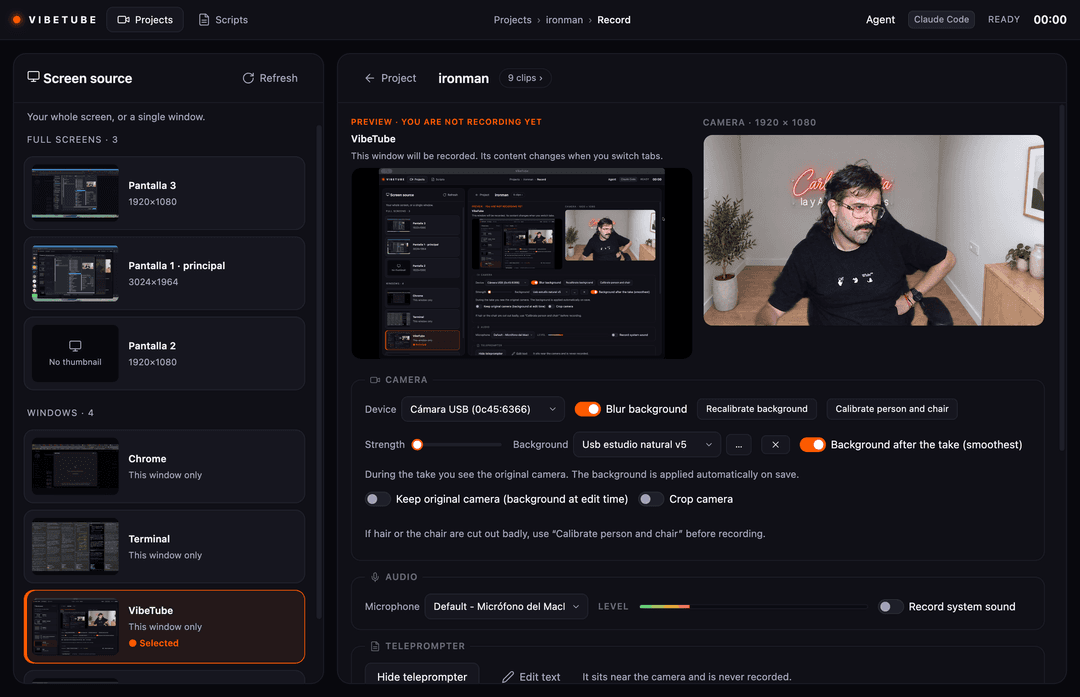
How it works
flowchart LR
    S["🖥️ Screen<br/>(no audio)"] --> R
    W["🎥 Webcam + 🎙️ mic<br/>(the only audio)"] --> R
    R["<b>VibeTube</b><br/>N synced clips"] --> P[("Project folder<br/>clips/ + sync.json")]
    P --> A{"<b>Agent</b><br/>Claude Code<br/>or Codex"}
    A --> V["<b>video-use</b> skill<br/>transcribe → pick shots → cut"]
    V --> G["HyperFrames graphics<br/>+ HeyGen SFX + subtitles"]
    G --> H["edit/final.mp4<br/>1920×1080"]
    G --> N["edit/final_9x16.mp4<br/>1080×1920"]
    H --> U["<b>Upload-Post</b><br/>YouTube, TikTok, Reels…"]
    N --> U
Every clip keeps two tracks on one timeline: screen.webm carries the picture only, and
webcam.webm carries your camera and the microphone — it is the single source of audio for
the whole project. sync.json stores the offset between them, so the editor can cut between
shots without ever breaking the voice.
What happens to each clip before the agent sees it:
flowchart LR
    C["Raw take"] --> B["Background replaced<br/>MatAnyone2 · on-device"]
    B --> E["Voice cleaned<br/>NVIDIA Studio Voice"]
    E --> Q["Validated<br/>frames · size · audio hash"]
    Q --> D["clips/clip_NN/"]
Requirements
- Node.js 22+ and npm
- macOS (uses Electron's
desktopCapturerplus the Screen Recording permission) ffmpegon yourPATH(Homebrew recommended)- For AI editing and scripts: Claude Code or Codex CLI, installed and signed in. The app reuses the configuration and authentication of whichever CLI you pick.
- For the editing step: the
video-useskill withffmpegandELEVENLABS_API_KEY - For publishing: an Upload-Post API key (
UPLOAD_POST_API_KEY) in~/.config/record-studio/.env - For voice enhancement: NVIDIA Studio Voice NIM (
NVIDIA_API_KEYorNGC_API_KEYin~/.config/record-studio/.env)
Getting started
npm install
npm start
macOS permissions: the first time, grant Screen Recording, Camera and Microphone to the app (or to Electron in dev mode) under System Settings → Privacy & Security, then relaunch. If the screen preview is black, check that permission and that the selected source still exists.
Choosing Claude Code or Codex
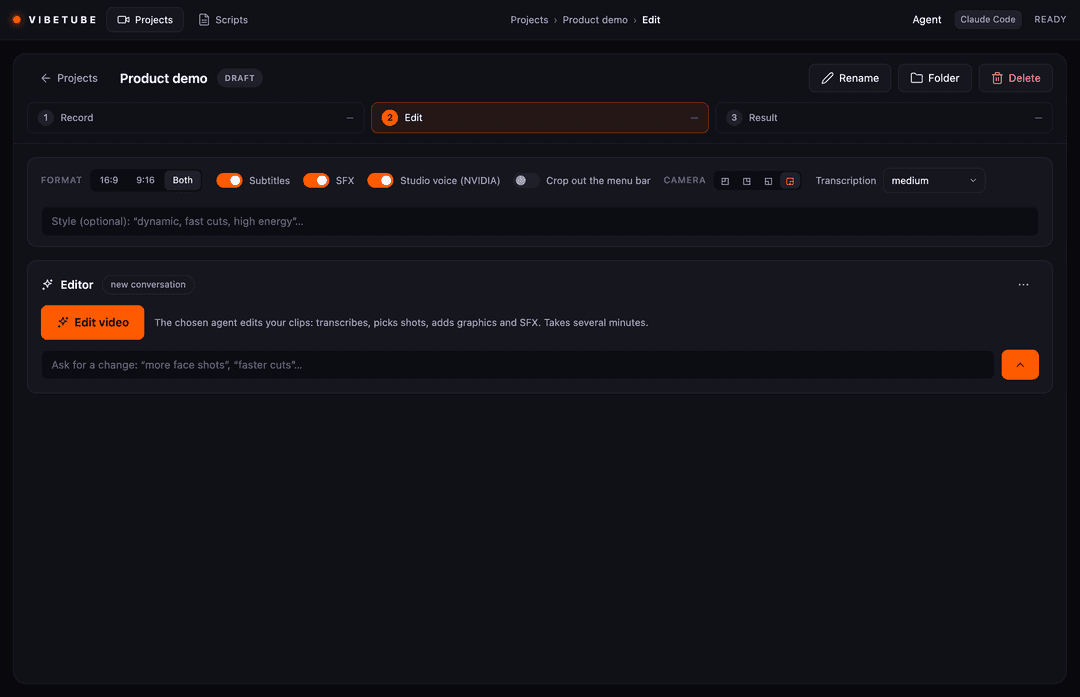
In the top bar, Agent → Codex switches the agent used for the next edits, iterations, style analysis and scripts. The choice persists across restarts; Claude Code is the default. Tasks and terminals that are already running stay on the agent they started with.
To use Codex, install its CLI and sign in:
npm install -g @openai/codex
codex login
Automatic editing runs codex exec --json, and the built-in terminal opens Codex interactively.
Both use workspace-write with network access for research and downloads; automatic tasks never
ask for approvals, while the terminal does let you approve actions. The model is inherited from
your Codex configuration. See Codex non-interactive mode.
Each project keeps one conversation per provider: switching to Codex starts its own thread and
you can come back to the Claude one later. The interactive terminal resumes the provider's last
session in that folder. The montage brief is written to AGENTS.md for Codex and CLAUDE.md for
Claude, preserving any instructions already there. Both are given the path to the video-use skill
bundled with this app.
Recording
Projects tab
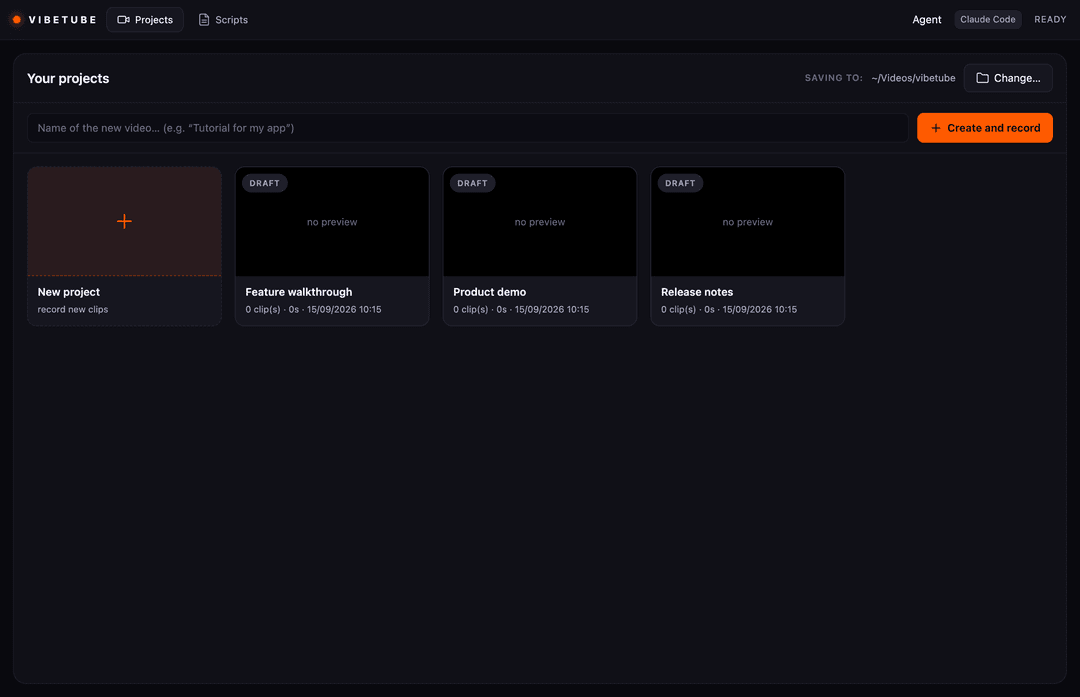
- Pick the root folder where all projects will live.
- Type a name and hit + Create (it becomes the active project).
- The gallery shows every project: clip count, duration, date, and its final edit (poster
plus ▶ to open it) when
edit/final.mp4exists.
Record tab
- Pick the screen or window. Sources are grouped by type and labelled; the selected one is highlighted. Refresh reloads the list and its thumbnails.
- Check the screen and webcam previews.
- ● Record → 3·2·1 countdown → talk or demo.
- ⏸ Pause / ▶ Resume within the same clip.
- ■ Stop closes the clip and adds it to the project.
- Repeat: every Record→Stop adds
clip_02,clip_03… to the same project.
Demoing the app itself while recording
Turn on Keep the interface visible while recording, next to the Record button. The setting persists: the main window stays open and capturable, and the small floating controls appear as usual. Turned off, the main window hides during the take. Select the screen, or the VibeTube window itself, to include the interface in the video.
You can leave the project and open Projects, Scripts or another project without interrupting the take. The recorder keeps writing to the project where the session started, no matter which screen you are showing. Its name is displayed in the floating controls.
- ⏸ / ▶ pause and resume the take.
- ■ saves the clip and leaves the small recorder ready for another.
- ● starts another clip in the original project, even while viewing a different one.
- ↺ discards the current take and re-records into that same project.
- ✓ ends the recorder session.
Camera and microphone stay available between clips while that session is open. Navigating never changes where the clip is saved, not even when in-memory buffering is used instead of streaming to disk. The session's project cannot be deleted until you end it. Duplicate starts are blocked during the countdown and while saving.
Teleprompter
The teleprompter opens in a separate window that stays out of the capture. You can load a script, edit it and restart the read. Line breaks from the original script are preserved.
Project layout
<root>/<project>/
├── project.json                 ← metadata + clip list
├── clips/
│   ├── clip_01/ screen.webm  webcam.webm  webcam_orig.webm  webcam_enhanced.wav  sync.json
│   ├── clip_02/ ...
│   └── ...
└── edit/                        ← written by video-use
    ├── final.mp4  final_9x16.mp4  final.srt  _poster.jpg
    └── publish.json              ← titles, description with chapters, tags
| File | What it is |
|---|---|
screen.webm | screen capture (no audio) |
webcam.webm | your camera + mic (remuxed with studio audio when Studio Voice is on) |
webcam_orig.webm | backup of the untouched original camera audio/video |
webcam_enhanced.wav | clean 48 kHz voice track from NVIDIA Studio Voice NIM |
sync.json | offset between tracks, duration, real dimensions, enhancement status |
project.json | name, dates and every clip with its metadata |
Handoff to video-use
Open the project folder with the video-use skill and ask for what you want:
"Edit this multicam recording: alternate between my camera and the screen depending on what I'm saying, PiP while I explain over the demo, a HyperFrames intro, and subtitles."
Continuous audio always comes from webcam.webm; only the video shot changes. The full contract
(mapping several clips, multicam EDL format) is in HANDOFF.md.
AI voice enhancement (NVIDIA Studio Voice NIM)
VibeTube integrates NVIDIA Studio Voice NIM (48k-hq) over gRPC to turn microphone audio
into studio-grade voice: it suppresses room echo, background noise, keyboards and air conditioning,
improving presence and clarity at 48 kHz.
Ways to use it
- Automatic after recording (background). Once a take is stopped and validated, the app
processes the audio on its own. A backup is kept (
webcam_orig.webm) and the clean audio is remuxed intowebcam.webmwithout re-encoding the video. - On demand from the UI.
- Per clip: the ✨ button on each clip card processes or re-processes it.
- Whole project:
Enhance audio (AI)in the clip list header. - Montage bar: the
Studio voice (NVIDIA)switch (on by default).
- Manually from the CLI:
The helper automatically splits takes longer than 4.5 minutes with a soft crossfade, respecting the API limits.
# One clip: python video-use/helpers/enhance_voice.py --clip clips/clip_01 # Every clip in the current project: python video-use/helpers/enhance_voice.py --all # A standalone audio or video file: python video-use/helpers/enhance_voice.py --input <file> --output <enhanced.wav> - Whisper transcription (
helpers/transcribe_whisper.py) preferswebcam_enhanced.wavwhen it exists, which gives better lexical accuracy and tighter timestamps for subtitles and SFX. - API key: store it in
~/.config/record-studio/.env:With no key, or offline, the app simply skips enhancement without interrupting recording or editing.NVIDIA_API_KEY=nvapi-...
Publishing to YouTube & co.
Once the final cut exists, the Result step can send it straight out through Upload-Post — no manual upload, no browser.
Before that, hit Titles & description and the agent reads the subtitles of the final cut
(edit/final.srt) and writes edit/publish.json with:
- five title options, each with a different angle (descriptive, a number, curiosity, the problem it solves, a bold claim) — you pick one or edit it;
- a YouTube description whose chapter list comes from the real subtitle timestamps, so the
chapters land on what is actually said, not on a guess. The first chapter starts at
00:00and each one lasts at least 10 s, which is what YouTube requires to show them; - tags.
It is cached: reopening the project reuses publish.json instead of paying for the agent again.
Then pick the profile, which file (16:9 for YouTube, 9:16 for Shorts/Reels/TikTok) and the platforms — only the ones that profile actually has connected are listed. YouTube visibility defaults to private, so a mistake is never published to your audience. Publishing asks for confirmation, then polls until every platform is done and shows the resulting links.
# ~/.config/record-studio/.env
UPLOAD_POST_API_KEY=…
Without that key the panel simply explains what is missing; nothing else in the app changes. The video is read and streamed from the main process, so the API key never reaches the renderer.
Scripts
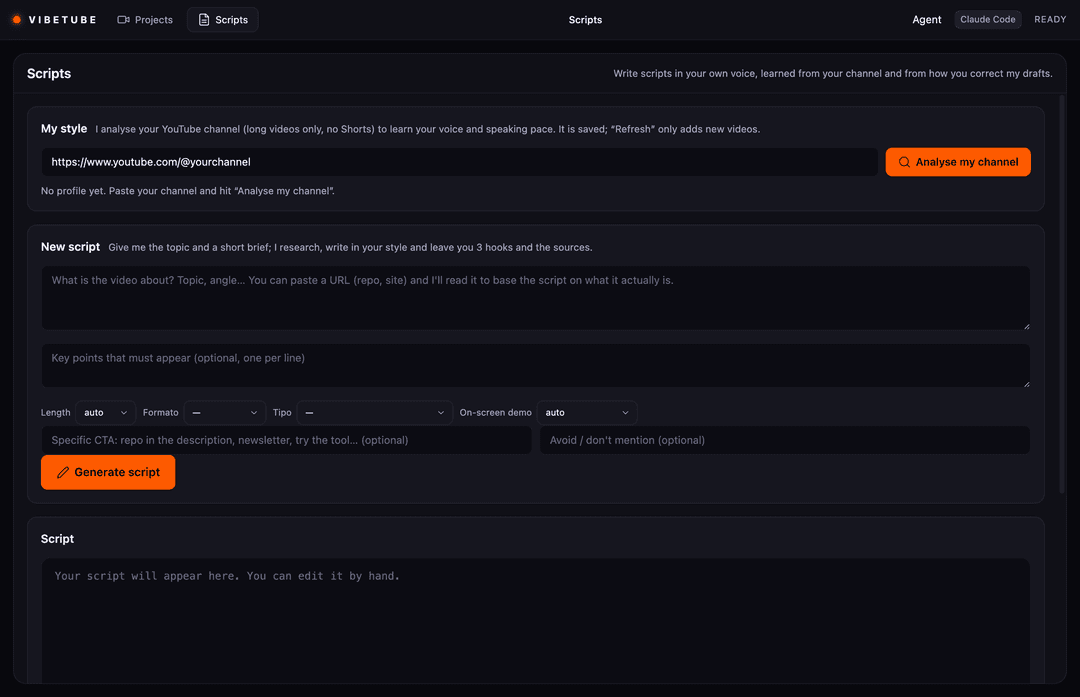
- My style — paste your channel and the agent (headless) downloads ~15 long transcripts with
yt-dlp, then writes_scripts/style_profile.mdand_scripts/pace.json(your real words per minute). "Update" only adds new videos to the corpus. - New script — a topic (a URL works too) plus a short brief: length, format, type, demo, CTA,
things to avoid, key points. The agent researches the web, writes in your voice with a word
target computed from your own pace, proposes 3 hooks and leaves the sources in
drafts/<id>.sources.mdso you can check the numbers yourself. - Script — edit it, ask for "Hooks" (5 alternatives) or "Rewrite" (the previous version is kept
in
drafts/versions/), then "Record with this script" creates the project withscript.mdand stores the draft→final pair in_scripts/feedback/, which the agent uses in later scripts to learn how you correct it.
Recording robustness
- Full HD camera. 1920×1080 at 30 FPS is requested with no artificial browser scaling. The app shows the resolution the device actually accepts and, when cropping, the resolution of the resulting file. Turn off "Crop camera" to keep the full 1920×1080. Lower-resolution cameras keep whatever they can deliver; AI background removal may reduce the frame rate.
- Camera compression. The VP9 budget scales with the recorded pixels, around 16.6 Mb/s for Full HD (it used to ask for 4 Mb/s at any size). Real bitrate depends on content and encoder. Cropping declares the even dimensions that are actually encoded up front.
- Background edges. Core Image refines the MatAnyone2 alpha with
CIGuidedFilter, using the same camera frame as guide at up to 960×540. This reduces the stair-stepping when upscaling the original 288×512 mask. The person's RGB keeps capture resolution. No hair/chair heuristics are added and the model's temporal memory is untouched. - Background engine. MatAnyone2Kit on Apple Silicon once
npm run build:mattinghas run. It keeps memory between frames and initialises from Vision's full person mask. Other machines use LiveKit Track Processors 0.8.0. Models run locally: no account, no video leaves the machine. Closing the effect does not stop the camera or its audio. Errors are reported rather than silently falling back to another engine. Cut-out mistakes are still possible depending on chair and lighting. On Apple Silicon, "Background after the take (smoothest)" is on by default: the original camera is recorded and MatAnyone2 is applied afterwards. Turn it off to record the live effect instead. - Calibrate person and chair. Mark your torso and the chair back on a still frame. With EdgeSAM installed, that selection initialises MatAnyone2 so both are preserved. The camera stays visible while it computes, and cancelling leaves the current cut-out untouched. Model installation and tests: native/README.md.
- Camera cropping. Cropped pixels are materialised before reaching the encoder. This fixes the
black VP9 clips produced by cropping an RGBA texture with
visibleRect. Cropping also works with the window hidden, and stopping it preserves the original camera track. Files already recorded with black frames cannot be recovered by this fix. - Audio sync. When recording the MatAnyone2-processed camera, the microphone (or the mix with system sound) is compensated for the measured video latency. The delay is set up before the recorders start and released at the end. The offset against the screen subtracts that delay.
- Crash safety. MediaRecorder chunks are written to disk about every second
(
clips/clip_NN/*.part.webm). If the app dies mid-take, the project shows the unfinished take and offers to recover it. - Validation. On save,
ffprobemeasures the real duration of each track and marks the cliptruncated/emptywhen it does not match (red chip on the card). A watchdog warns in the floating bar when a recorder stops delivering data for more than 3 s. - Low disk space warning (<2 GB) before recording, and a confirmation when closing mid-take.
- Shortcuts:
⌘Rrecord/stop (Record view),⌘⇧Ppause,Escclose modals; during a take⌘⇧1pauses,⌘⇧2ends the clip,⌘⇧3discards and re-records.
Measured performance and known limits
These are real measurements on the development machine (M1 Pro), not targets. They are kept here because the honest numbers matter more than the nominal ones.
13 September 2026. The USB camera delivers 1920×1080 at 30 FPS. The synthetic Full HD encoding test keeps 90 frames in three seconds, both uncropped and cropped to 1388×952, checking decoded pixels to catch black output. That test has no AI in the path — it is not a 30 FPS measurement with MatAnyone2. Full HD composition with MatAnyone2 and VP9 came out around 10 FPS, below the 12 FPS threshold of the manual regression. Live background smoothness is not considered solved.
11 September 2026. Preview went from roughly 15 to 18 FPS. With camera, screen and floating controls at once it sat around 13 FPS, against about 11 FPS for the previous reference clip. VP8 and H.264 tests did not justify changing the codec at that point. The synthetic flash-and-tone test, with 90 ms of simulated processing, went from about 124 ms of average offset to about 9 ms in absolute value once compensation was added.
14 September 2026 — codec change. A check with real USB footage found live VP9 storing only 120
frames in about 18 seconds (6.6 FPS), even though the processed file reported 30 FPS by repetition.
The screen kept about 29 FPS. Over a six-second comparison per codec, H.264 stored all 140 frames it
received; VP9 stored 53 of 80 and VP8 132 of 150. The camera now prefers H.264. Chromium wraps
it with Opus in Matroska, keeping the project's .webm paths; the player and FFmpeg read the file
header. A later full test with USB and screen simultaneously stored 502 frames in 19.993 s
(25.06 real FPS), with no gaps over 81 ms.
30 real FPS on this USB camera is still open. A later measurement with no AI and no encoding
gave 25 FPS on Electron 33, with both ideal: 30 and exact: 30. Electron 44.3.0 / Chromium 152,
tested separately, gave roughly 27.7 FPS with and without H.264. Dropping the constraint, asking for
60 ideal FPS, using the native 30.00003 FPS rate or going down to 720p did not reach 30 FPS.
AVFoundation directly, setting the rate after startup, gave about 27.2 FPS. It has not been
established whether the remaining limit is the device, its connection or the macOS capture path.
The nominal 30 FPS of the output file is not a substitute for this measurement.
Deferred background (14 September 2026). On Apple Silicon the background is applied after the take by default. The camera is captured directly at 1080p; the preview model is paused during the take and the view shows the original image. The original, the chosen background and the calibration (image and alpha from the same frame) are stored next to the clip. The queue processes every frame on a 30 FPS timeline even when computing takes longer, and tracking uses video time rather than processing time. Jobs yield when another recording starts. The clip shows "Background pending" until dimensions, frame count and audio have been verified; audio is copied without re-encoding and its hash checked before the video is replaced. Voice enhancement and montage wait for it to finish. An eight-second person sample held 30 FPS and took about 42 seconds to process. Output at 30 FPS does not recover frames the camera had already dropped.
The original is kept as camera-original.webm and the validated result replaces webcam.webm
atomically. On failure the original is kept and "Background pending · Retry" appears. Reopening the project
resumes interrupted jobs from the original. Old clips are never reprocessed.
Headless agent
- Idle timeout (15 min without events) and a 3 h cap; cancelling kills the whole process group
(including ffmpeg and python). Runs are recorded in
project.json.agentRunswith the provider, duration and available metrics: cost and turns for Claude, tokens for Codex (its CLI does not report a dollar cost). Full log inedit/_agent.log(⋯ → "View the agent's full log"). - Orphan agents from a previous run are killed at startup (
userData/agents.json). - The model is inherited from the chosen CLI's configuration (
~/.claude/settings.jsonor$CODEX_HOME/config.toml, usually~/.codex/config.toml); it is not pinned with--model. - The HeyGen API key is read from
~/.config/record-studio/.env.
Development
npm run check         # node --check on every source file
npm test              # node:test (util, prompts, agent events, rsmedia)
npm run test:camera   # effects, background swap and cropping in Electron, no real camera
npm run build:camera  # bundles LiveKit untouched and copies its local WASM
npm run build:matting # installs MatAnyone2 locally for Apple Silicon (Swift/Core ML)

npx electron test/manual/camera-quality.cjs /tmp/camera-quality         # Full HD and cropped files
npx electron test/manual/recording-finalization.cjs /tmp/camera-final   # record → queue → final video
node test/manual/camera-finalization.cjs input.webm /tmp/bg-final       # MatAnyone2 + FFmpeg

# Reprocess a local recording; opens neither camera nor microphone:
./node_modules/.bin/electron test/manual/camera-replay.cjs sample.webm /tmp/camera-check
# Blur instead of replacing the background:
./node_modules/.bin/electron test/manual/camera-replay.cjs sample.webm /tmp/camera-blur blur
# Regression for black clips when cropping (no real camera):
./node_modules/.bin/electron test/manual/crop-encoding.cjs /tmp/camera-crop
# A/V sync of the encoded files, with synthetic flashes and tones:
./node_modules/.bin/electron test/manual/camera-sync.cjs /tmp/camera-sync
# Teleprompter's first lines at different window sizes:
./node_modules/.bin/electron test/manual/teleprompter.cjs
# Recorder destination independent from the project on screen:
node --test test/recording-navigation.test.js test/recording-sync.test.js
MatAnyone2 needs a one-time Swift/Core ML build. Revision, initialisation fix and licences of the
code and models: native/README.md. Fallback for other machines:
LiveKit. App settings live in
~/Library/Application Support/record-studio/settings.json.
To verify the UI without hands, launch Electron with a debugging port and drive it over CDP:
./node_modules/.bin/electron . --remote-debugging-port=9333
Licence
VibeTube is released under the MIT licence (see LICENSE).
Third-party components included in this repository keep their own licences:
| Component | Path | Licence |
|---|---|---|
video-use (editing skill, Browser Use) | video-use/ | MIT — LICENSE |
| LiveKit track-processors + MediaPipe | src/vendor/livekit/ | Apache-2.0 — LICENSE, notices |
| xterm.js | src/vendor/xterm/ | MIT |
| MatAnyone2Kit, EdgeSAM and their weights | downloaded at build time | not MIT — terms in native/README.md |
Sound effects and music are downloaded at runtime from the HeyGen library with your own key: they are not redistributed with this repository and are governed by HeyGen's terms.
// faq
What is vibetube?
Desktop multicam recorder for macOS: records your screen and webcam in sync, then Claude Code or Codex edits the final video — shot selection, subtitles, graphics and SFX.. It is open-source on GitHub.
Is vibetube free to use?
vibetube is open-source under the MIT license, so it is free to use.
What category does vibetube belong to?
vibetube is listed under automation in the Claudeers registry of Claude-compatible tools.
// embed badge

[](https://claudeers.com/vibetube)
// retro hit counter

[](https://claudeers.com/vibetube)
// reviews
// guestbook
// related in Automation & Workflows
 🔓
🔓 🔓
🔓The API to search, scrape, and interact with the web at scale. 🔥
 🔓
🔓🌐 Make websites accessible for AI agents. Automate tasks online with ease.
 🔓
🔓Taste-Skill - gives your AI good taste. stops the AI from generating boring, generic slop