
tidywise
Sorts the loose files on your Mac into topic folders with a local AI model (Ollama). Nothing leaves your Mac. Includes an MCP server for Claude Code, Codex a…
Install with your AI
Paste into Claude Code, Cursor, or any agent — it reads the repo and wires the tool into your project.
Install and set up tidywise (git-clone project) into my current project.
Found on https://claudeers.com/tidywise
Repo: https://github.com/floorianmb/tidywise
Homepage/docs: —
Detected install method: git-clone → git clone https://github.com/floorianmb/tidywise
Category: mcp-servers. Platforms: cli, api, desktop, web.
Read the repo's README for exact setup and env vars, then install it and wire it into my project.

Claudeers Health Verdict:
unknown; community-verified: false. Confirm the source before running anything.
git clone https://github.com/floorianmb/tidywise
// compatibility
| Platforms | cli, api, desktop, web |
|---|---|
| Operating systems | — |
| AI compatibility | claude |
| License | MIT |
| Pricing | open-source |
| Language | Swift |
Tidywise
Sorts the loose files on your Mac into topic folders – with an AI that runs only on your Mac.
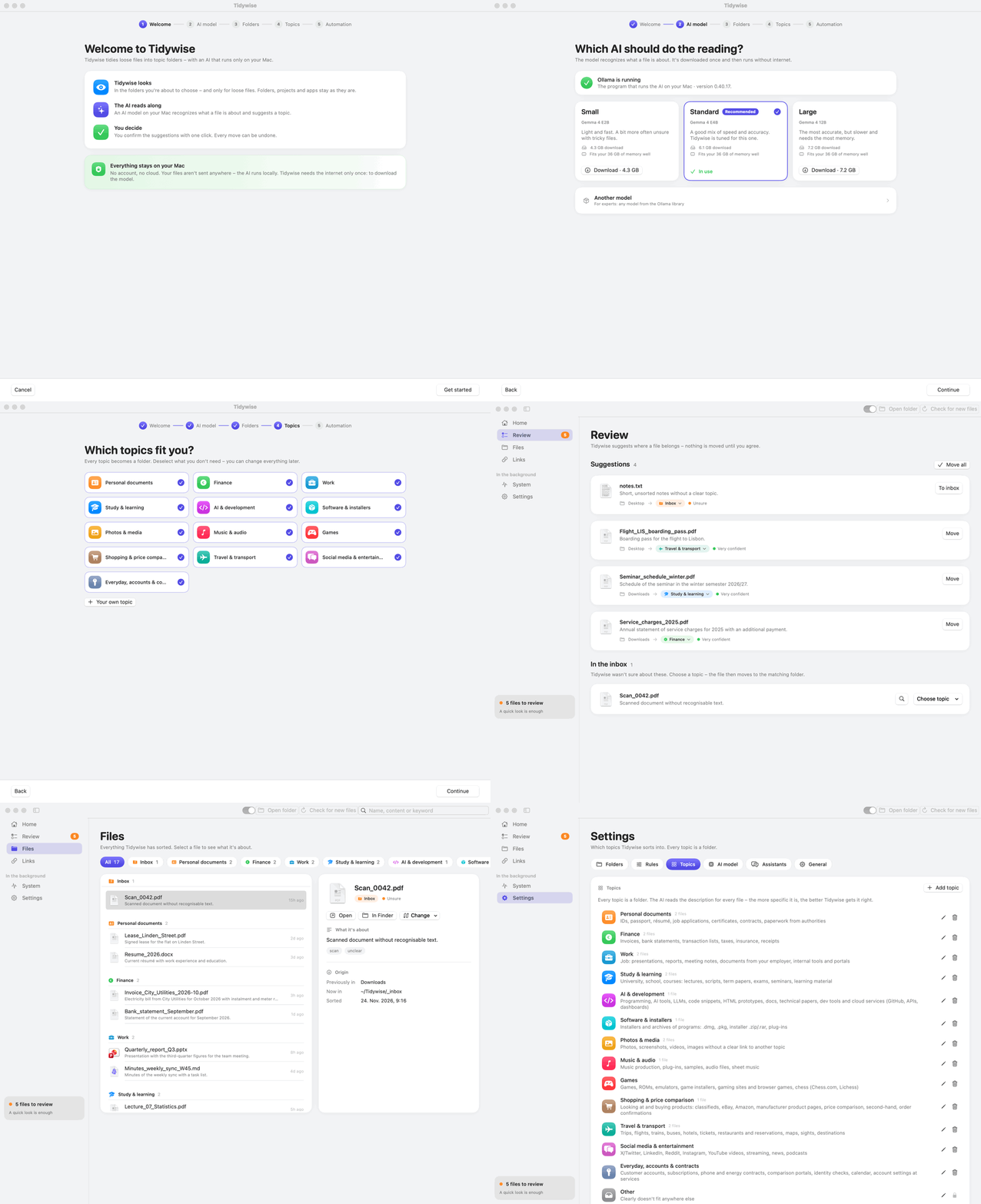
Tidywise looks in folders like Downloads, Documents and Desktop for loose files, lets a local AI model read what each one is about, and suggests a topic. You confirm with one click (or let it move the clear cases on its own). No account, no cloud, and every move can be undone.
What you get
- A Mac app with a menu bar icon: review suggestions, browse sorted files, change every setting.
- You define the folder structure: where Tidywise looks, where it sorts to, which topics exist.
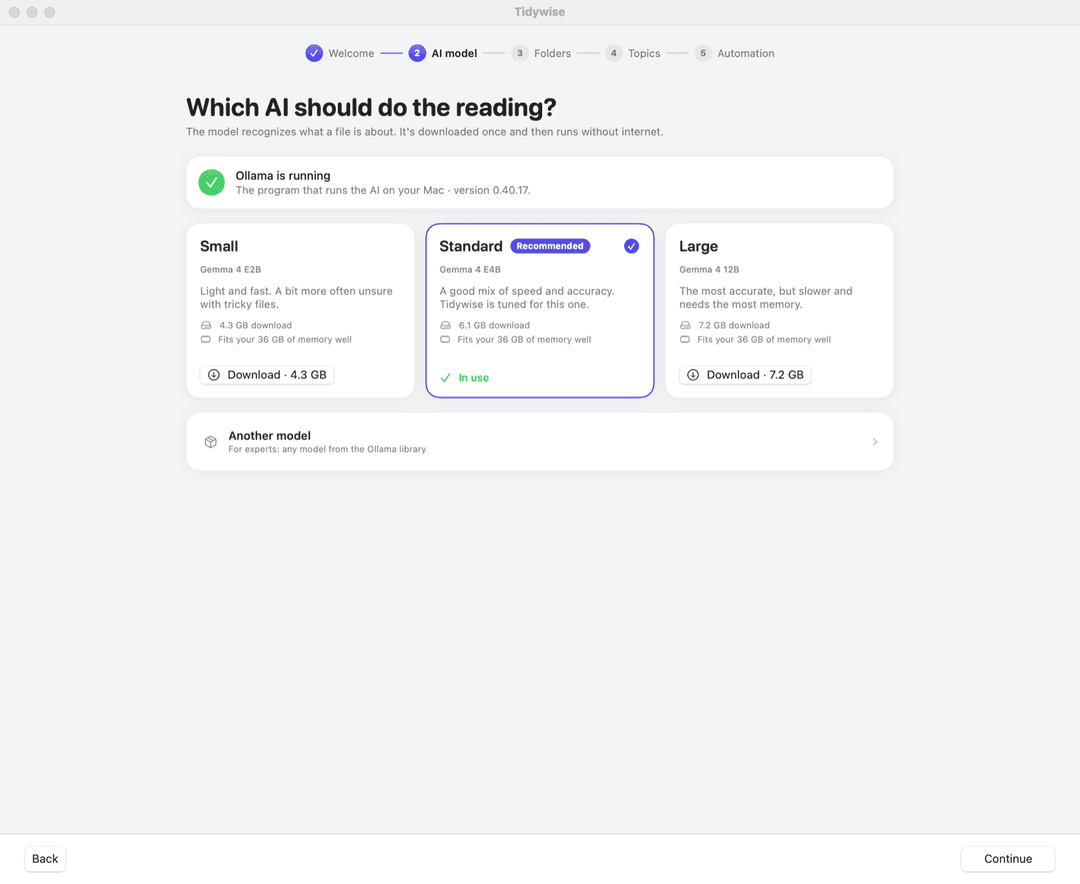
- The AI model downloads with one click – in three sizes, matched to your Mac's memory.
- Careful by default: folders, projects and apps are never touched; nothing moves until you confirm; every move can be put back.
- Searchable for AI assistants: connect Claude Code, Codex, OpenCode, Cursor, Windsurf, Zed or Claude Desktop with one click (or anything else that speaks MCP) and ask "what did I save about …?". Read-only, and only while the app is open.
You:      Find my 2025 service charges statement and my Lisbon boarding pass.

tidywise: Files:
          #14 finance · 2026-11-18 · Service_charges_2025.pdf — Annual statement of service charges for 2025 with an additional payment. → ~/Downloads/Tidywise/Topics/finance/Service_charges_2025.pdf
          #11 travel · 2026-11-12 · Flight_LIS_boarding_pass.pdf — Boarding pass for the flight to Lisbon. → ~/Downloads/Tidywise/Topics/travel/Flight_LIS_boarding_pass.pdf
Install
Tidywise needs a Mac with Apple silicon and macOS 14 or newer (8 GB of memory or more), plus two free programs it doesn't ship itself:
| What | Why | How to get it |
|---|---|---|
| Python 3.12+ | reads and moves the files | python.org or brew install python |
| Ollama | runs the AI model | brew install ollama or the app helps during setup |
Already running models with LM Studio, mlx-lm or llama.cpp? Tidywise can use that
server instead of Ollama – see Another local model server.
The app tells you if one of them is missing.
Homebrew
brew install --cask floorianmb/tap/tidywise
Because the app is not signed with a paid Apple developer certificate yet, add --no-quarantine to skip the
one-time Gatekeeper prompt (or allow it once under System Settings → Privacy & Security → Open Anyway).
Or download the app
curl -fsSL https://raw.githubusercontent.com/floorianmb/tidywise/main/get-tidywise.sh | zsh
This downloads the ready-made app from the latest release,
puts it in ~/Applications and opens it. Nothing is built.
You can also download Tidywise.zip from the release page yourself and move the app to Applications. Being
honest about it: the app is not signed with a paid Apple developer certificate, so macOS blocks it on the
first start when it was downloaded with a browser. Open System Settings → Privacy & Security and click
Open Anyway once. The one-line installer above avoids this.
Or build it from source
If you'd rather build what you run – or want to change the code – you need the Xcode Command Line Tools
(xcode-select --install) as well:
git clone https://github.com/floorianmb/tidywise.git
cd tidywise
./install.sh
This builds the app, puts it in ~/Applications and opens it. It also gives you the tidywise command in the
terminal.
Setup
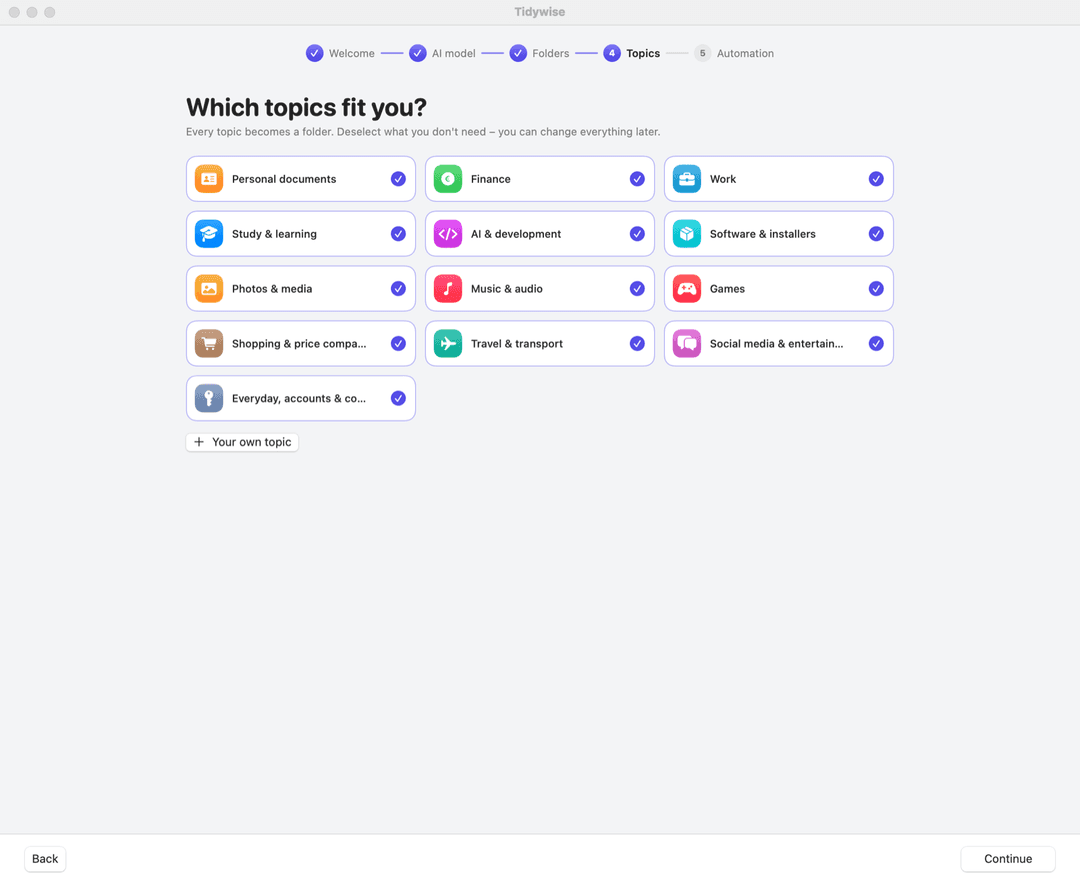
On first launch Tidywise walks you through five short steps:
- Welcome – what happens and what doesn't.
- AI model – start Ollama (one click) and download a model (one click, 4–7 GB).
- Folders – where Tidywise looks and where it sorts to, with a preview of the folder structure.
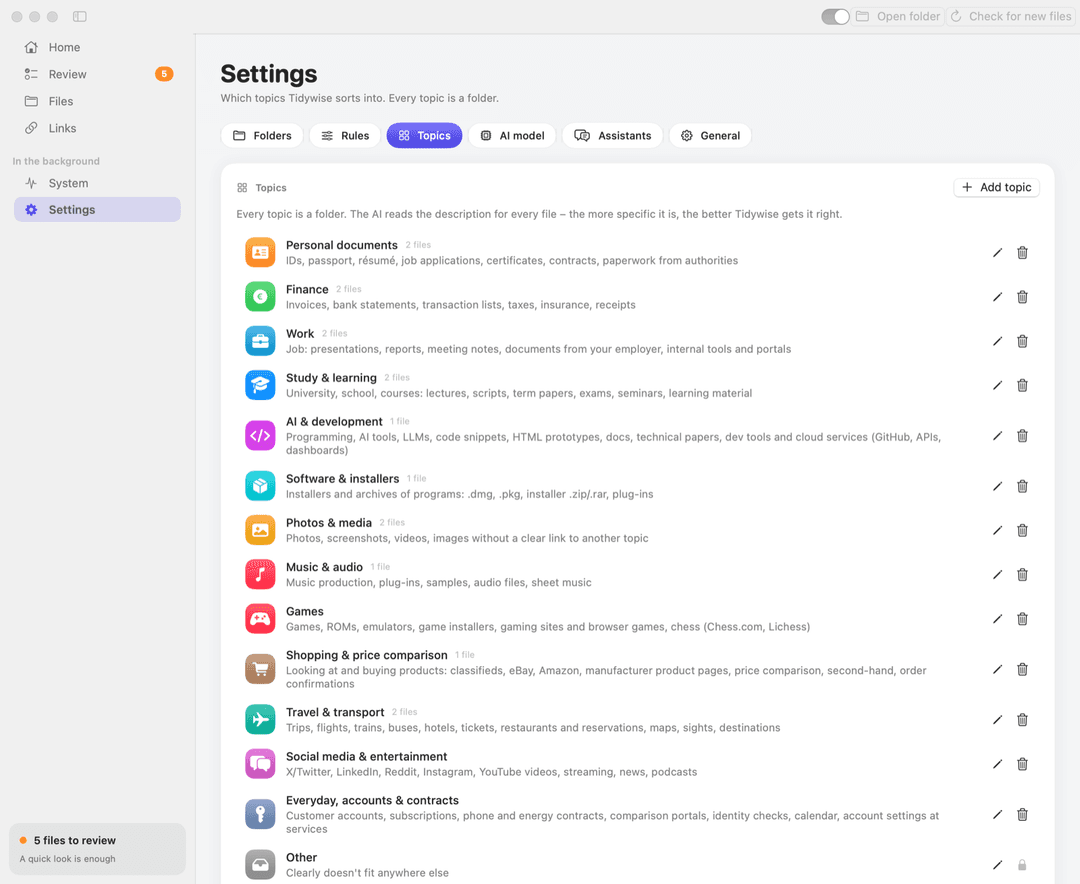
- Topics – switch the suggested ones on or off, add your own.
- Automation – check regularly, move automatically, browser history, start at login.
 |  |
Allow access once: macOS protects Downloads, Documents, Desktop and your browser history. For Tidywise to sort in the background, its helper program (Python) needs Full Disk Access. The app shows you the program in Finder – you drag it into the list under System Settings → Privacy & Security → Full Disk Access and switch it on.
Settings
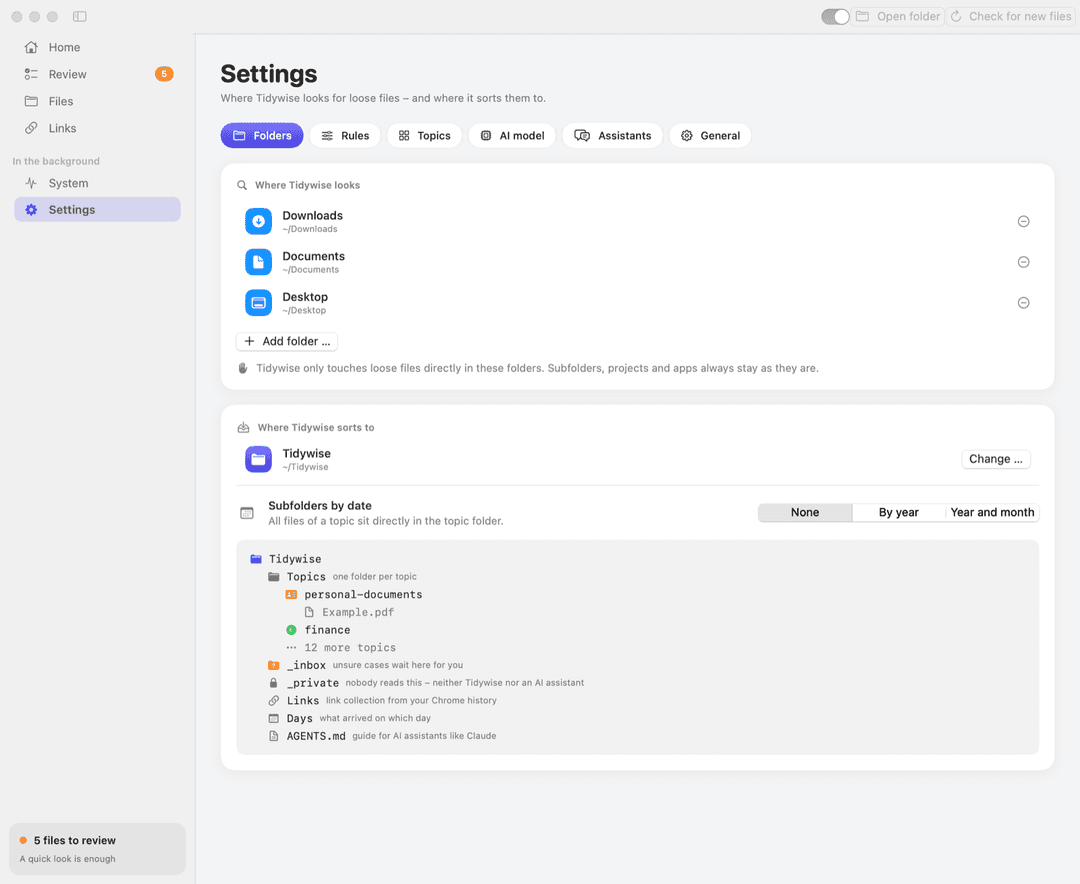
Everything can be changed later under Settings (⌘,). Every change applies immediately.
| Section | What you set there |
|---|---|
| Folders | Which folders Tidywise looks in · the destination folder · subfolders by year or month |
| Rules | How long a file has to sit · move automatically · how careful the AI is · how often to check · file types that are never touched |
| Topics | Name, description, icon and color of each topic. The AI reads the description – the more specific, the better |
| AI model | Choose and download a model · the language of summaries · a sentence about you that helps with sorting |
| Assistants | Let AI assistants search the archive · connect Claude Code, Codex, OpenCode, Cursor, Windsurf, Zed or Claude Desktop |
| General | Start at login · automation · browser history (Chrome, Safari, Firefox, Arc, Brave, Vivaldi, Edge) as a link collection |
 |  |
The settings are stored in plain text in ~/.config/tidywise/config.toml.
What your destination folder looks like
Tidywise/                    (default: ~/Downloads/Tidywise – you choose)
├── Topics/
│   ├── finance/           sorted files + _index.md (date, summary, keywords, source)
│   │   └── 2026/          only with "subfolders by year"
│   └── travel/ …
├── _inbox/                unsure cases – you pick the topic under "Review"
├── _private/              never read, neither by Tidywise nor by an AI assistant
├── Links/<topic>.md       link collection from your browser history (only if turned on)
├── Days/YYYY-MM-DD.md     what arrived on that day
└── AGENTS.md              guide for AI assistants
Rules you can rely on
- Only loose files directly in the chosen folders are moved. Folders always stay as they are –
projects, unpacked ZIPs,
.appbundles. - A file is only touched once it has been unchanged for a while (default: one hour).
- Without "Move automatically", nothing happens without your click.
- Every move is recorded in
~/Library/Application Support/tidywise/moves.jsonland can be undone (in the app: file → Put back; in the terminal:tidywise undo). - The AI is told not to write ID, account or similar numbers into summaries.
- Nothing leaves your Mac. Tidywise only talks to a model server on this Mac (Ollama, or the server you
chose) – an address on another computer is refused unless you set
allow_remote_llm = true. It needs the internet once: to download the model from ollama.com. - The browser history is only read if you turn it on, and only from the browsers you pick (Chrome, Safari, Firefox, Arc, Brave, Vivaldi, Edge) – from a copy, locally. Safari's history needs Full Disk Access; if macOS blocks a browser, Tidywise says so and keeps reading the others.
- The background service only runs while the app is open. The AI switch stops running work and frees the memory immediately.
Summaries and keywords are written in English by default. Under Settings → AI model you can pick the language you actually search in.
Another local model server
Ollama is the default because the app can install it and download models with one click. If you already run
models through LM Studio, mlx-lm (mlx_lm.server) or llama.cpp (llama-server), Tidywise can use
their OpenAI-style API instead: Settings → AI model → Runs on → Another local server, then pick one of the
server's models. In the terminal:
tidywise config set llm_backend openai
tidywise config set llm_url http://127.0.0.1:1234/v1    # LM Studio; mlx-lm and llama.cpp: http://127.0.0.1:8080/v1
tidywise config set model qwen/qwen3-vl-8b              # the name the server lists
tidywise status                                         # checks that the server answers and has the model
Tidywise asks for answers in a JSON schema and falls back to describing the schema in the prompt for servers
that can't enforce one. A model that understands images also recognizes photos and scanned PDFs. Only
addresses on this Mac (127.0.0.1, localhost) are accepted.
Command line
The app uses the same program you can call in the terminal:
tidywise status                  # current state
tidywise scan                    # classify loose files, suggestions only
tidywise set 12 finance          # set the topic for no. 12 (also after it was moved)
tidywise apply                   # carry out the suggestions (or: tidywise apply 3 7 9)
tidywise undo --last 5           # put back the last 5 moves (or --all, or numbers)
tidywise config                  # show the settings
tidywise config set auto_apply true
tidywise config set watch "~/Downloads, ~/Desktop"
tidywise config set browsers "safari, firefox"   # whose history becomes the link collection
tidywise links                   # read the browser history now
tidywise service install         # set up the background service (uninstall removes it)
tidywise mcp add claude          # let an AI assistant search the archive
With the source install, tidywise is on your PATH (install without the app: ./install.sh --no-app). With
the downloaded app, the same program is at ~/Library/Application Support/tidywise/bin/tidywise.
AI assistants (MCP)
Tidywise includes an MCP server, so an AI assistant can look things up in your archive: "find the invoice from the hosting company", "what did I read about Lisbon last week?"
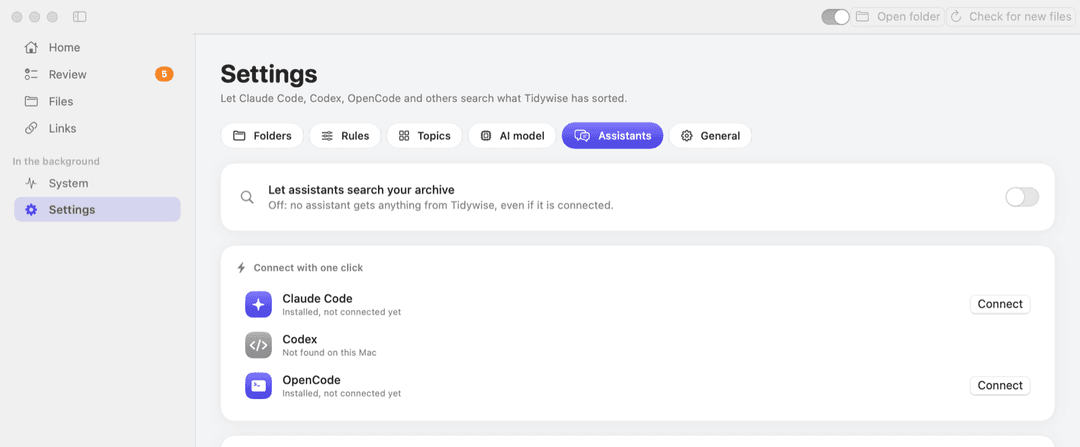
One click: open Settings → Assistants and press Connect next to Claude Code, Codex, OpenCode, Cursor, Windsurf, Zed or Claude Desktop. Or in the terminal:
tidywise mcp add claude      # or: codex, opencode, cursor, windsurf, zed, claude-desktop
tidywise mcp status          # who is connected
Cursor, Windsurf, Zed and Claude Desktop have no command for this, so Tidywise adds one tidywise entry to
their settings file and leaves the rest of it – other servers, comments, formatting – as it was.
Any other assistant: add a local ("stdio") MCP server with the command tidywise mcp. In the common
mcpServers format (the Assistants page shows it with the full path to copy):
{ "mcpServers": { "tidywise": { "command": "/path/to/tidywise", "args": ["mcp"] } } }
What you should know:
- Two tools, read-only:
search(files, pages read and web searches – by words, by the last days or both) andtopics. An assistant cannot move, change or delete anything, and never sees_private/. - Only while the app is open, and only if "Let assistants search your archive" is switched on. Otherwise
the server answers with a sentence saying so. (Without the app:
tidywise mcp --always.) - No open port. The assistant starts the server itself and talks to it directly; nothing listens on the network.
- Cheap to keep connected: the tool definitions are about 200 tokens, answers are compact text lines with a cap, and the server starts in well under a tenth of a second.
There is also a Claude Code skill in skill/ (linked to ~/.claude/skills/tidywise by install.sh) that
teaches Claude how to read the archive's files directly.
Listed on Glama.
How the project is organised
Two parts, one interface: the app reads the database and calls the CLI for every change.
tidywise/                 Python: the actual work
  config.py             read, validate and write settings (the only place that knows the file format)
  organize.py           find loose files, classify, move, put back
  extract.py            text excerpt, image and download source of a file
  llm.py                talking to the model (Ollama or an OpenAI-style local server)
  chrome.py             browser history as a link collection (filtering, sorting)
  browsers.py           where Chrome, Safari, Firefox, Arc, Brave, Vivaldi, Edge keep their history
  render.py             AGENTS.md and the index files
  service.py            background service (launchd)
  mcp.py                MCP server for AI assistants (read-only search)
  assistants.py         connecting Claude Code, Codex, OpenCode, Cursor, Windsurf, Zed, Claude Desktop
  store.py, telemetry.py   database, measurements for the app
  default_config.toml   defaults and default topics
app/Sources/TidywiseApp/  SwiftUI app
  Model/                state (AppState), model catalog, Ollama
  Support/              Backend (finds the CLI), ConfigStore (talks to it), paths, database
  Views/                Home, Review, Files, Links, System
  Views/Settings/       one file per settings section
  Views/Setup/          setup – uses the same building blocks as the settings
Common changes:
| You want … | Look here |
|---|---|
| different default topics | tidywise/default_config.toml |
| another model to choose from | app/Sources/TidywiseApp/Model/ModelCatalog.swift |
| a new setting | tidywise/config.py (field, to_dict, to_toml) → Models.swift (TidywiseConfig) → the matching section under Views/Settings/ |
| different instructions for the AI | SYSTEM in tidywise/organize.py and tidywise/chrome.py |
| one-click connect for another assistant | an entry in CLIENTS in tidywise/assistants.py |
| another tool for assistants | TOOLS and HANDLERS in tidywise/mcp.py |
Installs from before the project switched to English keep working unchanged: an existing destination keeps
its German folder names (Themen/, Tage/, _privat/) and the catch-all topic sonstiges.
Developing
.venv/bin/python -m unittest discover tests     # tests for settings, folder structure and the MCP server
app/build.sh --install                          # build the app and put it in ~/Applications
app/build.sh --release                          # make app/dist/Tidywise.zip, the ready-made download
Looking at the interface without real data: scripts/demo.py creates made-up sample data, and
--snapshot renders every page (light and dark, including setup and settings) as a PNG:
.venv/bin/python scripts/demo.py /tmp/tidywise-demo
TIDYWISE_CONFIG=/tmp/tidywise-demo/config.toml TIDYWISE_STATE_DIR=/tmp/tidywise-demo/state \
  app/build/Tidywise.app/Contents/MacOS/Tidywise --snapshot /tmp/tidywise-demo/pictures
With the same two environment variables, the CLI and the app run against a test folder instead of your real
files. The pictures in docs/ were made this way.
Link classification benchmark: scripts/bench_links.py measures accuracy and speed, so that speed-ups
don't quietly cost quality. The reference is your own hand-classified links (they stay local in
~/Library/Application Support/tidywise/bench/links_gold.jsonl) plus made-up edge cases in
bench/links_edge_cases.jsonl.
When something doesn't work
| What you see | What helps |
|---|---|
| "AI not reachable" | Ollama isn't running – click Start Ollama in the app. With another server: start it (LM Studio: Developer → Start Server) and check the address |
| "AI model missing" | Download model on the Home page or under Settings → AI model |
| "macOS isn't letting Tidywise access your files yet" | Allow Full Disk Access for the helper program (see above). After a Python update through Homebrew its path changes – run ./install.sh once and allow access again |
| "Python is missing" | Install Python 3.12 or newer (python.org or brew install python) – the app continues on its own |
| "Part of Tidywise is still missing" | A source build was started without ./install.sh – run ./install.sh in the project folder |
| The assistant says Tidywise is not open | The MCP server only answers while the app runs – open Tidywise |
| Nothing is found | Files have to sit directly in the folder and be unchanged for long enough (Settings → Rules) |
Log: app → System → Log, or ~/Library/Logs/tidywise/agent.log.
Uninstall
./uninstall.sh
Removes the service, the app and the command line. Your sorted files and settings stay; the script tells you where they are.
If you downloaded the app instead of cloning the project: click Remove next to Automation under Settings → General, quit Tidywise and move the app to the Trash.
License
// faq
What is tidywise?
Sorts the loose files on your Mac into topic folders with a local AI model (Ollama). Nothing leaves your Mac. Includes an MCP server for Claude Code, Codex and OpenCode.. It is open-source on GitHub.
Is tidywise free to use?
tidywise is open-source under the MIT license, so it is free to use.
What category does tidywise belong to?
tidywise is listed under mcp-servers in the Claudeers registry of Claude-compatible tools.
// embed badge

[](https://claudeers.com/tidywise)
// retro hit counter

[](https://claudeers.com/tidywise)
// reviews
// guestbook
// related in MCP Servers
 🔓
f.k.a. Awesome ChatGPT Prompts. Share, discover, and collect prompts from the community. Free and open source — self-host for your organization with complete…
 🔓
A cross-platform desktop All-in-One assistant for Claude Code, Codex, OpenCode, OpenClaw, Gemini CLI & Hermes Agent. Only official website: ccswitch.io
 🔓
🪨 why use many token when few token do trick — Claude Code skill that cuts 65% of tokens by talking like caveman
 🔓
An open-source AI agent that brings the power of Gemini directly into your terminal.