
slackdump
Save or export your private and public Slack messages, threads, files, and users locally without admin privileges.
Install with your AI
Paste into Claude Code, Cursor, or any agent — it reads the repo and wires the tool into your project.
Install and set up slackdump (git-clone project) into my current project.
Found on https://claudeers.com/slackdump
Repo: https://github.com/rusq/slackdump
Homepage/docs: —
Detected install method: git-clone → git clone https://github.com/rusq/slackdump
Category: mcp-servers. Platforms: cli, api, desktop, web, mobile.
Read the repo's README for exact setup and env vars, then install it and wire it into my project.

Claudeers Health Verdict:
active; community-verified: false. Confirm the source before running anything.
git clone https://github.com/rusq/slackdump
// compatibility
| Platforms | cli, api, desktop, web, mobile |
|---|---|
| Operating systems | — |
| AI compatibility | claude |
| License | AGPL-3.0 |
| Pricing | open-source |
| Language | Go |
Slack Dumper
Purpose: archive your private and public Slack messages, users, channels, files and emojis. Generate Slack Export without admin privileges.
Quick links:
-
Buy me a cup of tea, or use GitHub Sponsors button on the top of the page.
-

-
How to's:
[!WARNING]
Enterprise Workspaces Security Alerts
Depending on your Slack plan and security settings, using Slackdump may trigger Slack security alerts and/or notify workspace administrators of unusual or automated access/scraping attempts.
You are responsible for ensuring your use complies with your organisation’s policies and Slack’s terms of service.
Description
Typical use scenarios:
- archive your private conversations from Slack when the administrator does not allow you to install applications OR you don't want to use potentially privacy-violating third-party tools;
- archive channels from Slack when you're on a free "no archive" subscription; so you don't lose valuable knowledge in those channels;
- create a Slack Export archive without admin access;
- create incremental Slack archives, which is particularly useful for free workspaces with 90-day limits;
- save your favourite emojis; AND
- analyse you Slack data with AI Agent using Slackdump MCP Server.
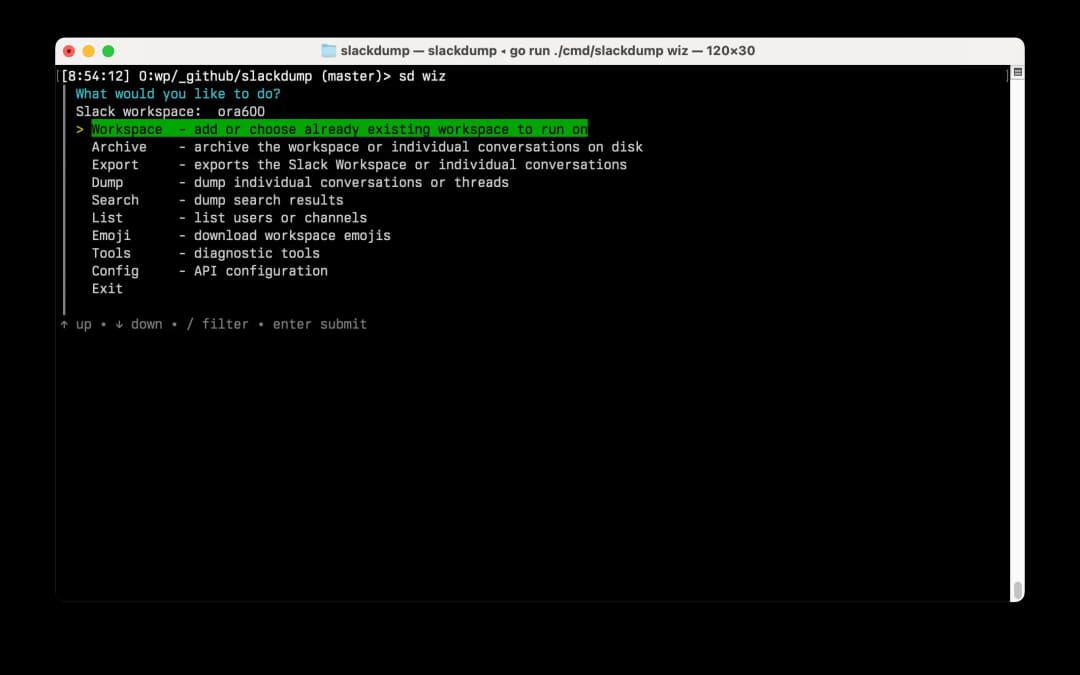
There are several modes of operation
- List users/channels
- Dumping messages and threads
- Creating a Slack Export in Mattermost or Standard modes.
- Creating an Archive (Sqlite database or stored as json+gz)
- Converting an archive to other formats (Export, Dump).
- Emoji download mode.
- Viewing Slack export, dump or archive files or directories (displays images).
- Search mode (messages and files).
- Resuming previous archive (adding new messages to an existing archive).
- Local MCP Server to use with Opencode, Claude, or any other AI tool supporting mcp over STDIO or HTTP.
- Database tools: merge multiple archives, remove duplicates, and clean up
unfinished sessions (
slackdump tools merge/dedupe/cleanup).
Run slackdump help to see all available options.
Installation and Quickstart
On macOS, you can install Slackdump with Homebrew:
brew install slackdump
On other Operating Systems, please follow these steps:
- Download the latest release for your operating system from the releases page.
- Unpack the archive to any directory.
- Run the
./slackdumporslackdump.exeexecutable (see note below). - You know the drill: use arrow keys to select the menu item, and Enter (or Return) to confirm.
- Follow these quickstart instructions.
[!NOTE] On Windows and macOS you may be presented with "Unknown developer" window, this is fine. Reason for this is that the executable hasn't been signed by the developer certificate.
To work around this:
- on Windows: click "more information", and press "Run Anyway" button.
- on macOS 14 Sonoma and prior: open the folder in Finder, hold Option and double click the executable, choose Run.
- on macOS 15 Sequoia and later: start the slackdump, OS will show the "Unknown developer" window, then go to System Preferences -> Security and Privacy -> General, and press "Open Anyway" button.
Getting Help
- Quickstart guide:
slackdump help quickstart, read online. - Generic command overview:
man ./slackdump.1 - Ez-Login 3000 Guide.
- What's new in V4:
slackdump help whatsnew, read online.
Running Slackdump from a Repo Checkout
If you've cloned the repository and want to run slackdump directly without downloading a release, you can do one of the following:
-
Build and run (creates an executable):
go build -o slackdump ./cmd/slackdump ./slackdump wiz -
Run directly:
go run ./cmd/slackdump wiz
Note: You need Go installed on your system (see go.mod for the version)
Slackord2: Migrating to Discord
If you're migrating to Discord, the recommended way is to use Slackord2 — a great tool with a nice GUI, that is compatible with the export files generated by Slackdump.
User Guide
For more advanced features and instructions, please see the User Guide,
and read slackdump help pages.
Previewing Results
Once the workspace data is dumped, you can run built-in viewer:
slackdump view <zip or directory>
The built-in viewer supports all types of dumps:
- Slackdump Archive format;
- Standard and Mattermost Slack Export;
- Dump mode files
You can also convert your output file to a browsable static HTML archive:
slackdump convert -f html -o my_html_archive <zip or directory>
or use one of the following tools to preview the export results:
- SlackLogViewer - a fast and powerful Slack Export viewer written in C++, works on Export files (images won't be displayed, unless you used an export token flag).
- Slackdump2Html - a great Python application that converts Slack Dump to a static browsable HTML. It works on Dump mode files.
- slack export viewer - Slack Export Viewer is a well known viewer for slack export files. Supports displaying files if saved in the "Standard" file mode.
Slackdump MCP server
Slackdump offers a read-only MCP server with the following features:
- analyse the data in the archive (any type)
- provide help with command line flags
Available MCP tools:
| Tool | Description |
|---|---|
load_source | Open (or switch to) a Slackdump archive at runtime |
list_channels | List all channels in the archive |
get_channel | Get detailed info for a channel by ID |
list_users | List all users/members |
get_messages | Read messages from a channel (paginated) |
get_thread | Read all replies in a thread |
get_workspace_info | Workspace/team metadata |
command_help | Get CLI flag help for any slackdump subcommand |
The server supports both stdio (agent-managed) and HTTP transports.
Quick project setup
Scaffold a ready-to-use project directory pre-configured for your AI tool:
slackdump mcp -new opencode   ~/my-slack-project   # OpenCode
slackdump mcp -new claude-code ~/my-slack-project  # Claude Code
slackdump mcp -new copilot    ~/my-slack-project   # VS Code / GitHub Copilot
Each command creates the MCP config file and installs bundled Slackdump skill / instruction files so the agent knows how to work with your archive out of the box.
To learn how to set it up with Claude Desktop, VS Code/GitHub Copilot, or OpenCode, see:
slackdump help mcp
or refer to the Slackdump MCP command help page.
Using as a library
Download:
go get github.com/rusq/slackdump/v4
Example
package main

import (
  "context"
  "log"

  "github.com/rusq/slackdump/v4"
  "github.com/rusq/slackdump/v4/auth"
)

func main() {
  provider, err := auth.NewValueAuth("xoxc-...", "xoxd-...")
  if err != nil {
      log.Print(err)
      return
  }
  sd, err := slackdump.New(context.Background(), provider)
  if err != nil {
      log.Print(err)
      return
  }
  _ = sd
}
Using Custom Logger
Slackdump uses a "log/slog" package, it defaults to "slog.Default()". Set the default slog logger to the one you want to use.
If you were using logger.Silent before, you would need to
implement a discarding Handler for slog.
FAQ
Do I need to create a Slack application?
No, you don't. Just run the application and EZ-Login 3000 will take care of the authentication or, alternatively, grab that token and cookie from the browser Slack session. See User's Guide.
I'm getting "invalid_auth" error
Run slackdump workspace new <name or url> to reauthenticate.
How to read the export file?
slackdump view <ZIP-archive or directory>
My Slack Workspace is on the Free plan. Can I get data older than 90-days?
No, unfortunately you can't. Slack doesn't allow to export data older than 90 days for free workspaces, the API does not return any data before 90 days for workspaces on the Free plan.
What's the difference between "archive", "export" and "dump"?
"Archive" is the new format introduced in v3, it minimises the memory use while scraping the data and also has a universal structure that can be converted into export and dump formats at will by using the "convert" command.
"Export" format aims to replicate the files generated when exporting a Slack workspace for compatibility.
"Dump" format has one channel per file, there's no workspace information nor
any users stored. Should it be required, one must get users and channels by
running slackdump list command.
Behind the scenes slackdump always uses the "archive" file format for all operations except "emoji" and "list", and converts to other formats on the fly, removing the temporary archive files afterwards.
Thank you
Big thanks to all contributors, who submitted a pull request, reported a bug, suggested a feature, helped to reproduce, or spent time chatting with me on the Telegram or Slack to help to understand the problem or feature and tested the proposed solution.
See CONTRIBUTORS.md for the full list of contributors.
Also, I'd like to thank current sponsors:
@malsatin
@angellk
And everyone who made a donation to support the project in the past and keep supporting the project:
- Davanum S.
- Vivek R.
- Fabian I.
- Ori P.
- Shir B. L.
- Emin G.
- Robert Z.
- Sudhanshu J.
License
Slackdump is licensed under the GNU Affero General Public License v3.0 (AGPLv3).
Bulletin Board
Messages that were conveyed with the donations:
- 25/01/2022: Stay away from TheSignChef.com, ya hear, they don't pay what they owe to their employees.
// faq
What is slackdump?
Save or export your private and public Slack messages, threads, files, and users locally without admin privileges.. It is open-source on GitHub.
Is slackdump free to use?
slackdump is open-source under the AGPL-3.0 license, so it is free to use.
What category does slackdump belong to?
slackdump is listed under mcp-servers in the Claudeers registry of Claude-compatible tools.
// embed badge

[](https://claudeers.com/slackdump)
// retro hit counter

[](https://claudeers.com/slackdump)
// reviews
// guestbook
// related in MCP Servers
 🔓
🔓f.k.a. Awesome ChatGPT Prompts. Share, discover, and collect prompts from the community. Free and open source — self-host for your organization with complete…
 🔓
🔓A cross-platform desktop All-in-One assistant for Claude Code, Codex, OpenCode, OpenClaw, Gemini CLI & Hermes Agent. Only official website: ccswitch.io
 🔓
🔓🪨 why use many token when few token do trick — Claude Code skill that cuts 65% of tokens by talking like caveman
 🔓
🔓An open-source AI agent that brings the power of Gemini directly into your terminal.