
pocketshell
Run terminal AI coding agents (Claude Code / Codex / opencode) from your phone. Resilient sessions with replay, end-to-end encrypted.
Install with your AI
Paste into Claude Code, Cursor, or any agent — it reads the repo and wires the tool into your project.
Install and set up pocketshell (release-binary project) into my current project.
Found on https://claudeers.com/pocketshell
Repo: https://github.com/Big-Pony/pocketshell
Homepage/docs: —
Detected install method: release-binary → inspect the README
Category: integrations. Platforms: cli, api, web, mobile.
Read the repo's README for exact setup and env vars, then install it and wire it into my project.

Claudeers Health Verdict:
active; community-verified: false. Confirm the source before running anything.
Grab the latest release asset from GitHub.
# download a build from https://github.com/Big-Pony/pocketshell/releases
git clone https://github.com/Big-Pony/pocketshell
// compatibility
| Platforms | cli, api, web, mobile |
|---|---|
| Operating systems | — |
| AI compatibility | claude |
| License | Apache-2.0 |
| Pricing | open-source |
| Language | TypeScript |
PocketShell
Run Claude Code on your phone — drop offline, the task keeps running, output replays on reconnect.
A self-hosted, end-to-end-encrypted mobile terminal for CLI/TUI coding agents (Claude Code, Codex, opencode, …). Launch and babysit long-running agent tasks from your phone; when the network drops the task keeps running server-side and the full output replays the moment you reconnect — and you get a push notification when the agent finishes or needs your input.
English · 中文
One full task — from phone to finished product
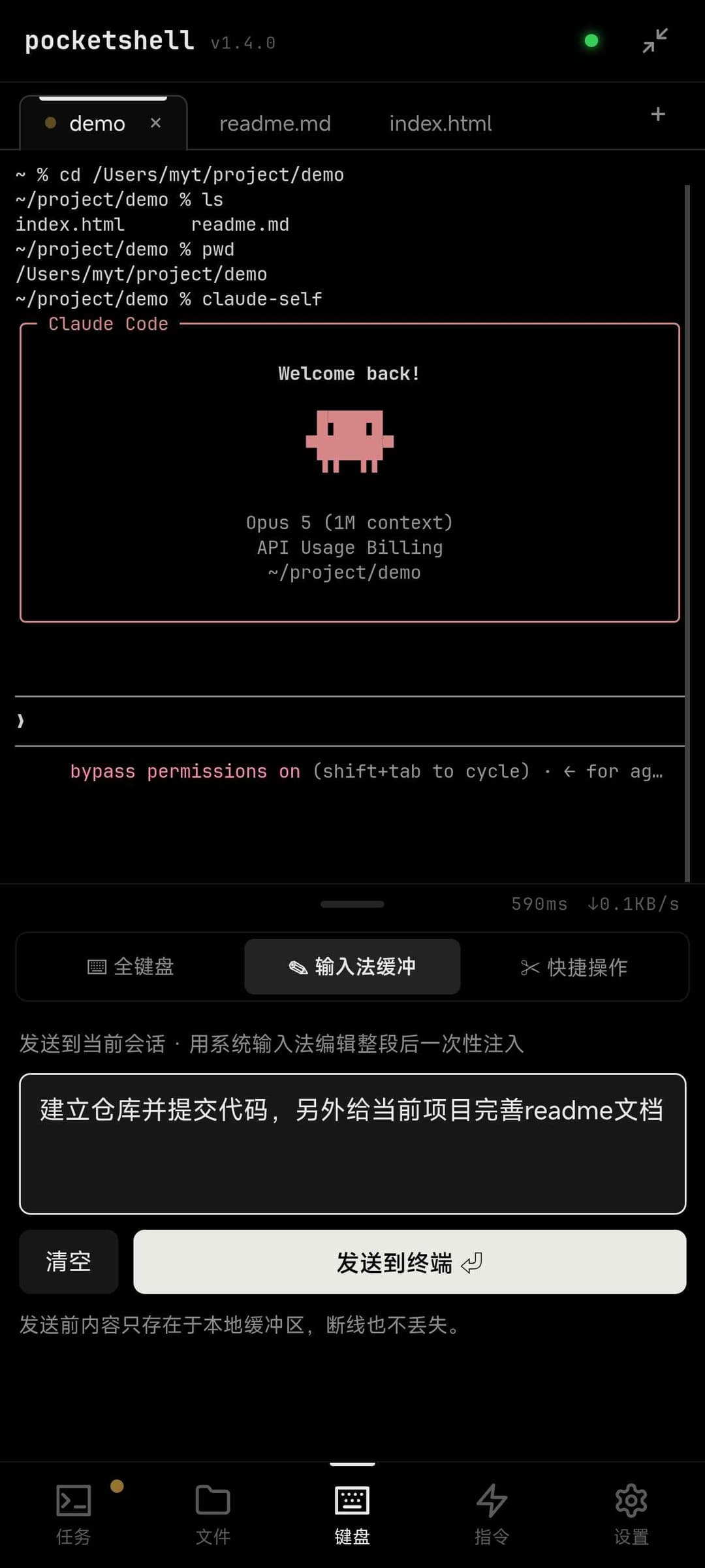
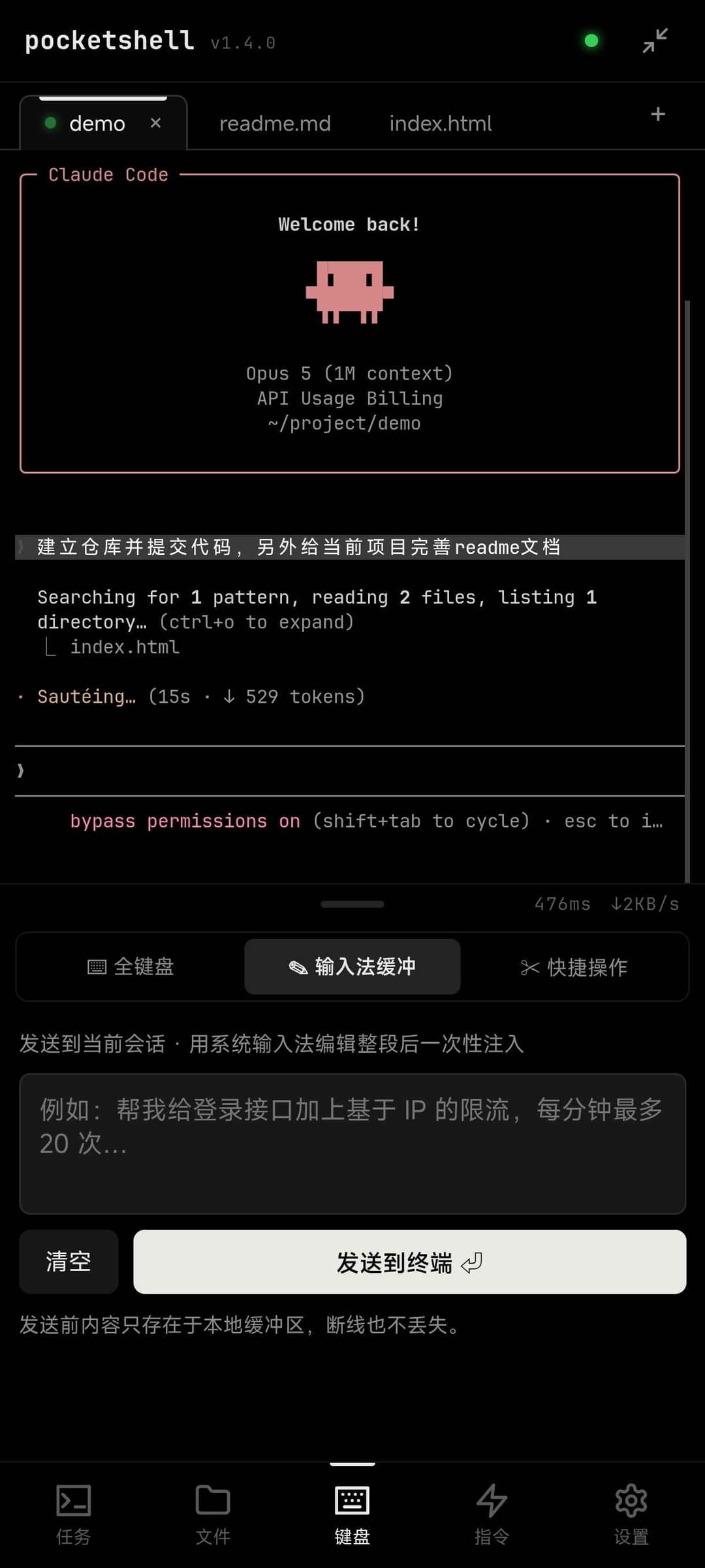

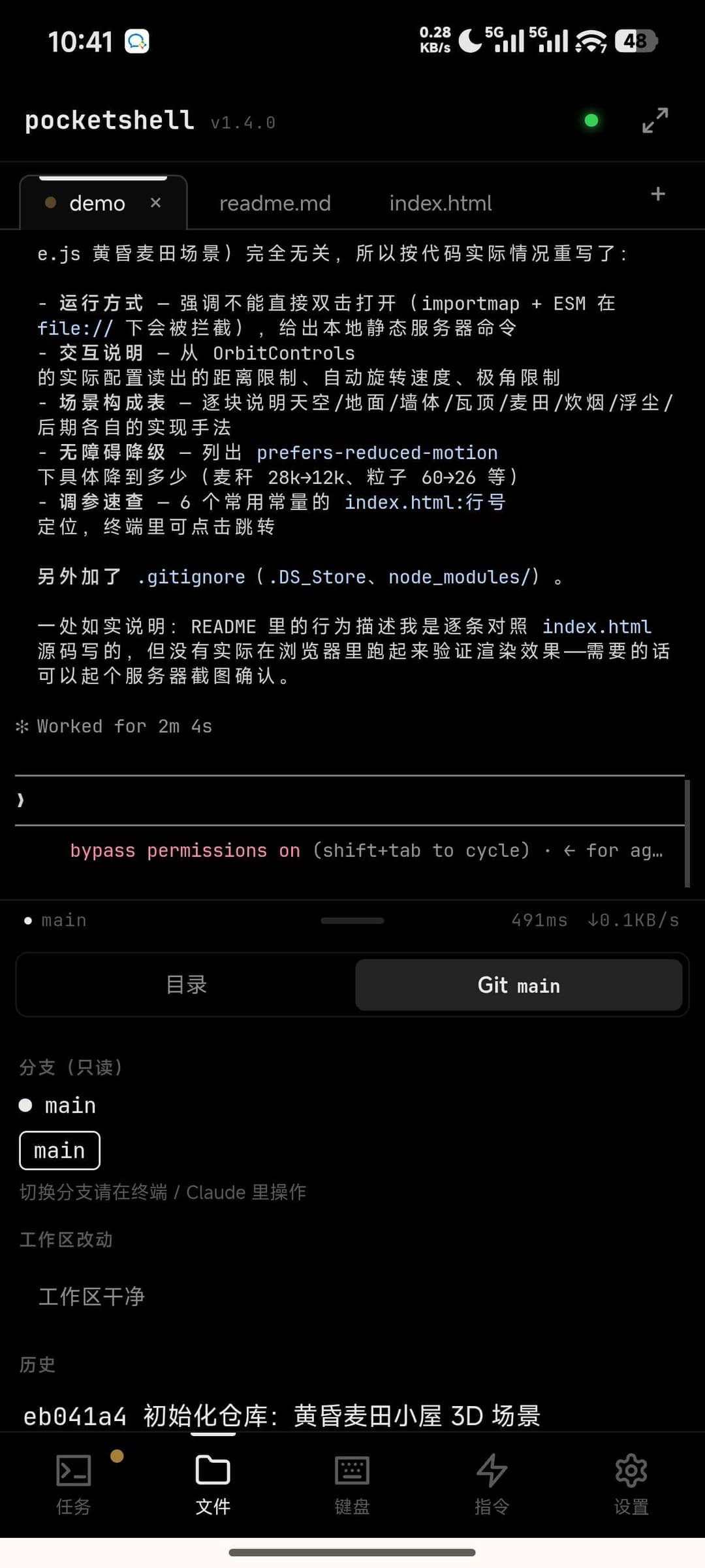

① Compose a whole prompt with the system IME, inject it in one shot · ② The task starts — lock your phone and walk away · ③ A push calls you back when it finishes or needs you · ④ Output is already replayed, the code is committed · ⑤ Run the result fullscreen, right on the phone
Multi-session and drop protection
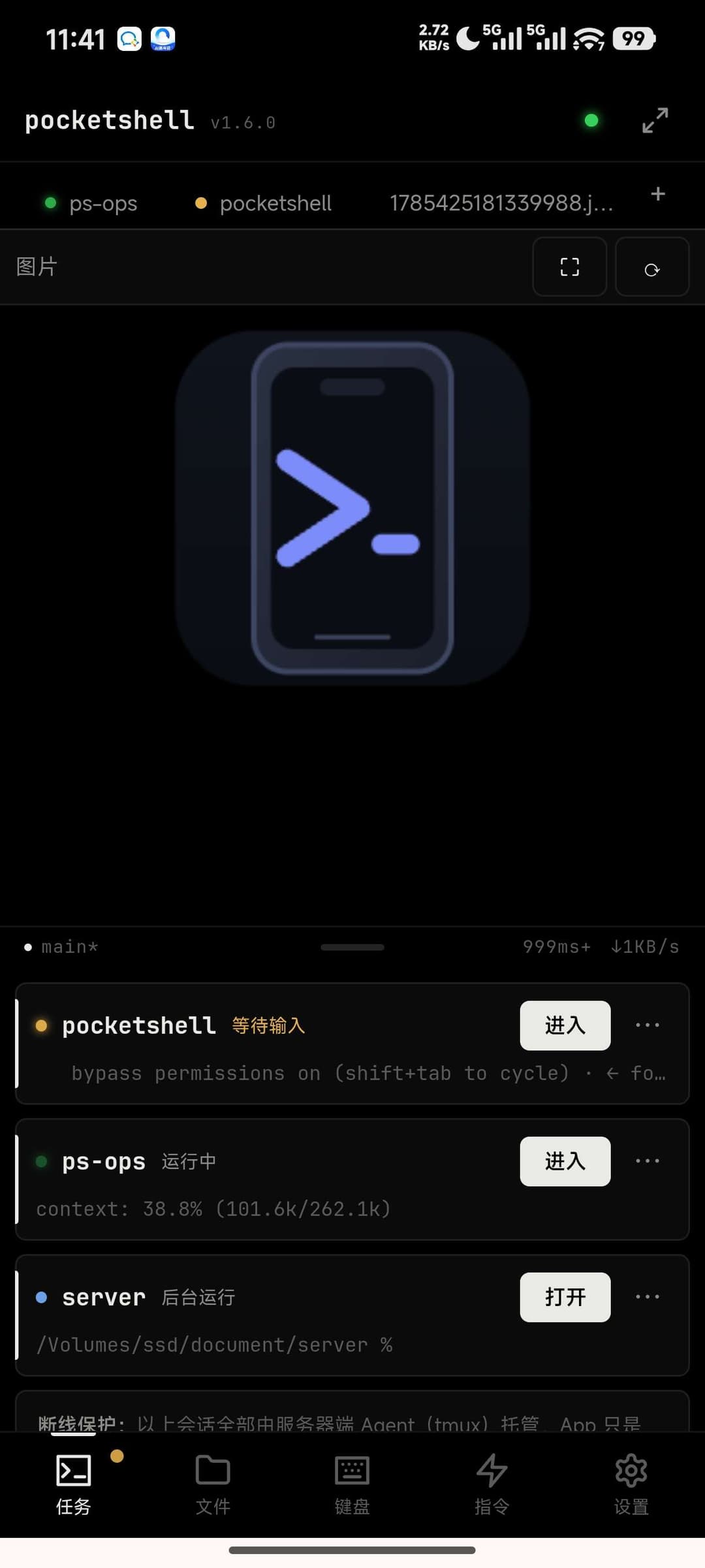
Every tmux session on the host shows up here — running / waiting for input / background at a glance, with a last-line preview. Sessions live server-side; the app is just a screen onto them.
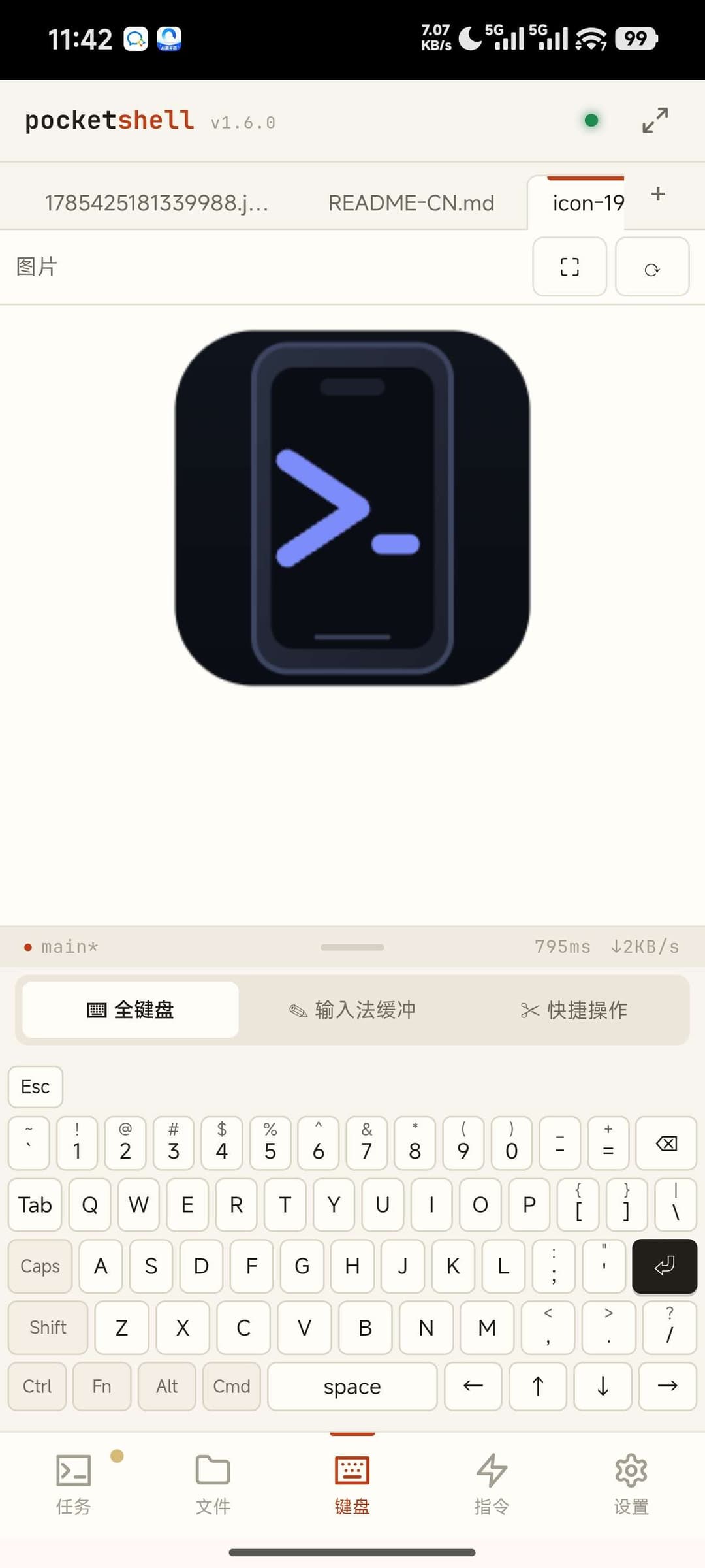
Custom full keyboard
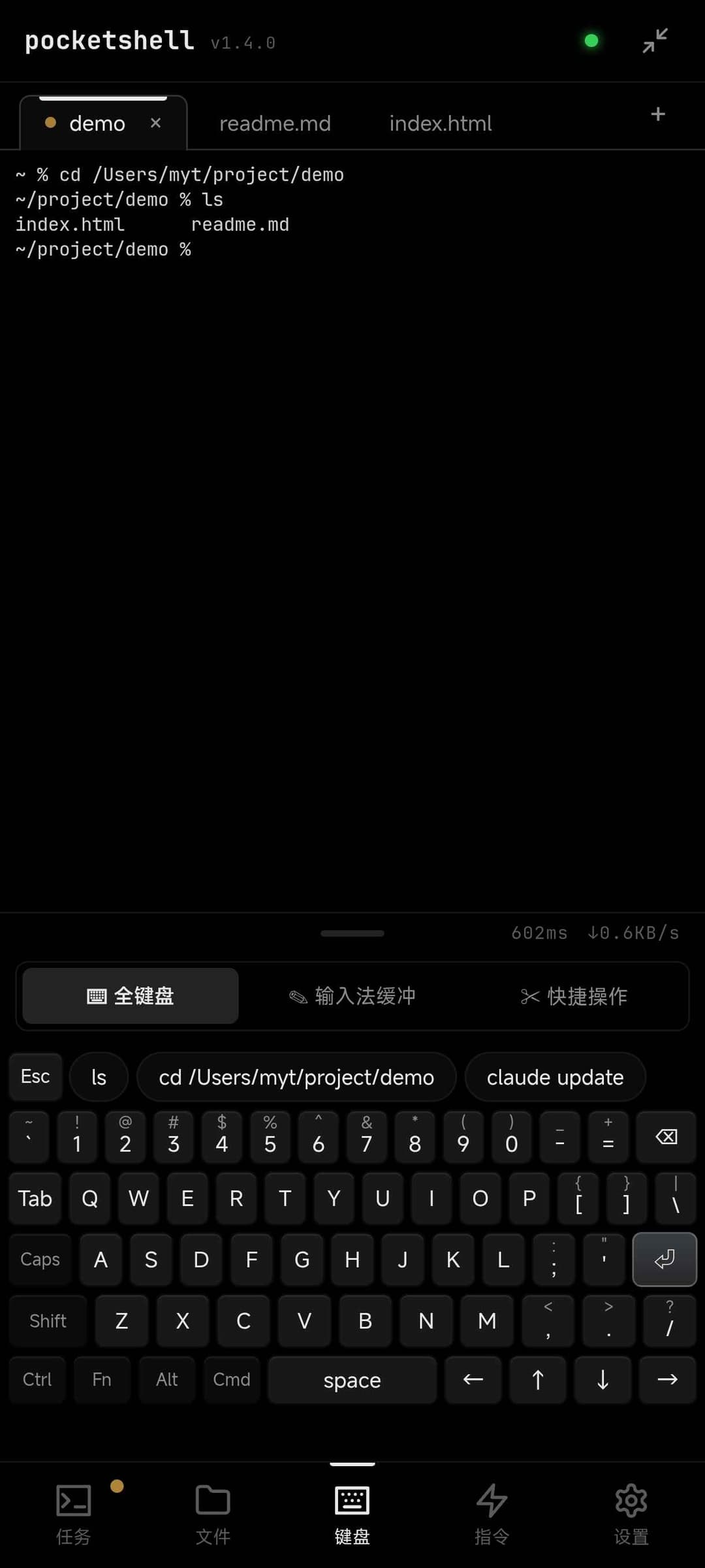


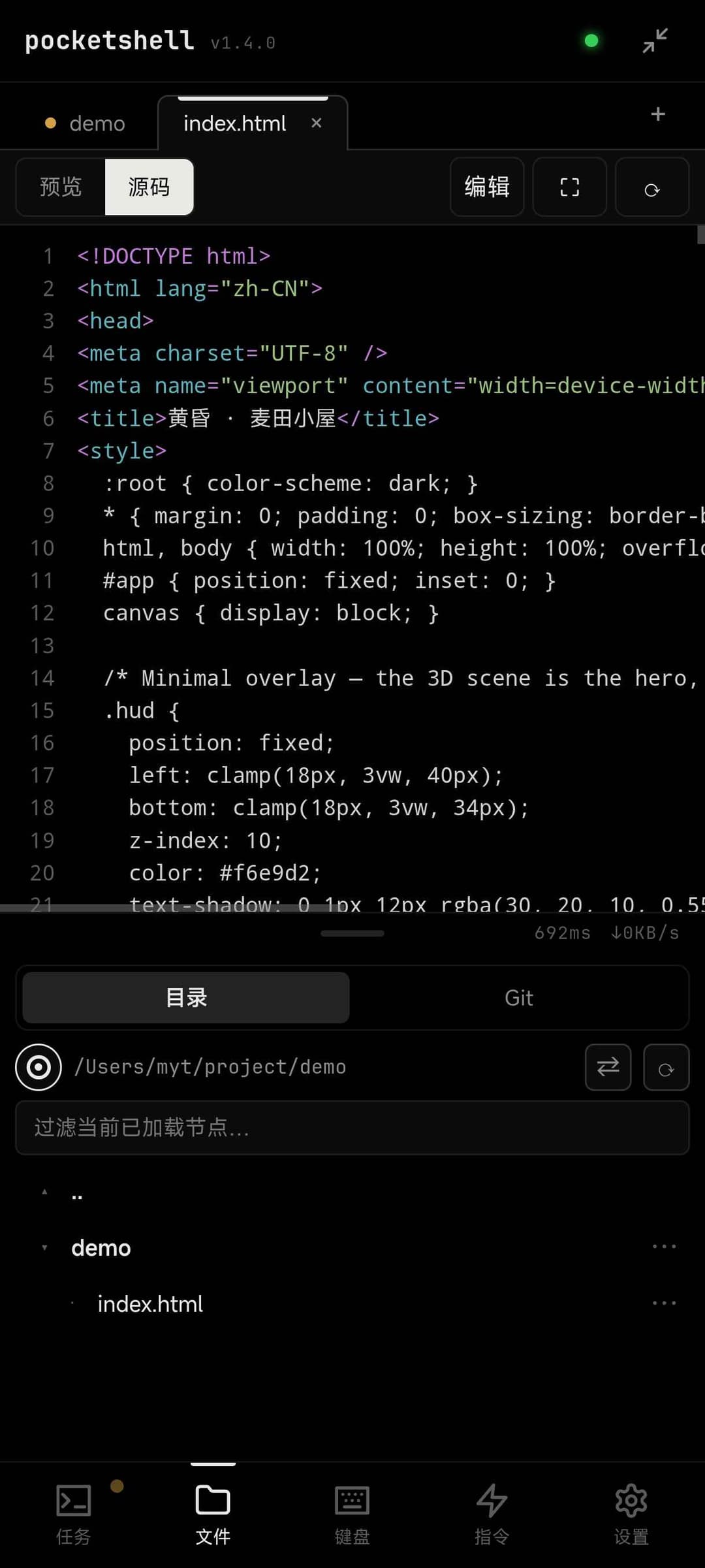
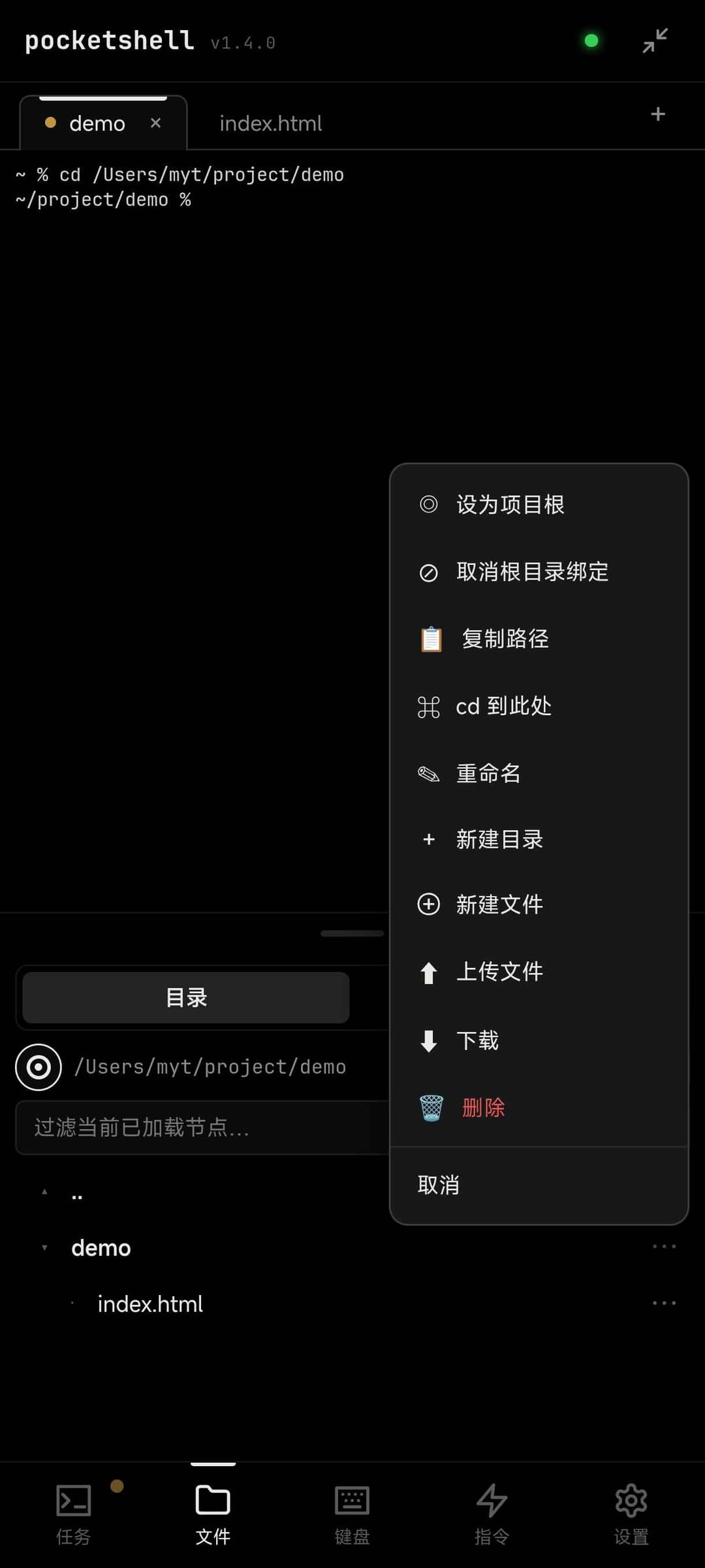
Files, preview and Git

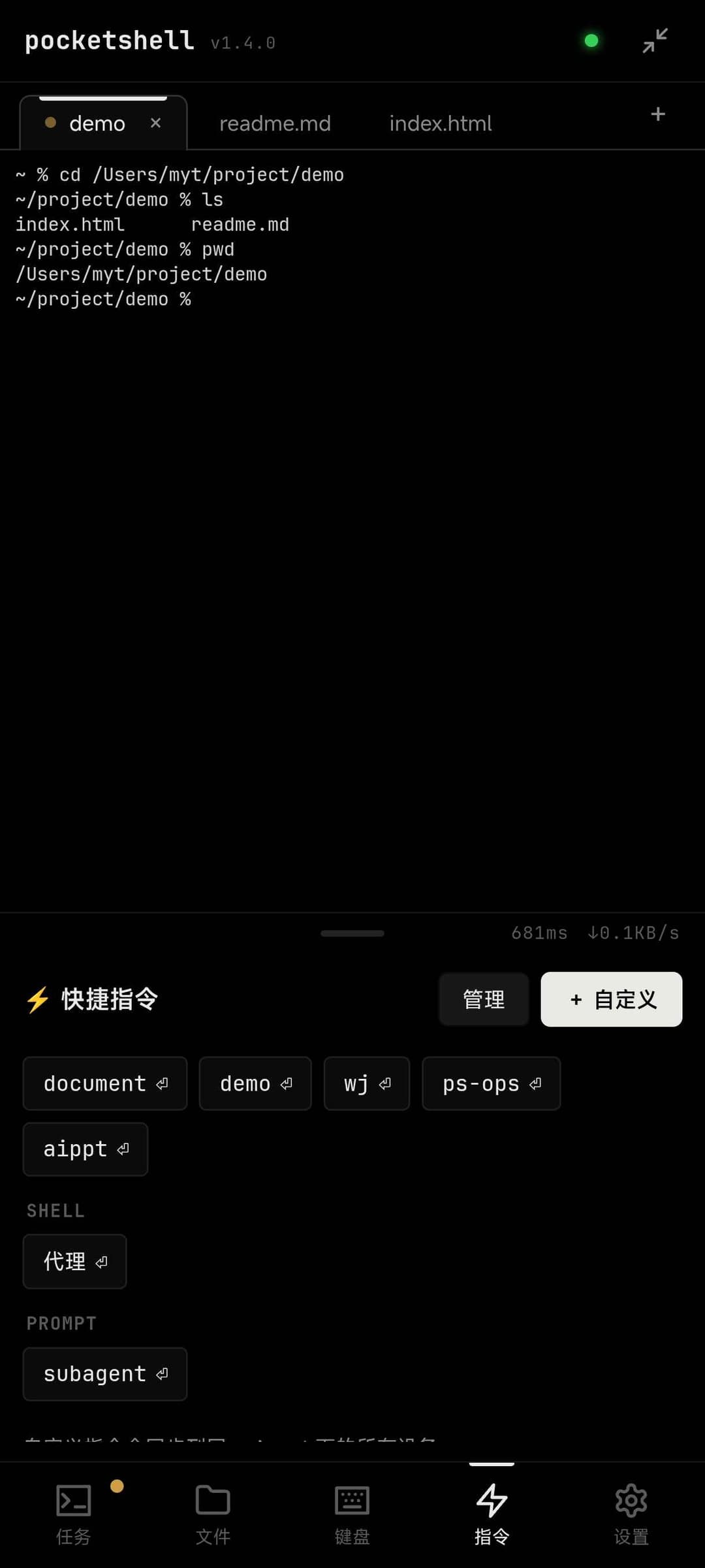
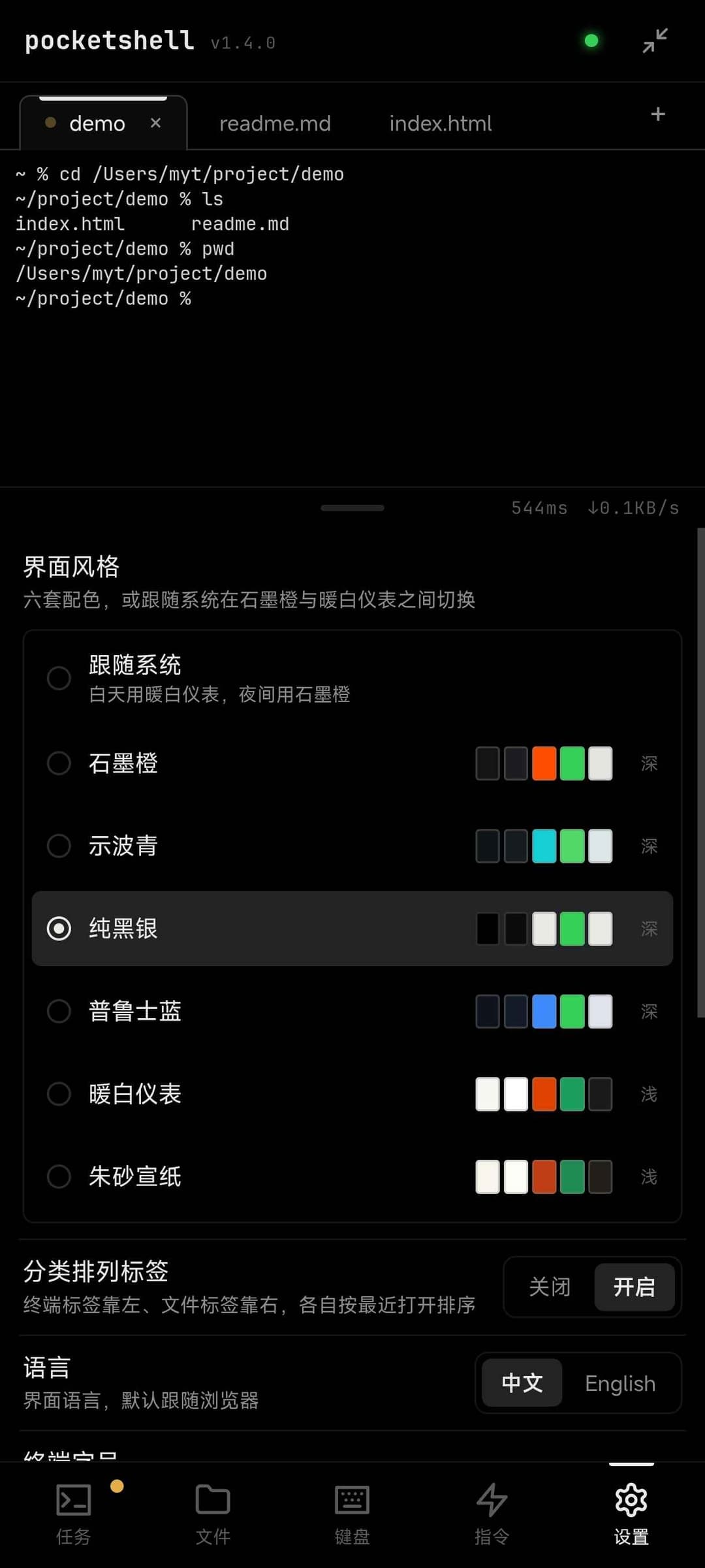
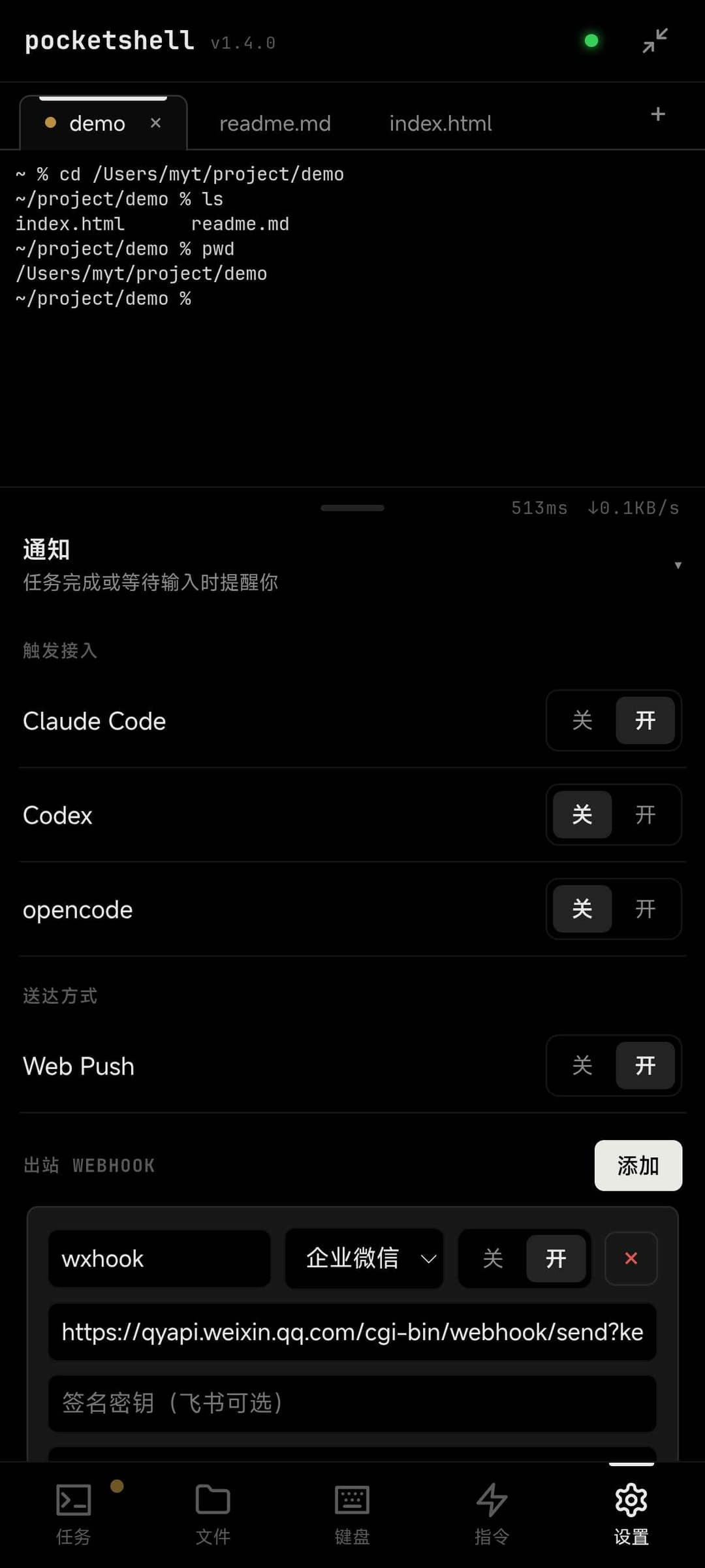
Snippets, themes and notifications
Overview
PocketShell is a self-hosted mobile-first remote terminal. It brings your dev machine's terminal sessions into a phone browser, so you can run any CLI/TUI coding agent (Claude Code, Codex, opencode, …) or plain shell/vim/htop anywhere.
One binary = the whole product: the frontend is embedded and served on the same port, traffic is end-to-end encrypted, and it runs on a clean machine without Bun installed.
Core feature — resilient sessions + replay: run an agent from your phone, drop offline mid-task, and the server-side task keeps going; on reconnect the terminal screen, scrollback and session state are replayed back into sync.
Features
- Multi-session terminal / server-side tmux panel — lists every tmux session on the host (even ones this app didn't create); attach, rename, kill; three-state dots (run/wait/done) + last-line preview; a persistent terminal per session.
- Resilient sessions + replay — dual-signal offline detection, exponential-backoff reconnect; per-session
lastSeqaccounting replays only the gap; output keeps flowing into replay while offline. - Push notifications — get pinged on your phone the moment an agent finishes a round or waits for input, even backgrounded / locked (Web Push + outbound webhooks: WeCom / Feishu / Slack / Discord); smart do-not-disturb skips the ping when you're already watching that session.
- End-to-end encryption & device security — full Noise IK handshake per connection (mutual auth + forward secrecy); one-time in-channel pairing code; persistent device registry with naming / one-click revoke; rate limiting; structured audit log.
- Custom full keyboard — read-only xterm, all input routed; full laptop layout (F1–F12, arrows, sticky modifiers); Fn app-command layer; IME whole-segment input; keyboard-driven selection/copy/paste; smart command-hint bar.
- Snippets — your own custom entries, tap to insert, add/edit/delete, broadcast-synced across devices.
- File + Git panel — lazy tree with inline git markers; code preview (highlight + line numbers) that switches to an editor (CodeMirror 6 — line numbers, find/replace, native IME, chunked save with mtime-based overwrite guard, new files open straight into the editor); file preview: images / Markdown (rendered, with code highlight + local images) / static HTML (sandboxed iframe that runs JS + relative assets), with a persistent
Preview|Source|Editheader bar + refresh; working-tree diff; read-only git log/branches/status; file ops (rename/new/delete with confirm); upload/download (multi-file with progress, dir-as-zip, chunked transfer). - Mobile shell — split top/bottom panes with a draggable divider (double-tap fullscreen); 5-tab bottom bar; unified top tab bar (terminals + files); persisted layout.
- Six themes — four dark (Graphite Orange / Oscilloscope Cyan / Blackout Silver / Prussian Blue) plus two light (Warm White / Vermilion), switch in settings, applied instantly; can follow the system light/dark setting.
- Bilingual — full i18n (zh/en), follows browser language on first open, switchable in settings.
- PWA — installable on mobile Chrome, standalone launch; static assets are cached in a per-version bucket that is dropped wholesale when the version changes, so a second open costs almost no requests and never serves a stale build.
- Zero-dependency distribution — single-file binary (
bun build --compile, linux/darwin targets); pure-JS crypto, no native addons; cross-compile all targets from one Mac.
Tuned for full-screen TUI agents (classic-renderer switch, alt-screen scrollback normalization) so long output scrolls without limit and the input line stays pinned to the bottom.
Interaction cheat sheet
A few mobile gestures and key combos aren't self-evident; they're collected here. In the "Icon / button" column, icon buttons show their glyph and text buttons show their label.
Full keyboard (⌨ tab)
| Location | Icon / button | What it does |
|---|---|---|
| Bottom-row modifiers | Shift Ctrl Alt Cmd Fn Caps | Tap cycles three states: 1 tap = one-shot (releases after the next key) → tap again = locked (stays lit, keeps applying) → 3rd tap = off |
| Any character key | Long-press | Auto-repeat while held |
| Combo | Ctrl + letter | Send a control char: Ctrl+C interrupt, Ctrl+D EOF, Ctrl+Z suspend, Ctrl+L clear, etc. |
| Combo | Alt + key | Send Meta (ESC prefix, i.e. \x1b + char) |
| Combo | Shift / Caps + letter | Uppercase (XOR: either one uppercases; both together cancel out) |
| Function row | after lighting Fn | The function row switches from the command-hint bar to F1–F12 |
| Combo | Fn + F1–F12 | Send a function key |
| Combo | Fn + ← / → | Previous / next tab |
| Combo | Fn + ↑ / ↓ | Scroll the terminal up / down |
| Combo | Fn + 1–9 | Jump to the Nth tab |
| Combo | Fn + N / D / F / C / R | New session / background / toggle fullscreen / copy visible output / rename session |
| Combo | Cmd + ← / → | Previous / next tab |
| Combo | Cmd + A / C / V | Select-all-copy / smart copy (selection if any, else visible output) / paste |
| Combo | Cmd + F / N / R / K | Page fullscreen / new session / rename session / clear screen |
Function row (Fn off) | command-hint chip | Smart command suggestions; tap to complete / insert into the input line |
| Keycap top-right | small superscript | The character this key produces with Shift |
IME buffer (✎ tab)
| Location | Icon / button | What it does |
|---|---|---|
| Input area | text box | Compose a whole segment with the system IME; before sending it lives only in the local buffer and survives disconnects |
| Bottom-left | Clear | Clear the buffer |
| Bottom-right | Send to terminal ⏎ | Inject the whole segment plus Enter; with an empty buffer, Send = a bare Enter (no need to switch back to the full keyboard to press Return) |
Quick actions (✂ tab)
| Location | Icon / button | What it does |
|---|---|---|
| Top row | Esc Tab Del | Send the corresponding key |
| D-pad center | ⏎ | Enter (confirm) |
| Nav keys | Home End PgUp PgDn | The matching cursor / paging keys |
| Bottom button | Select text | Open the copy-mode overlay to long-press and select terminal text manually |
| Bottom button | Copy all | Select the whole terminal and copy it to the clipboard |
| Bottom button | Copy output | Copy the currently visible terminal output |
| Bottom button | Paste | Paste the clipboard into the terminal |
File panel (directory tab)
| Location | Icon / button | What it does |
|---|---|---|
| Path bar, left | ◉ (ring anchor) | Single tap: set the project root to the focused terminal's working dir; double tap: toggle "follow focused terminal" (root tracks wherever the terminal cds) |
| Path bar, middle | path text | Tap to copy the full path to the clipboard |
| Path bar, right | ⇄ | Switch project root (opens the root history list) |
| Path bar, right | ⟳ | Refresh the tree (keeps expanded levels) |
| Tree row, leading | ▸ / ▾ / · | Collapsed dir / expanded dir / file; tap a dir row to expand, a file row to open preview |
| Tree row, trailing | ⋯ | Open that item's action menu (copy path, cd, rename, new, upload, download, delete, …) |
| Tree row, inline | M A D ? | git status markers: modified / added / deleted / untracked |
| Sub-tab bar | branch beside Git | The current git branch |
Top tab bar (terminals + files)
| Location | Gesture | What it does |
|---|---|---|
| Any top tab | Single tap | Select / switch to that tab (immediate, no latency) |
| The same top tab | Double tap | Open that tab's close-confirmation dialog |
| ↳ terminal tab | on confirm | Only closes the tab — the tmux session keeps running in the background and can be reopened from the task panel |
| ↳ shell tab | on confirm | The shell session is closed and destroyed permanently |
| ↳ file tab | on confirm | Closes the file preview tab (warns first if it has unsaved edits) |
| Tab bar, right | + | New tmux session (prompts for a name) |
Quick start
Requirements
- Host running the Agent:
tmux,git. - Build: Bun ≥ 1.3.
Option A — run from source
cd agent && bun install && bun run start     # backend (needs tmux)
cd app   && bun install && bun run dev        # frontend, http://localhost:5173
Option B — one-line install (fastest, recommended)
curl -fsSL https://raw.githubusercontent.com/Big-Pony/pocketshell/main/install.sh | sh
The script detects your platform, downloads the matching binary, verifies its SHA256 and installs it into /usr/local/bin (or ~/.local/bin). One more command turns it into a service that starts on boot:
# Linux
sudo pocketshell-agent install --advertise wss://your.domain --name my-server
# macOS — no sudo: a LaunchAgent lives in your user domain
pocketshell-agent install --advertise wss://your.domain --name my-mac
That writes the systemd/launchd service config → enables it at boot and starts it now → and prints the pairing string right there on a first install. Open the URL on your phone and paste it.
--advertise is required: it decides which address goes into the pairing string, and without it your phone has nowhere to connect. The rest are optional — --name (an instance name, to tell several machines apart), --user (who the service runs as; defaults to whoever invoked sudo), --host (127.0.0.1 by default; use 0.0.0.0 for a phone connecting straight over the LAN) and --port (8722).
To change a setting or move to a new version, just run the same command again: the old config is backed up first and your key directory is left alone, so already-paired phones keep working (which is also why a reinstall won't print a pairing string — run pocketshell-agent pair to add a new phone).
Pin a version with VERSION=1.5.0 curl -fsSL … | sh. To remove it: pocketshell-agent uninstall (stops the service and deletes the config, keeping your key directory and the binary).
Option C — download the binary manually
Grab the archive for your platform (linux-x64 / linux-arm64 / darwin-arm64 / darwin-x64) from Releases, then extract and run:
tar -xzf pocketshell-agent-linux-x64.tar.gz
./pocketshell-agent-linux-x64
Optional: verify integrity with the SHA256SUMS.txt shipped in the same Release (shasum -a 256 -c SHA256SUMS.txt). The target host only needs tmux. On macOS, if Gatekeeper blocks the first run, allow it under System Settings → Privacy & Security.
Run that way it's a foreground process: Ctrl+C or closing your SSH session stops it, and it won't come back after a reboot. For anything long-lived, use the
installsubcommand above, or wire it up by hand following deployment guide § Running as a service.
Option D — build the binary from source
cd app   && bun install && bun run build      # build embedded frontend first
cd agent && bun install && bun run build:bin  # single-file binaries, all platforms
Copy the binary for your platform to the target host (only tmux required) and run it.
URL & default port
The Agent listens on port 8722 by default (change with POCKETSHELL_PORT); once started, open http://127.0.0.1:8722 in a browser on the host machine. Note it binds to 127.0.0.1 only by default — to reach it from your phone over LAN/internet, set POCKETSHELL_HOST=0.0.0.0 plus POCKETSHELL_ADVERTISE, or put it behind a reverse proxy — see the deployment guide.
First pairing
On first run the Agent prints the App URL, a pasteable pairing string, and the Agent public key. Open the App on your phone, paste the pairing string to complete a one-time pairing (default TTL 300s). The device is trusted afterward.
Once installed as a service, that output goes to the log instead — read it with sudo journalctl -u pocketshell -n 50 on Linux. The pairing code has a 300-second TTL and is minted only at process start; if it expires you don't need to restart the service — open the admin page at http://127.0.0.1:8722/admin on the Agent's own machine and generate a new one.
Common environment variables (agent/src/config.ts; precedence env > <keyDir>/agent.json > default)
| Variable | Default | Purpose |
|---|---|---|
POCKETSHELL_HOST | 127.0.0.1 | bind address |
POCKETSHELL_PORT | 8722 | port |
POCKETSHELL_ADVERTISE | — | external address baked into the pairing string |
POCKETSHELL_KEY_DIR | ~/.pocketshell | keys / devices / audit dir |
POCKETSHELL_TLS / _CERT / _KEY | 0 | Agent built-in TLS (bring your own cert) |
POCKETSHELL_ADMIN | on | local admin page (127.0.0.1 only), 0 to disable |
POCKETSHELL_INSTANCE_NAME | — | instance label, used to tell multiple installs apart (see below); unset shows the default "PocketShell" |
Running more than one server
Installing an Agent on several machines works out of the box — they know nothing about each other and share nothing: separate keys and device registries, separate sessions, separate push subscriptions. All you do is give each one its own address, plus a name:
# work machine
POCKETSHELL_ADVERTISE=wss://dev.example.com POCKETSHELL_INSTANCE_NAME=Dev pocketshell-agent
# home server
POCKETSHELL_ADVERTISE=wss://home.example.com POCKETSHELL_INSTANCE_NAME=Home pocketshell-agent
With POCKETSHELL_INSTANCE_NAME set, the name shows up in three places:
- The label under the home-screen icon — shows
Dev(just the instance name; this is where the OS truncates hardest) - The app name when installing the PWA — shows
Dev · PocketShell - The app's top bar —
Dev ·in front of the brand name
So you end up with two independent PWAs and two home-screen icons you can tell apart at a glance. Because browsers isolate data per domain, each side keeps its own tabs, project-root bookmark, and push subscription — notifications from both servers reach you, neither displacing the other (you cannot get this from a single domain; browsers allow only one push subscription per origin).
Each instance needs its own domain or address. The app is served over HTTPS, browsers refuse to let an HTTPS page open a plaintext
ws://connection, andwss://needs a certificate — which cannot be issued for a bare IP. So any instance reachable over the internet needs a domain name (a subdomain is enough — see the deployment guide). Direct IP access on a LAN is not affected.
Admin page
The Agent ships a built-in admin page restricted to localhost only: open http://127.0.0.1:8722/admin on the machine running the Agent (port follows POCKETSHELL_PORT; the page itself is bilingual zh/en). It lets you:
- Generate a new pairing code — a fresh one-time pairing string (TTL 300s) for pairing a new phone, no Agent restart needed;
- Inspect paired devices — name, public key, last-seen IP, online status;
- Remove / revoke devices — a revoked device is disconnected immediately and can no longer complete the handshake.
The admin page only answers requests from 127.0.0.1; access via a reverse proxy or the public internet is rejected by design. Set POCKETSHELL_ADMIN=0 to disable it entirely.
Deployment
Need access from outside your LAN? See DEPLOYMENT.md — it covers four setups: bare IP+port, direct server deployment behind Caddy / Nginx, Cloudflare Tunnel (no public IP needed), and an frp relay server, plus systemd / launchd service examples.
Auto-update
The Agent has built-in in-app auto-update backed by GitHub Releases: it silently checks for a newer version on startup and again every time a phone connects (result cached 6h; a failed check never breaks normal use). When a newer version exists, an update badge appears next to the brand in the top bar; tap it to open a confirmation dialog, then tap "Update" — download, verify, (on macOS) re-sign, swap the binary, and restart all happen automatically, no manual binary handling required.
- Set
POCKETSHELL_UPDATE=0to disable it; pointPOCKETSHELL_UPDATE_REPOat your own fork, or set it toofffor the same effect as disabling. - The self-restart after an in-app update relies on the process being supervisor-managed (systemd / launchd); on macOS, a Full Disk Access grant made before an update survives OTA. Details: DEPLOYMENT.md § Auto-update (OTA).
Notifications
When an agent (Claude Code / Codex / opencode) finishes a work round or is waiting on your input, it can push a notification to your phone — even if the App isn't open, the phone is locked, or you're looking at a different session.
Enabling it: Settings → Notifications, toggle per tool (Claude Code / Codex / opencode each have their own switch). Turning one on idempotently writes a hook/notify entry into that tool's config:
- Claude Code →
~/.claude/settings.json(hooks.Notification) - Codex →
~/.codex/config.toml(thenotifyfield) - opencode → its plugin directory (
~/.config/opencode/plugin/pocketshell-notify.js)
Turning it off removes exactly that entry and leaves any other hooks/config you wrote by hand untouched; a failed write (JSON parse error, a conflicting existing notify config, opencode not installed, etc.) shows the specific reason in settings instead of failing silently.
Two delivery channels, can both be on:
- Web Push — needs to be opened from a PWA that's been "added to home screen," with notification permission granted; on iOS you must add it to the home screen first (a plain Safari tab can't receive push); on Android without Google Play Services (common in mainland China), delivery may fail since it depends on reaching FCM.
- Outbound webhooks — built-in templates for WeCom / Feishu (optional signing secret) / Slack / Discord, plus a custom URL + JSON template; configure any number of them, and test-send each one individually.
Smart do-not-disturb: if you're currently viewing a session in the foreground, its completion won't trigger a system notification (just a lightweight in-app hint); it does push once you're in the background, the screen is locked, or you're viewing a different session. Repeated completions on the same session within a short window (10s by default, adjustable) collapse into a single notification.
Privacy note: notifications include an agent-output summary by default — you can turn that off in settings. Web Push travels over the browser's standard encrypted channel, but webhooks send the message in plaintext to third-party providers like WeCom/Feishu — keep that in mind if the summary could contain sensitive output and you've configured a webhook.
Security
Every connection performs a Noise IK handshake with mutual authentication and forward secrecy; an unregistered device never gets past the handshake, and any tunnel/proxy in between only carries ciphertext. The auth boundary is the security boundary — a paired device can browse files within the Agent process's own permissions (no extra sandbox), so constrain access via process permissions. In production, terminate TLS at the edge (Cloudflare/Caddy). Crypto keys live only in KEY_DIR and are never committed.
Performance
Tuned for flaky mobile networks: PTY output is batched by time/size and fanned out only to subscribers with backpressure drop/recover; large RPC responses are auto-chunked and reassembled; reconnect replays only the missing gap; static assets are precompressed (br/gz) with ETag/304; hidden terminals stop writing and background tabs detach.
License
// faq
What is pocketshell?
Run terminal AI coding agents (Claude Code / Codex / opencode) from your phone. Resilient sessions with replay, end-to-end encrypted.. It is open-source on GitHub.
Is pocketshell free to use?
pocketshell is open-source under the Apache-2.0 license, so it is free to use.
What category does pocketshell belong to?
pocketshell is listed under integrations in the Claudeers registry of Claude-compatible tools.
// embed badge

[](https://claudeers.com/pocketshell)
// retro hit counter

[](https://claudeers.com/pocketshell)
// reviews
// guestbook
// related in Integrations & Connectors
 🔓
🔓Use claude code and codex for free in the terminal, VSCode extension, and discord like OpenClaw (voice supported)
 🔓
🔓Bridge local AI coding agents (Claude Code, Cursor, Gemini CLI, Codex) to messaging platforms (Feishu/Lark, DingTalk, Slack, Telegram, Discord, LINE, WeChat…
 🔓
🔓All parts of Claude Code's system prompt, 27 builtin tool descriptions, sub agent prompts (Plan/Explore/Task), utility prompts (CLAUDE.md, compact, statusli…
 🔓
🔓Claude Code skill/plugin: immersive scroll-scrubbed 'fly through the world' landing pages generated with Higgsfield (Emons-style diorama flights, seamless co…