
mudroom
Run Claude Code, Codex and other coding agents in a local VM on a clone of your project, then review their changes like a pull request. Mac app, CLI for Linu…
Install with your AI
Paste into Claude Code, Cursor, or any agent — it reads the repo and wires the tool into your project.
Install and set up mudroom (release-binary project) into my current project.
Found on https://claudeers.com/mudroom
Repo: https://github.com/Kernel-Hunter/mudroom
Homepage/docs: https://kernel-hunter.github.io/mudroom/
Detected install method: release-binary → inspect the README
Category: security. Platforms: cli, api, desktop, web.
Read the repo's README for exact setup and env vars, then install it and wire it into my project.

Claudeers Health Verdict:
active; community-verified: false. Confirm the source before running anything.
Grab the latest release asset from GitHub.
# download a build from https://github.com/Kernel-Hunter/mudroom/releases
git clone https://github.com/Kernel-Hunter/mudroom
// compatibility
| Platforms | cli, api, desktop, web |
|---|---|
| Operating systems | — |
| AI compatibility | claude |
| License | MIT |
| Pricing | open-source |
| Language | Swift |

Install · Website · Docs · How it compares · Releases
Mudroom runs coding agents like Claude Code, Codex, Gemini CLI, opencode and Aider (or any command) on a clone of your project, inside a Linux micro-VM, with network access limited to the hosts you allow. When the agent is done, you review its changes like a pull request, apply all of it, some files, some hunks or none, and undo any apply later. It's a free, local alternative to cloud agent sandboxes, and your real folder is never mounted.
https://github.com/user-attachments/assets/ff599cbc-fbd9-4c8f-801d-fd2e52ccb0c6
33 seconds, with sound: the agent edits a clone in a VM, reaches only the hosts you allow, and you apply what you pick.
Status: early prototype. Expect rough edges and breaking changes.
Install
The Mac app and CLI run on Apple-silicon Macs with macOS 26 or later. On Linux, Windows and Intel Macs, Mudroom is a CLI that uses Docker or Podman.
macOS
With Homebrew, which also installs Apple's container CLI:
brew install --cask kernel-hunter/tap/mudroom
Or with the install script:
curl -fsSL https://raw.githubusercontent.com/Kernel-Hunter/mudroom/main/install.sh | sh
What the install script does, and how to uninstall
The script needs macOS 26 or later on Apple silicon. It downloads the latest
release, checks its SHA-256 when the release publishes one, puts Mudroom.app
in /Applications (or ~/Applications if /Applications isn't writable) and
links the mudroom command into /opt/homebrew/bin, /usr/local/bin or
~/.local/bin. It doesn't use sudo. Set MUDROOM_VERSION=0.1.1 to pick a
version. To remove Mudroom (your sessions and settings stay):
curl -fsSL https://raw.githubusercontent.com/Kernel-Hunter/mudroom/main/install.sh | sh -s -- --uninstall
About signing and Gatekeeper
Mudroom is ad-hoc signed, not notarized. The install script and the Homebrew
cask remove the quarantine flag, so macOS opens it. If you download the zip
in a browser, use System Settings > Privacy & Security > Open Anyway, or run
xattr -dr com.apple.quarantine /Applications/Mudroom.app.
On an Intel Mac, the CLI works with Docker or Podman; build it from source.
Install on Windows
CLI only, Windows 10/11 on x86_64 or arm64. With Scoop:
scoop bucket add kernel-hunter https://github.com/Kernel-Hunter/scoop-bucket
scoop install mudroom
Then install a container runtime: Docker Desktop
with the WSL 2 backend (Linux containers, the default), or
Podman with a Podman machine
(podman machine init, then podman machine start). Build the agent image
once and check the network:
mudroom image build --backend docker      # or --backend podman
mudroom network check --backend docker
Run mudroom from Windows Terminal or any console with VT support. See
Windows for what is different from macOS and Linux.
Without Scoop: install from the release zip
Each release has a zip for x86_64 and one for arm64:
mudroom-<version>-windows-x86_64.zip and mudroom-<version>-windows-arm64.zip
on the Releases
page, each with a .sha256. The zip holds a folder with mudroom.exe and
the Swift runtime and Visual C++ DLLs it loads, so Swift doesn't need to be
installed. Keep the files together and put the folder on your PATH (copying
mudroom.exe alone won't run without Swift installed). In PowerShell:
$v = '0.5.0'; $arch = 'x86_64'          # or 'arm64'
$name = "mudroom-$v-windows-$arch"
Invoke-WebRequest "https://github.com/Kernel-Hunter/mudroom/releases/download/v$v/$name.zip" -OutFile "$env:TEMP\$name.zip"
Get-FileHash "$env:TEMP\$name.zip"     # compare with $name.zip.sha256 on the release page
Expand-Archive "$env:TEMP\$name.zip" $env:TEMP -Force
$dir = "$env:LOCALAPPDATA\Programs\Mudroom"
New-Item -ItemType Directory -Force $dir | Out-Null
Copy-Item "$env:TEMP\$name\*" $dir -Force
# Once: add the folder to your user PATH, then open a new terminal.
[Environment]::SetEnvironmentVariable('Path', [Environment]::GetEnvironmentVariable('Path', 'User') + ";$dir", 'User')
To upgrade, run the same lines with the new version, without the PATH
line. mudroom.exe isn't code-signed; if Windows blocks it after you unzip
with Explorer, run Get-ChildItem $dir | Unblock-File.
The Scoop and winget manifests are in packaging/scoop
and packaging/winget. The winget package is waiting for
review in the winget repository, so winget install doesn't find it yet.
Linux
CLI only, x86_64 and arm64, built from source. You need Swift 6.2 or later (swift.org/install) and Docker Engine or Podman.
Build and install the CLI
git clone https://github.com/Kernel-Hunter/mudroom
cd mudroom
swift build -c release
cp .build/release/mudroom /usr/local/bin/   # or anywhere on your PATH
mudroom image build --backend docker        # or --backend podman, once
mudroom network check --backend docker      # see what the sandbox can reach
Quick start
In the app:
- Open Mudroom and work through the Setup window: install and start the VM runtime, build the agent image (a few minutes, once), and sign in an agent.
- Click New Session, pick a folder and an agent, and start.
- When the agent finishes, review the diff in Mudroom and apply what you want.
From a terminal. On Linux and Windows the same commands use Docker, or
Podman when Docker isn't there; --backend picks one.
# Once: start the VM runtime, build the agent image, sign in an agent
mudroom setup

# Run an agent on a clone of your project
mudroom run ~/code/myapp -- claude --dangerously-skip-permissions

# Read the diff, pick files or hunks, press x to apply
mudroom review last

# See what the agent connected to, and what was blocked
mudroom network log last

# Changed your mind
mudroom undo last
Features
Coding agents work best with permission prompts turned off, and that means they can delete files or reach any host while you aren't looking. Mudroom puts a sandbox and a review step between the agent and your project.
- Your folder stays untouched. The agent edits a copy-on-write clone
(APFS, or a reflink on btrfs and XFS), untracked and ignored files
included, minus
.envfiles and keys. Your project is never mounted. - A VM per session. Apple's
containerboots one lightweight Linux VM for each session. Docker and Podman work too, with gVisor or Kata if you have them. - Network allowlist. Locked by default: no DNS and no route out. The only exit is a proxy on your machine that lets through the agent's API hosts plus the ones you add.
- A log of every connection. In locked mode: host, port, bytes, allowed
or blocked, and which program in the sandbox opened it
(
git-remote-https,node,python3). - Keys stay out.
.envfiles,*.pem, SSH keys and.netrcare left out of the agent's copy by default. Edit the list per project or with a.mudroomignore. - Review like a pull request. Files grouped by change, unified or side-by-side diffs, a checkbox per file and per hunk. Your own edits since the start are flagged, never overwritten.
- Undo and snapshots. Any apply can be undone in one step, even one killed halfway. Snapshots taken every 5 minutes show what changed after any point.
- Any agent, your sign-in. Five agents set up for you, or any command. Sign in with your Claude account, the ChatGPT and Google logins you already have, API keys, or local models.
Pick what to keep, file by file or hunk by hunk
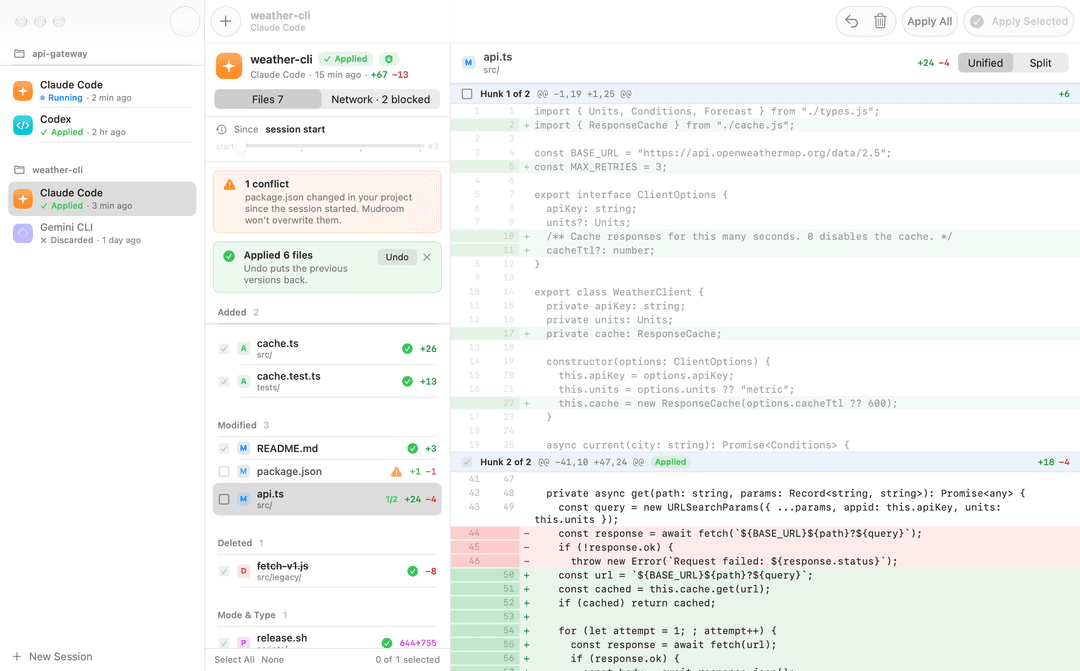
Changed files are grouped into Added, Modified, Deleted and Mode & Type, each with a checkbox, next to a unified or side-by-side diff. Modified text files have a checkbox per hunk, so you can take some edits and leave others.

See every host the agent tried to reach
The Network tab lists blocked hosts first, with bytes and connection counts. Allow adds a blocked host to the project's allowlist for the next session.

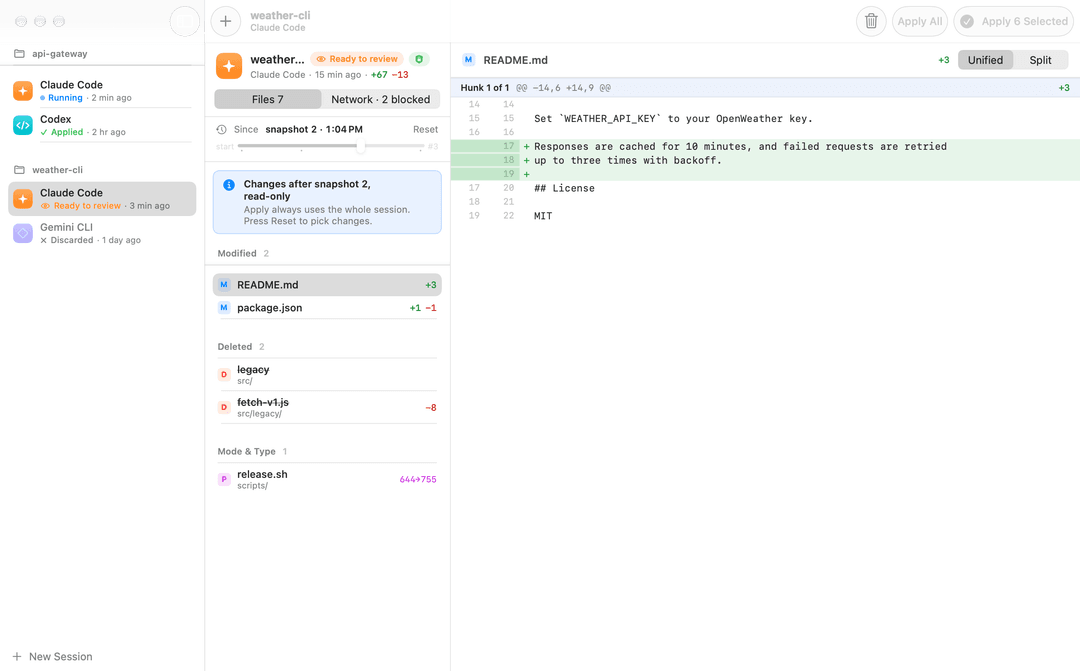
Your own edits are never overwritten
Files you changed yourself since the session started are flagged in the list and above the diff. Apply leaves them alone and takes the rest.
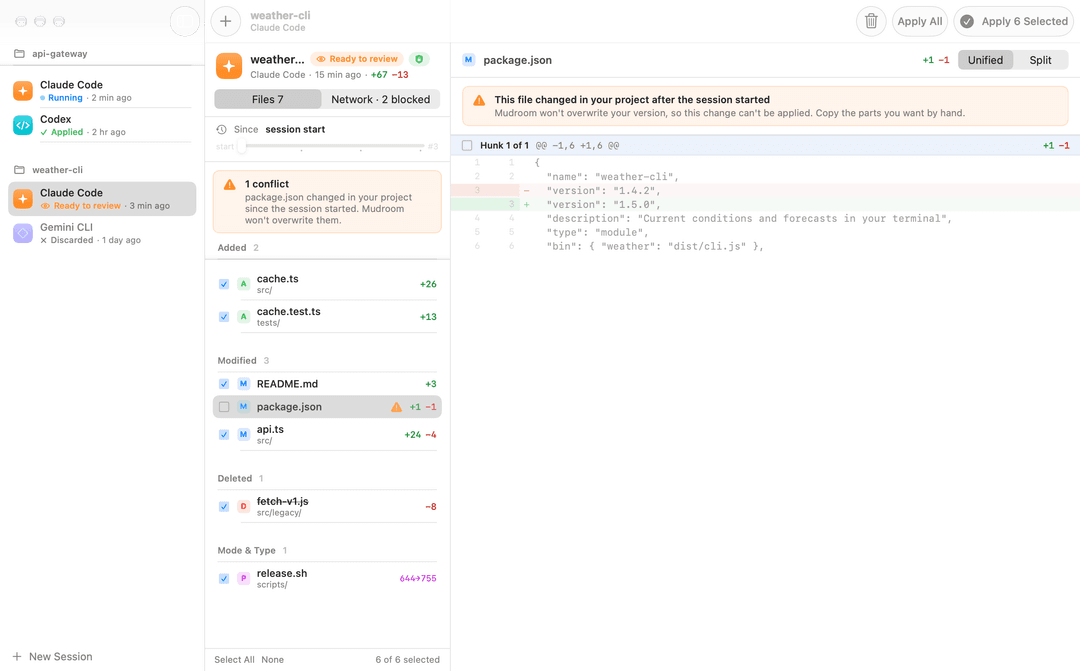
Look back at any point in the run
Snapshots are taken while the agent works. Move the timeline slider and the file list shows only what changed after that point.
How it compares
How the usual ways of running an agent differ, in their default setup:
| Edits reach your folder | Network | |
|---|---|---|
| Agent on your machine | Right away | Anything your machine reaches |
| Dev container | Right away | Open by default |
| Cloud sandbox | When you pull them | Depends on the provider |
| Mudroom | When you apply them | Allowlist, each connection logged |
The full comparison
Agent on your machine
- Where it edits: your real folder, and edits land right away.
- Boundary: your user account, plus the agent's own prompts or sandbox.
- Network: anything your machine reaches, unless the agent's own sandbox limits it.
- Review:
git diff, or per-edit prompts. - Your code leaves your machine: only what the agent sends.
- Account or bill for the sandbox: none.
Dev container
- Where it edits: your folder, usually bind-mounted, and edits land right away.
- Boundary: a container (the host's kernel on Linux).
- Network: open by default.
- Review:
git diff. - Your code leaves your machine: only what the agent sends.
- Account or bill for the sandbox: none.
Cloud sandbox
- Where it edits: a copy on the provider's servers. Edits reach your folder when you pull or download them.
- Boundary: the provider's VM or container.
- Network: depends on the provider.
- Review: through git or the provider's tools.
- Your code leaves your machine: yes, it runs remotely.
- Account or bill for the sandbox: a provider account, usually paid by usage.
Mudroom
- Where it edits: a clone; your folder is never mounted. Edits reach your folder when you apply them.
- Boundary: one micro-VM per session, or a container with Docker or Podman.
- Network: allowlist through a proxy (locked mode, the default), each connection logged with the command that opened it.
- Review: review app or terminal screen, per file and per hunk, with undo.
- Your code leaves your machine: only what the agent sends to allowed hosts.
- Account or bill for the sandbox: none, MIT.
A dev container gives you a reproducible toolchain, and a cloud sandbox runs
many agents in parallel without using your machine. Mudroom does neither: it
runs on your own computer, the review app needs a Mac with macOS 26, and the
agent image is one general-purpose image unless you pass your own with
--image.
Other agent sandboxes
Checked against each project's docs on 2026-09-30. Corrections welcome.
- Mudroom. Linux micro-VM, on an APFS clone; your folder is never mounted. The agent's writes reach your folder when you apply them, after a diff review per file and per hunk, with undo.
- Docker Sandboxes.
A microVM, with your folder mounted read-write by default, or a private
git clone with
--clone. Writes reach your folder right away by default; with--clone, when you fetch. Review goes through git, in clone mode. - Apple's
sandboxyexample. A Linux VM with your folder shared in. Writes land right away, with no review step. - ArcBox. A microVM with nothing mounted. Only what you copy out reaches your folder, with no review step.
- Claude Code sandboxing. Your real folder, with OS-level limits (no VM). Writes land right away, with per-edit prompts unless you skip permissions.
If your project is a git repo and you're happy reviewing with git, Docker
Sandboxes' --clone mode gets you close. Mudroom also covers untracked and
ignored files and folders that aren't repos, and gives you a review screen
and per-apply undo.
How it works
flowchart TD
    P["Your project"] -->|"copy-on-write clone"| W["Session copy"]
    W -->|"mounted at /workspace"| A
    subgraph VM["Linux micro-VM or container"]
        A["Coding agent"]
    end
    A -->|"only way out"| X["Allowlist proxy"]
    X -->|"allowed hosts"| N(("Internet"))
    W --> R["Diff review"]
    R -->|"apply what you pick"| P
    R -.->|"undo"| P
- Mudroom clones the project twice:
base/is the starting point andwork/is what the agent edits. On APFS the clones take no extra disk until files change. - The agent runs in its own VM (or container) with only
work/inside. In locked mode its one way out is the proxy, which checks every host against the project's allowlist and logs the connection. - You review
base/againstwork/in the app or the terminal and apply what you pick. Mudroom checks that each file in your project still matchesbase/, so your own edits are never overwritten. Any apply can be undone.
More detail in Under the hood, Network and Review and apply.
Documentation
The rest of this page is the full reference: Requirements · Build from source · Setup · The app · Command line · Agents, sign-in and API keys · Keep files out of the sandbox · Network · Review and apply · Docker and Podman · Under the hood · Limitations · FAQ · Development
Requirements
- macOS 26+, Apple silicon: app and CLI. Sandbox backend
apple(Apple'scontainer, one VM per session), ordocker/podman. - macOS 26+, Intel: CLI only (build from source), with
dockerorpodman. - Linux x86_64 and arm64: CLI only (build from source), with
dockerorpodman. - Windows 10/11, x86_64 and arm64: CLI only (release
zip or build from source), with
docker(Docker Desktop) orpodman(Podman machine).
The apple backend needs Apple's container
CLI, version 1.5 or later. Setup installs it with Homebrew if you don't have
it.
The CLI picks a backend with --backend apple|docker|podman|auto (or
MUDROOM_BACKEND). auto, the default, uses Apple's container on an
Apple-silicon Mac with macOS 26+ where it is installed, otherwise Docker,
otherwise Podman. A session remembers its backend, so mudroom start uses
the same one again. See Docker and Podman for how
isolation differs from the VM backend.
Build from source
You need Xcode 26+ (Swift 6.2+).
git clone https://github.com/Kernel-Hunter/mudroom
cd mudroom
scripts/build-app.sh            # build/Mudroom.app (app + bundled CLI), ad-hoc signed
open build/Mudroom.app
For the command line only (macOS or Linux):
swift build -c release
cp .build/release/mudroom /usr/local/bin/   # or anywhere on your PATH
On Linux you also need Docker Engine or Podman and the agent image; see Linux.
Windows
You need Swift 6.2 or later for Windows (swift.org/install/windows), which brings the Visual Studio build tools it needs, and Docker Desktop (WSL 2 backend, Linux containers) or Podman Desktop with a Podman machine. In a Developer PowerShell:
git clone https://github.com/Kernel-Hunter/mudroom
cd mudroom
swift build -c release -Xcxx -D_ALLOW_COMPILER_AND_STL_VERSION_MISMATCH
copy .build\release\mudroom.exe $env:LOCALAPPDATA\Microsoft\WindowsApps\   # or anywhere on your PATH
mudroom image build --backend docker
The -Xcxx flag is only needed when your Visual Studio is newer than the
Clang in your Swift toolchain (Visual Studio 2026 with Swift 6.2): the C++
headers then refuse to build swift-crypto's BoringSSL. Run mudroom from
Windows Terminal or any console with VT support (Windows 10 1809 or later).
See Windows for what is different there.
Setup
The Setup window opens on the first launch. It has four steps:
- VM runtime: Install runs
brew install container, and Start starts it. The first start also downloads Apple's recommended Linux kernel. - Agent image: Build creates
mudroom/agent-base:latestwith Node LTS, git, ripgrep, nftables and the agent CLIs (Claude Code, Codex, Gemini CLI, opencode and Aider). It takes a few minutes and about 1.5 GB the first time. - VM network: a quick check that a VM reaches Mudroom's network proxy, with a Repair button if it doesn't.
- Sign in: "Use my Claude account" opens your browser; approve there and you're done. Codex and Gemini CLI can reuse the login you already have on this Mac. For opencode and Aider, add a provider API key (OpenRouter works for most models).
Setup stays out of the way once everything is green. It's always under Mudroom > Setup, and the sidebar tells you when a step needs attention. If the VM runtime stops later (after a reboot, say), starting a session starts it again.
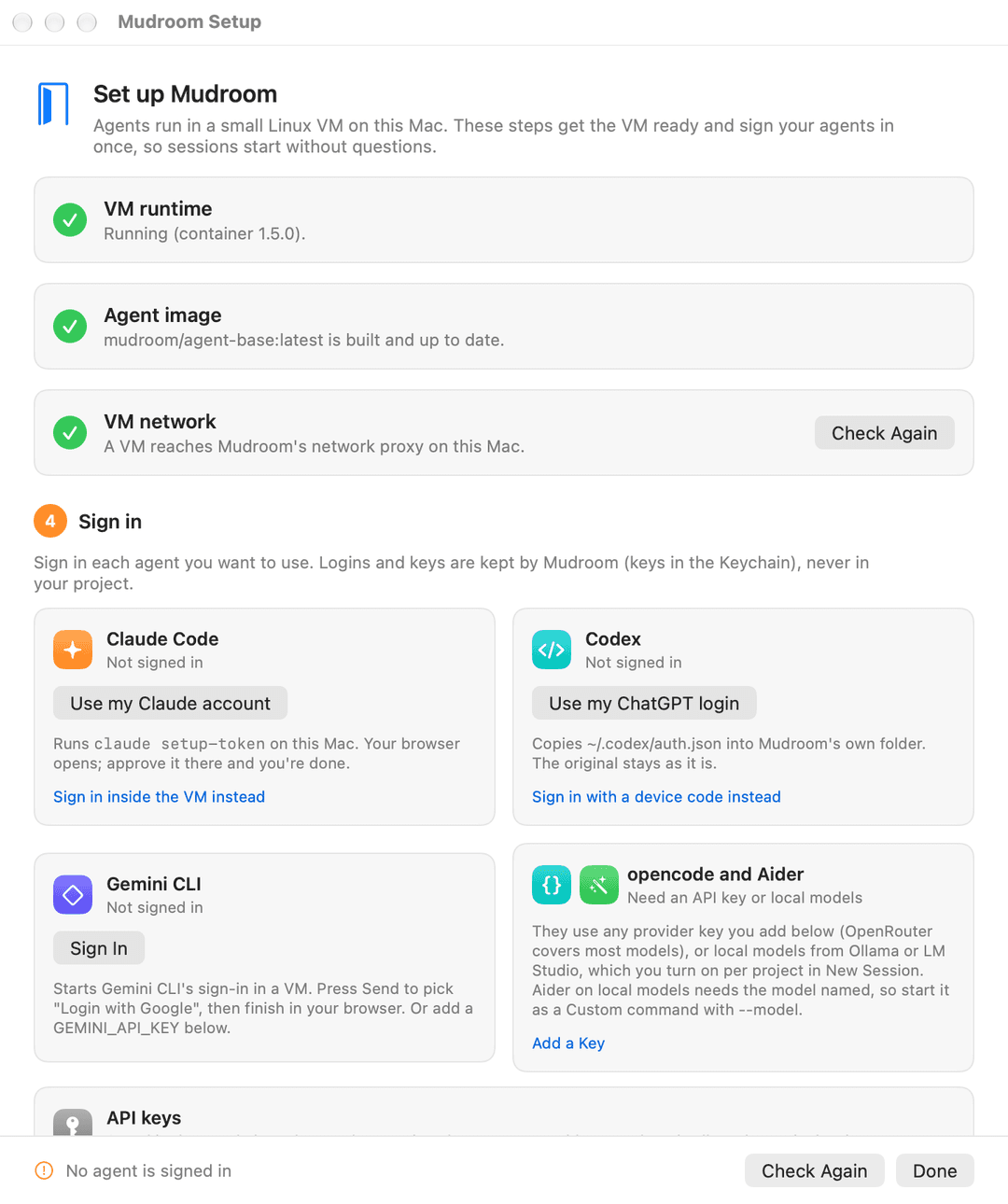
In a terminal:
mudroom setup                      # checks each step and asks before each fix
mudroom setup --yes --no-sign-in   # unattended: install, start, build, repair; skip sign-in
mudroom setup --check              # report only, change nothing
By hand, the same steps are brew install container, container system start --enable-kernel-install, mudroom image build and mudroom agent login claude.
The app
- Sidebar: sessions grouped by project, each with its agent, time and status (running, ready to review, applied, discarded).
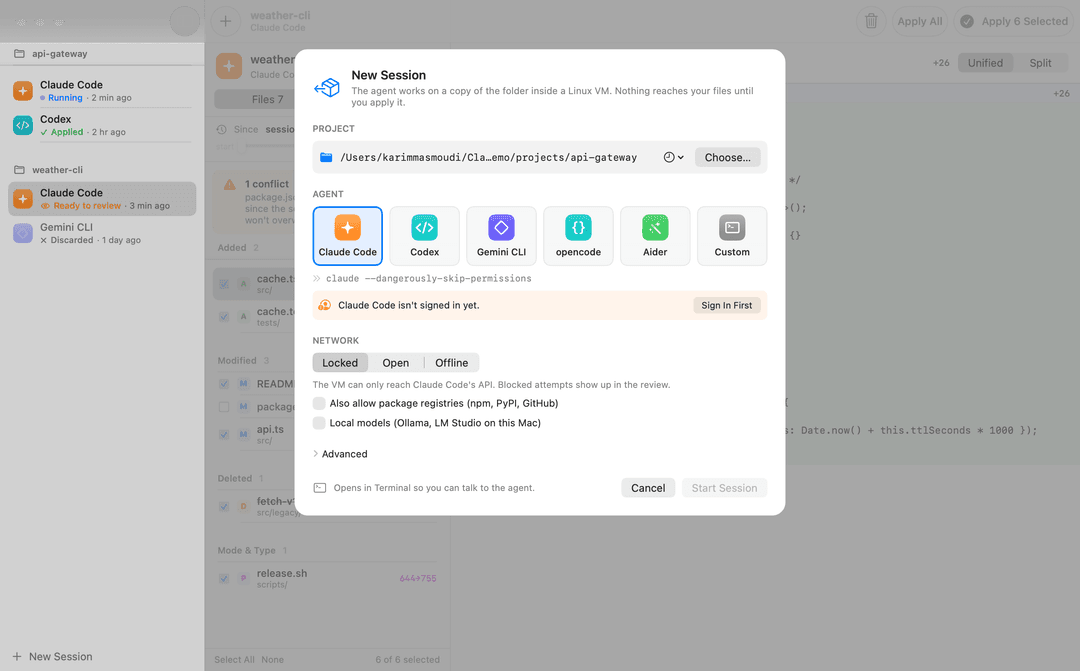
- New Session (⌘N): pick a folder, an agent (Claude Code, Codex, Gemini
CLI, opencode, Aider or a custom command) and a network mode (Locked, Open,
Offline), then start. Mudroom clones the folder, leaving out
.envfiles and keys (see Keep files out of the sandbox), and opens the agent in a new Terminal window. - Review, Files: changed files grouped into Added, Modified, Deleted and Mode & Type, each with a checkbox. The right pane shows a unified or side-by-side diff with line numbers. Modified text files have a checkbox per hunk, so you can take some edits and leave others.
- Review, Network: every host the VM tried to reach, blocked ones first, with bytes and connection counts. Allow adds a blocked host to the project's allowlist for the next session.
- Timeline: if the session has snapshots, a slider picks a point in time and the file list shows only what changed after it (read-only).
- Conflicts: files you changed yourself since the session started are flagged in the list and above the diff, and are never overwritten.
- Apply Selected (⌘↩), Apply All (⇧⌘↩), Undo (⌥⌘Z) and Discard (⌘⌫). Each apply can be undone in one step. Space toggles the selected file.
The Network tab, the timeline and conflicts are shown under Features.
More screenshots
Dark mode, split diff:
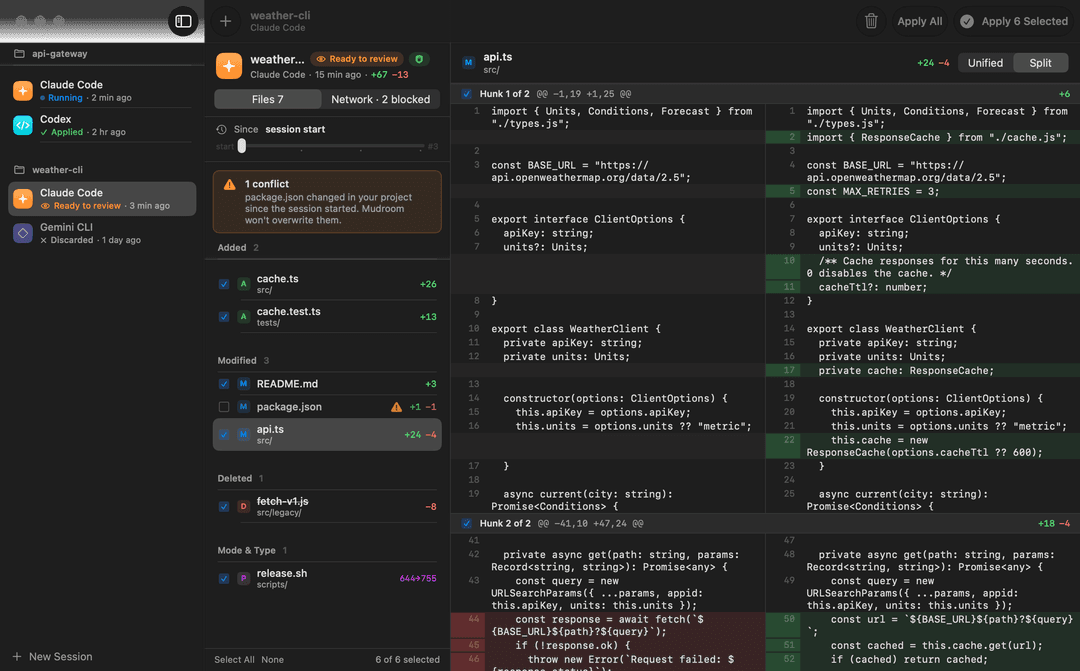
After a partial apply:
New session:
Agents are interactive terminal programs, and you often need to answer them,
so sessions run in Terminal.app instead of a terminal built into Mudroom. The
app writes a small run.command into the session folder that runs mudroom start <id> in a login shell (so PATH and API keys match your usual shell),
and follows progress through session.json, which mudroom start keeps up
to date.
The review app is macOS only. Elsewhere, mudroom review <session> is a
terminal review screen: toggle files, read diffs, pick single hunks and apply
the selection.
Keys in mudroom review
- File list: up/down or j/k move, space toggles a file, a toggles all, enter opens the file, x applies the selection after a y/N prompt, q quits.
- A modified text file opens as numbered hunks with a checkbox each: j/k or
up/down move between hunks, space toggles the one under the cursor, a and n
select all or none of them, b/f page, x applies, q or esc goes back to the
list. A file with only some hunks selected shows
[~]in the list, and hunks applied earlier show[=]. - Other files (added, deleted, binary, mode or symlink changes, files over 4 MB) open as a plain diff and are applied whole: up/down scroll, space/b page, q back.
Whole files and selected hunks go into the project in one apply, so one
mudroom undo takes all of it back. mudroom diff, hunks and apply do
the same from scripts.
Command line
# Start a session: clone the project, boot a VM, run the agent on the clone.
mudroom run ~/code/myapp -- claude --dangerously-skip-permissions

# Review.
mudroom review last             # terminal review: space toggles, enter shows the diff or hunks, x applies
mudroom diff last --stat
mudroom diff last
mudroom network log last        # what the VM connected to, and what was blocked

# Apply everything, only some paths, or only some hunks of one file.
mudroom apply last --all
mudroom apply last src/parser.swift docs/
mudroom hunks last src/parser.swift            # numbered hunks
mudroom apply last src/parser.swift --hunks 1,3

# Changed your mind.
mudroom undo last

# Snapshots taken while the agent ran.
mudroom snapshots last
mudroom diff last --from 2 --to work           # what changed after snapshot 2
mudroom diff last --from 1 --to 3

# Files kept out of the agent's copy (.env and keys by default).
mudroom exclude list
mudroom exclude add secrets/

# Housekeeping.
mudroom list
mudroom stop <session>          # stops a sandbox left running (e.g. mudroom was killed)
mudroom discard <session>       # deletes the session's clones, never the project

# Two-step start (what the app does).
mudroom new ~/code/myapp --agent "Claude Code" -- claude --dangerously-skip-permissions
mudroom start <session>
Sessions can be named by full id, a unique prefix, or last. run and
start also take --network locked|open|offline, --allow <host> (this run
only), --snapshot-every <minutes>, --cpus, --memory, --backend apple|docker|podman|auto and, for Docker and Podman, --oci-runtime <name>
(for example runsc). If the VM runtime isn't running, run and start
start it first.
Network settings
mudroom network show                          # mode and allowlist for the current directory
mudroom network allow registry.npmjs.org '*.githubusercontent.com'
mudroom network allow pypi.org --session last # the project of a session
mudroom network deny registry.npmjs.org
mudroom network registries on                 # npm, PyPI and GitHub in one go
mudroom network mode offline
mudroom network check                         # boot a VM and try to get out (see below)
Settings are per project, in
~/Library/Application Support/Mudroom/projects/<hash>.json on macOS,
~/.local/share/mudroom/projects/<hash>.json on Linux and
%LOCALAPPDATA%\Mudroom\projects\<hash>.json on Windows, outside the project
so the agent can't change them.
Agents, sign-in and API keys
Sessions never stop to ask you to sign in. Sign each agent in once, in Setup
or from a terminal, and every later session starts signed in. New Session
sends you to Setup when the agent you picked isn't ready, and mudroom run
and mudroom start refuse to start Claude Code, Codex or Gemini CLI before
it is signed in (add --sign-in-in-session to sign in inside the session
instead). Aider needs either a provider key or a model named with --model;
without one, the session stops right away with a message instead of waiting
for a sign-in that can't finish inside the VM.
Ways to sign in, per agent:
- Claude Code: your Claude account (
claude setup-tokenon the Mac), a sign-in inside the VM, orANTHROPIC_API_KEY. - Codex: your existing ChatGPT login (
~/.codex/auth.json), a device code, or an OpenAI API key. - Gemini CLI: your existing Google login (
~/.gemini/oauth_creds.json), a sign-in inside the VM, orGEMINI_API_KEY. - opencode, Aider, custom commands: any provider API key, or local models.
Claude Code: your Claude account
If the claude CLI is installed on your Mac (Mudroom looks on your PATH,
then in ~/.local/bin, /opt/homebrew/bin and /usr/local/bin, then on your
login shell's PATH), "Use my Claude account" in Setup, or mudroom agent login claude, runs claude setup-token in a terminal of its own. Claude
opens your browser. Once you approve, Mudroom reads the long-lived token from
Claude's output and stores it. You never see or copy it, and Mudroom hides
it from the output it shows. If the page shows a code instead, paste it into
the field in Setup (or the terminal).
mudroom agent login claude      # the same from a terminal
mudroom agent token claude      # or paste a token you already have (shown as dots)
mudroom agent token claude --clear
The token is kept in the macOS Keychain (service
io.github.kernel-hunter.mudroom, written with SecItemAdd, never through a
command line). On Linux it goes to ~/.local/share/mudroom/agents/<agent>/token,
mode 0600. On Windows it goes to Credential Manager (a generic credential
named io.github.kernel-hunter.mudroom/<agent>). Sessions get it as
CLAUDE_CODE_OAUTH_TOKEN. Mudroom also marks
Claude Code's first-run screens (theme, the bypass-permissions notice, folder
trust for /workspace) as done in its own copy of Claude's settings, so a
session starts straight at the prompt.
Codex and Gemini CLI: the login you already have
If ~/.codex/auth.json or ~/.gemini/oauth_creds.json exists, "Use my
ChatGPT login" or "Use my Google login" copies it into Mudroom's agent
directory, only when you click. It is a copy: the original isn't changed or
mounted. If you sign in again on the Mac later, import again.
mudroom agent import codex
mudroom agent import gemini
With an OpenAI API key and no ChatGPT login, Codex sessions get the key as
both OPENAI_API_KEY and CODEX_API_KEY (Codex reads the second one).
Signing in inside a VM
Without those, the agent signs in inside a VM. In Setup, the device code (Codex) or the sign-in page (Claude, Gemini) opens for you, and a field takes the code the page gives you.
mudroom agent login claude --in-vm   # `claude auth login` in the sandbox
mudroom agent login codex            # `codex login --device-auth`
mudroom agent login gemini           # Gemini CLI's own sign-in screen
mudroom agent status                 # signed in or not, per agent
How the sign-in link gets out of the sandbox
Copying a sign-in link out of a terminal is fragile: it wraps over several
lines, and losing the end gives errors such as "Invalid
code_challenge_method". So each run sets BROWSER in the sandbox to a small
script on a mounted folder, and when the agent tries to open the link,
Mudroom gets it on the host. It checks that the link is an https page on a
known sign-in host (claude.ai, claude.com, platform.claude.com,
console.anthropic.com, auth.openai.com, chatgpt.com, accounts.google.com),
opens it in your browser, copies it to the clipboard and prints it on one
line. Claude Code's link points back to a port inside the sandbox, so
Mudroom swaps the redirect for Claude's own "copy this code" page and leaves
the rest of the request (PKCE challenge, state) unchanged. After signing in,
paste the code back: in Setup into the code field, in a terminal where the
prompt is (the agent's prompt doesn't echo it).
Agent config directories
Each agent gets its own config directory,
~/Library/Application Support/Mudroom/agents/<agent>/home (Linux:
~/.local/share/mudroom/agents/<agent>/home). Your real ~/.claude (and the
others) is never mounted. A session doesn't mount this directory either: it
gets a copy, sessions/<id>/agent-home, at /home/node/.claude,
/home/node/.codex or /home/node/.gemini. When the session ends, only the
sign-in is copied back (.credentials.json and the account fields of
.claude.json for Claude Code, auth.json for Codex, oauth_creds.json and
google_accounts.json for Gemini). A login made in a session sticks, while
settings, hooks or MCP servers a session adds stay in that session.
API keys
For opencode, Aider, custom commands, or an API key instead of a subscription, store provider keys with Mudroom. Setup has a field for each; from a terminal:
mudroom keys set OPENROUTER_API_KEY   # paste it; shown as dots
mudroom keys                          # names only, never values
mudroom keys remove OPENROUTER_API_KEY
Known names: ANTHROPIC_API_KEY, OPENAI_API_KEY, GEMINI_API_KEY,
OPENROUTER_API_KEY, DEEPSEEK_API_KEY, GROQ_API_KEY, MISTRAL_API_KEY,
TOGETHER_API_KEY, FIREWORKS_API_KEY, XAI_API_KEY. Any other
upper-case name works too. Keys live in the Keychain (Linux: 0600 files;
Windows: Credential Manager).
Claude Code, Codex and Gemini CLI get only their own key. opencode, Aider and
custom commands get all of them, and in locked mode the API host of each
provider whose key is set is allowed automatically: openrouter.ai,
api.deepseek.com, api.groq.com, api.mistral.ai, api.together.xyz,
api.fireworks.ai, api.x.ai (plus api.anthropic.com, api.openai.com and
generativelanguage.googleapis.com). When Claude Code has a sign-in token, a
stored ANTHROPIC_API_KEY is left out, so Claude doesn't stop to ask which
one to use.
ANTHROPIC_API_KEY, CLAUDE_CODE_OAUTH_TOKEN, OPENAI_API_KEY and
GEMINI_API_KEY are also forwarded from your shell when they are set there.
How secrets reach the sandbox
Tokens and keys are passed by name (container run --env NAME, docker run --env NAME), so their values don't show up in the process list or on a
command line. The runtime does write them down while the session runs:
- Apple's
containerstores each running container's configuration, environment included, in plain text in aconfig.jsonwith mode 0644 under~/Library/Application Support/com.apple.container/containers/. Your~/Libraryfolder is private to your user, but any process running as you can read that file while the session is up. - Docker and Podman show the environment in
docker inspect/podman inspectto anyone who can talk to the daemon.
The entry goes away when the session's container is removed at the end of the session.
Secrets kept in files inside the project, such as a .env, are a different
matter: they would be copied along with the rest of the folder. Mudroom
leaves the usual ones out of the agent's copy by default; see Keep files out
of the sandbox.
Local models (Ollama, LM Studio)
Turn on Local models for a project (New Session, or mudroom network local-models on) and the VM can use Ollama and LM Studio running on your
Mac. They are reached as http://host.mudroom.internal:11434 (Ollama) and
http://host.mudroom.internal:1234 (LM Studio) through Mudroom's proxy,
which connects to 127.0.0.1 on those two ports itself. No other port on the
Mac becomes reachable, and nothing else changes about the allowlist.
Sessions get OLLAMA_HOST, OLLAMA_API_BASE (Aider) and LM_STUDIO_API_BASE
pointing there. Local models need locked mode: open and offline sessions
don't go through the proxy.
Aider needs the model named. In the app, pick Custom and enter:
aider --yes-always --no-auto-commits --model ollama_chat/qwen2.5:7b-instruct
opencode needs the provider in its config, for example an opencode.json in
the project:
{
  "provider": {
    "ollama": {
      "npm": "@ai-sdk/openai-compatible",
      "options": { "baseURL": "http://host.mudroom.internal:11434/v1" },
      "models": { "qwen2.5:7b-instruct": { "tools": true } }
    }
  }
}
and then opencode run -m ollama/qwen2.5:7b-instruct "..." (or pick the model
in opencode). Small models often get tool calls wrong; that is the model, not
the sandbox.
Keep files out of the sandbox
The agent works on a copy of the whole project folder, so a .env with real
keys would be in that copy too. Files that match the project's exclude list
are left out of both copies (base/ and work/). The agent never sees them,
diff has nothing to show for them, and apply can't create, change or
delete them in your project.
Each project starts with .env, .env.* (but not .env.example,
.env.sample or .env.template), .envrc, *.pem, *.key, *.p12,
*.pfx, id_rsa, id_dsa, id_ecdsa, id_ed25519 and .netrc. .npmrc
isn't on the list, because a project's .npmrc usually holds settings rather
than a token; add it if yours has one. *.key also catches Keynote files.
Session start says what was left out:
session 20261028-143852-24c4  Claude Code on myapp
project /Users/me/code/myapp stays untouched; the agent sees a copy at /workspace
left out of the sandbox: .env, config/server.pem (2 files). Change the list with `mudroom exclude`.
The list is on by default because a key the agent can read is a key it can
send to any host you allowed. The cost is that an agent that needs .env to
run your tests won't find it. When that happens, take the pattern off the
list for that project (mudroom exclude remove .env), let one file back in
with a ! line (mudroom exclude add '!.env.test'), or keep a .env.example
with dummy values, which is copied.
mudroom exclude list                    # the patterns, and what a new session would leave out
mudroom exclude add secrets/ 'config/*.json' .npmrc
mudroom exclude add '!.env.test'        # let one file back in
mudroom exclude remove .env             # defaults can be removed too
mudroom exclude remove --all            # copy everything again
mudroom exclude reset                   # back to the default list
Like the network commands, these work on the current directory, or take
--project <dir> or --session <id>. In the app, New Session has a "Kept out
of the sandbox" section that shows what the chosen folder would leave out
and lets you add and remove patterns.
Pattern syntax
Patterns use .gitignore syntax, relative to the project root:
namematches a file or folder with that name at any depth./nameanddir/namematch from the project root only.secrets/matches folders (and symlinks) only, and everything inside them.*,?and[a-z]match within one name,**across folders (**/id_rsa,logs/**,a/**/b). Sets take the POSIX classes[:alpha:],[:digit:],[:alnum:],[:upper:],[:lower:],[:space:],[:punct:]and[:xdigit:](key[[:digit:]].pem). Since case is ignored,[:upper:]and[:lower:]both match any letter that has case. An unknown class is an error.!patternlets a file back in. As in git, nothing inside an excluded folder can be let back in.- Lines starting with
#are comments, and\escapes the next character. - Names are compared without case and after Unicode normalization, so
.ENVis caught too: on a default APFS or NTFS disk it is the same file as.env. On Windows, trailing dots and spaces are ignored as well.
A .mudroomignore file at the project root, in the same syntax, adds
patterns for everyone who uses the project, and can be committed. It can only
add: a ! line in it takes back a pattern from the same file, never one from
your list, so a repository can't use it to pull your .env into the sandbox.
It must be a regular file (not a symlink), at most 1 MB, with at most 1,000
patterns of at most 1,024 characters each. If it breaks one of these rules,
or has a line that isn't a pattern, Mudroom refuses to create the session
and says why.
The list is read when a session is created and recorded in its
session.json. Changing it later affects new sessions only. Diff and apply
use the recorded list, never the agent's copy of .mudroomignore. If the
agent writes a file at an excluded path (it creates its own .env, say),
diff lists it with an X and apply skips it:
M  README.md
X  .env  (on the exclude list; never applied)
The app and mudroom review show these below the file list and never apply
them. An agent's edit to .mudroomignore itself is flagged and starts
unselected, like .envrc.
Symlinks are copied as links and never followed. A link named .env is left
out, and a link that points at an excluded file (config.env -> ../.env) is
copied but finds nothing at the other end.
Two things to know when the project is a git repository:
- An excluded file that git tracks is missing from the agent's copy, so
inside the sandbox
git statusshows it as deleted, and agit commit -aby the agent records the deletion.applyleaves.gitalone unless you pass--include-git, but with it that commit would land in your repository's history. Session start prints a warning when git tracks any of the files left out. - If the agent deletes a folder that holds an excluded file in your project
(
src/with yoursrc/.envin it), apply removes the other files, reports the folder as a conflict because it isn't empty on your side, and applies the rest. Yoursrc/.envstays.
Network
Each project has a mode:
- Locked (default). The VM is attached to a host-only network
(
container network create --internal, namedmudroom-hostonly). It has no route to the internet and no DNS.mudroom startruns a small HTTP proxy on the Mac for as long as the agent runs, and the VM getsHTTP_PROXY/HTTPS_PROXYpointing at it. The proxy handlesCONNECT(HTTPS) and plain HTTP, lets through only allowlisted hosts, and writes one line per connection (host, port, allowed or blocked, bytes, duration) to the session'snetwork.jsonl. With the apple backend, a firewall inside the VM also limits it to that one port on the Mac (see The firewall in the VM). - Open. Normal outbound access. Nothing is filtered or logged.
- Offline. The host-only network with no proxy: no internet at all, and with the apple backend no connections to the Mac either.
The allowlist is the agent's own hosts plus whatever you add:
- Claude Code: api.anthropic.com, console.anthropic.com, platform.claude.com, claude.ai
- Codex: api.openai.com, chatgpt.com, auth.openai.com
- Gemini CLI: generativelanguage.googleapis.com, cloudcode-pa.googleapis.com, oauth2.googleapis.com, www.googleapis.com
- opencode: models.opencode.ai, models.dev (its model catalog), plus the API host of each key you set
- Aider, custom commands: the API host of each key you set
- Package registries (off by default): registry.npmjs.org, pypi.org,
files.pythonhosted.org, github.com, codeload.github.com,
*.githubusercontent.com
Telemetry and error-reporting hosts are left out; Claude Code runs with
CLAUDE_CODE_DISABLE_NONESSENTIAL_TRAFFIC=1 so it doesn't try them. Patterns
are exact hosts or *.suffix, which matches subdomains but not the bare
domain.
The proxy is strict about what it accepts:
- A host must be a plain DNS name (letters, digits, hyphens, dots) or an IP
literal. Anything else is refused: NUL bytes,
%, spaces, user info, trailing junk, and numeric forms like0x7f.1or2130706433. The name it checks is the name it connects to. - After DNS, the address is checked too. An allowed name that resolves to a loopback, private (10/8, 172.16/12, 192.168/16, fc00::/7), link-local, CGNAT, multicast, VM-network or one of the Mac's own addresses is refused, unless that exact address is on the allowlist.
- For plain HTTP, the
Hostheader is rewritten to the host that was checked. - A client gets 10 seconds to send its request head (then 408), the head can be at most 32 KB (then 400), and at most 256 connections are open at once (then 503).
Which process made each connection
In locked sessions the network log also says which program in the sandbox opened each connection:
$ mudroom network log last
BLOCKED  example.com:443                              10x  out 0 B in 0 B  by node
allowed  pypi.org:443                                 10x  out 17 KB in 1.2 MB  by python3
allowed  github.com:443                               30x  out 49 KB in 178 KB  by git-remote-https and node

$ mudroom network log last --all
... BLOCKED  CONNECT gitlab.com:443  out 0 B in 0 B  8 ms  [73] git-remote-https https://gitlab.com/gitlab-org/gitla...  (not on this project's allowlist)
--all shows the process id in the VM and its command line, cut to fit.
--json prints the log as JSON lines with the full command line (command),
the pid (pid) and the command lines of its parents up to the agent
(parents, nearest first). The app shows the command in the connection list,
with the parents in its tooltip, and the programs under each host.
How the connection watcher works
A small bash script, the watcher, runs inside the VM next to
the agent. It reads TCP's connection counter in /proc/net/snmp every 100 ms
(every 20 ms for a second after a connection opens), and when it changed,
looks in /proc/net/tcp and tcp6 for new connections to the proxy. It finds
the process holding each socket through /proc/<pid>/fd, and sends the proxy
the connection's source port, the pid and the command lines over its own
connection, which starts with a random token only the watcher has. The proxy
matches the report to the connection it accepted from that port, and writes
the fields into network.jsonl. While the watcher is connected, a refused
connection waits up to half a second for its report before getting its 403,
so blocked requests are almost always attributed. Logs from older sessions have no command and still load.
With the apple backend the watcher starts from the firewall script as root,
keeping only CAP_SYS_PTRACE and CAP_DAC_READ_SEARCH (to read the agent's
/proc/<pid>/fd), from / with a fixed PATH, so nothing the agent can
write runs as root; the agent can't stop it or read its token. With Docker and
Podman it starts with exec a moment after the container, as the container's
user, and the forwarder container passes each client's source port to the
proxy in a PROXY protocol line. The image needs bash (Mudroom's has it);
without it the log simply has no commands.
Limits:
- It is informational, not a security boundary. The allowlist is decided on the Mac and never depends on it. The watcher runs inside the VM, so a hostile agent can mislead it: a program can rename itself, since its command line is its own memory. With Docker and Podman the agent runs as the same user as the watcher and can stop it or read its token.
- It polls, so an allowed connection that opens and closes within a few tens
of milliseconds can be missed, and so can connections made before the
watcher starts (on Docker, the first second or so). Those show as
unknown; Mudroom doesn't guess. In a test session, 50 out of 50 connections (git, python, node, and 10 blocked requests) were attributed. - Its cost: in that test the watcher used 0.2% of one core while idle, and about 5 ms of CPU per new connection.
What the isolation stops
mudroom network check starts a sandbox with a project's settings and tries
to get out. It also opens a port on all of the Mac's interfaces, as a dev
server bound to 0.0.0.0 would, and tries to reach it from the VM, then tries
to remove the VM's firewall as the sandbox's user and reach it again. This is
its output on macOS 27 with container 1.5.0, locked mode:
ok        got through  CONNECT api.anthropic.com:443 via proxy: HTTP/1.1 200 Connection Established
ok        got through  HTTPS GET https://api.anthropic.com/ (proxy variables, if set): HTTP 404
ok        stopped      CONNECT example.com:443 via proxy: HTTP/1.1 403 Forbidden
ok        stopped      HTTPS GET https://example.com/ (proxy variables, if set): Request was cancelled.
ok        stopped      resolve example.com in the sandbox: EAI_AGAIN
ok        stopped      TCP 1.1.1.1:443, ignoring the proxy: EHOSTUNREACH
ok        stopped      TCP [2606:4700:4700::1111]:443, ignoring the proxy: ENETUNREACH
ok        stopped      UDP DNS query to 8.8.8.8:53: no reply
ok        stopped      TCP 192.168.128.1:50817 (a port Mudroom opened on all of the host's interfaces): EHOSTUNREACH
ok        stopped      nft flush ruleset as the sandbox user: Error: Could not process rule: Operation not permitted
ok        stopped      TCP 192.168.128.1:50817 again, after that: EHOSTUNREACH
A program in the VM that ignores the proxy settings, or opens raw sockets,
gets nowhere: no DNS, no route over IPv4, IPv6 or UDP, and no other port on
the Mac. Offline mode stops all of these, including the proxy lines. Run the
check on your own machine before relying on it. --image runs it in another
image (it needs node).
The firewall in the VM
The host-only network's gateway is the Mac itself, so without more than the
network, a VM could connect to anything on the Mac that listens on all
interfaces: AirPlay Receiver on port 7000, a dev server bound to 0.0.0.0, a
database. With the apple backend, locked and offline sessions (and the
network check, the pre-session probe and agent login) close that:
- The sandbox starts as root with one added capability,
CAP_NET_ADMIN, in a small shell script instead of the agent. Locked sessions also addCAP_SYS_PTRACEandCAP_DAC_READ_SEARCH, which only the connection watcher keeps. - The script loads an nftables table,
inet mudroom: outgoing, only loopback and TCP to the proxy's address and port are allowed (in offline mode, only loopback), and everything else, IPv4 and IPv6, is rejected. Incoming, only loopback and replies to those connections are allowed. - It checks the table is there, then runs the image's entrypoint and the
agent through
setprivas the image's user (nodein Mudroom's image), with no capabilities, an empty capability bounding set andno_new_privs. Nothing the agent starts, setuid programs included, can getCAP_NET_ADMINback, so it can't change or remove the rules. - If
nftorsetprivis missing, or the rules don't load, the script stops with amudroom-firewall:message and exit status 125, and the agent never runs. Before a locked session, the network probe runs behind the same firewall, so an image that can't set it up stops the session before it starts.
Mudroom's image has nftables, and setpriv comes with util-linux. Images
built by Mudroom 0.2.1 or earlier have no nftables: Setup and mudroom setup report them as built by an older Mudroom, and mudroom image build
// faq
What is mudroom?
Run Claude Code, Codex and other coding agents in a local VM on a clone of your project, then review their changes like a pull request. Mac app, CLI for Linux and Windows.. It is open-source on GitHub.
Is mudroom free to use?
mudroom is open-source under the MIT license, so it is free to use.
What category does mudroom belong to?
mudroom is listed under security in the Claudeers registry of Claude-compatible tools.
// embed badge

[](https://claudeers.com/mudroom)
// retro hit counter

[](https://claudeers.com/mudroom)
// reviews
// guestbook
// related in Security & Compliance
 🔓
A complete AI agency at your fingertips - From frontend wizards to Reddit community ninjas, from whimsy injectors to reality checkers. Each agent is a specia…
 🔓
π RuView turns commodity WiFi signals into real-time spatial intelligence, vital sign monitoring, and presence detection — all without a single pixel of video.
 🔓
Prowler is the world’s most widely used open-source cloud security platform that automates security and compliance across any cloud environment.
 🔓
🐶 A curated list of Web Security materials and resources.