
claude-code-tips
43 tips for getting the most out of Claude Code, from basics to advanced - includes a custom status line script and Claude Code running itself in a container…
Install with your AI
Paste into Claude Code, Cursor, or any agent — it reads the repo and wires the tool into your project.
Install and set up claude-code-tips (claude-plugin project) into my current project.
Found on https://claudeers.com/claude-code-tips
Repo: https://github.com/ykdojo/claude-code-tips
Homepage/docs: —
Detected install method: claude-plugin → /plugin install claude-code-tips@ykdojo/claude-code-tips
Category: automation. Platforms: cli, api, desktop, web.
Read the repo's README for exact setup and env vars, then install it and wire it into my project.

Claudeers Health Verdict:
active; community-verified: false. Confirm the source before running anything.
/plugin marketplace add ykdojo/claude-code-tips
/plugin install claude-code-tips@ykdojo/claude-code-tips
git clone https://github.com/ykdojo/claude-code-tips
// compatibility
| Platforms | cli, api, desktop, web |
|---|---|
| Operating systems | — |
| AI compatibility | claude |
| License | NOASSERTION |
| Pricing | open-source |
| Language | HTML |
43 Claude Code Tips: From Basics to Advanced
Here are my tips for getting the most out of Claude Code, including a custom status line script and Claude Code running itself in a container. Also includes the dx plugin.
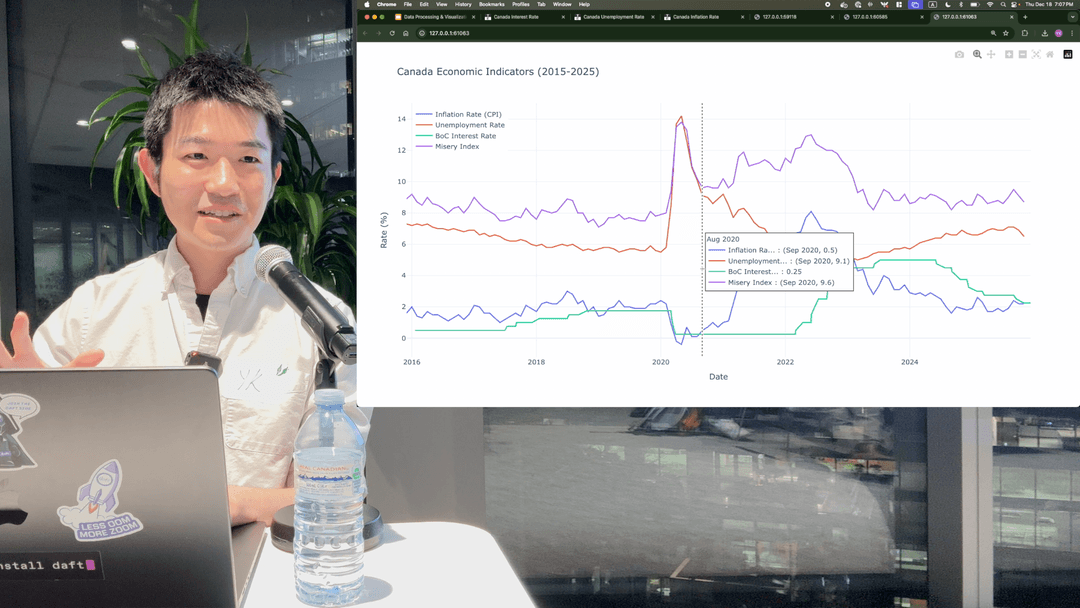
📺 Quick demo - See some of these tips in action with a multi-Claude workflow and voice input:
Tip 0: Customize your status line
You can customize the status line at the bottom of Claude Code to show useful info. I set mine up to show the model, current directory, git branch (if any), uncommitted file count, sync status with origin, and a visual progress bar for token usage. It also shows a second line with my last message so I can see what the conversation was about:
Opus 4.5 | 📁claude-code-tips | 🔀main (scripts/context-bar.sh uncommitted, synced 12m ago) | ██░░░░░░░░ 18% of 200k tokens
💬 This is good. I don't think we need to change the documentation as long as we don't say that the default color is orange el...
This is especially helpful for keeping an eye on your context usage and remembering what you were working on. The script also supports 10 color themes (orange, blue, teal, green, lavender, rose, gold, slate, cyan, or gray).
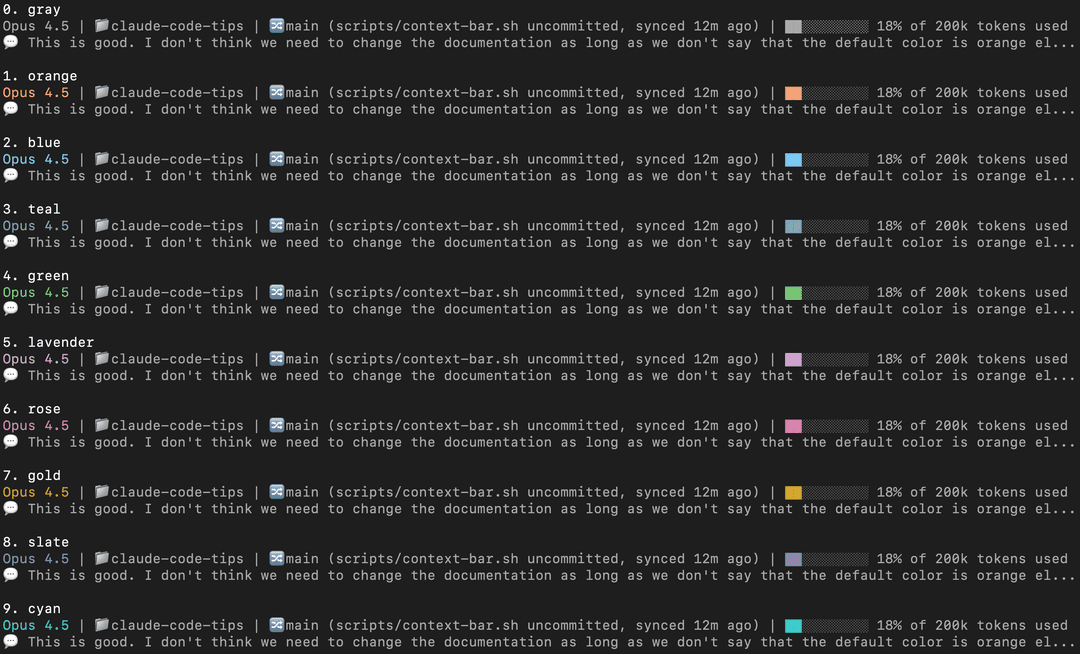
To set this up, you can use this sample script and check the setup instructions.
Tip 1: Learn a few essential slash commands
There are a bunch of built-in slash commands (type / to see them all). Here are a few worth knowing:
/usage
Check your rate limits:
 Current session
 █████████▌                                         19% used
 Resets 12:59am (America/Vancouver)

 Current week (all models)
 █████████████████████▌                             43% used
 Resets Feb 3 at 1:59pm (America/Vancouver)

 Current week (Sonnet only)
 ███████████████████▌                               39% used
 Resets 8:59am (America/Vancouver)
If you want to watch your usage closely, keep it open in a tab and use Tab then Shift+Tab or ← then → to refresh.
/chrome
Toggle Claude's native browser integration:
> /chrome
Chrome integration enabled
/mcp
Manage MCP (Model Context Protocol) servers:
 Manage MCP servers
 1 server

 ❯ 1. playwright  ✔ connected · Enter to view details

 MCP Config locations (by scope):
  • User config (available in all your projects):
    • /Users/yk/.claude.json
/stats
View your usage statistics with a GitHub-style activity graph:
      Feb Mar Apr May Jun Jul Aug Sep Oct Nov Dec Jan
      ··········································▒█░▓░█░▓▒▒
  Mon ·········································▒▒██▓░█▓█░█
      ·········································░▒█▒▓░█▒█▒█
  Wed ········································░▓▒█▓▓░▒▓▒██
      ········································░▓░█▓▓▓▓█░▒█
  Fri ········································▒░░▓▒▒█▓▓▓█
      ········································▒▒░▓░░▓▒▒░░

      Less ░ ▒ ▓ █ More

  Favorite model: Opus 4.5        Total tokens: 17.6m

  Sessions: 4.1k                  Longest session: 20h 40m 45s
  Active days: 79/80              Longest streak: 75 days
  Most active day: Jan 26         Current streak: 74 days

  You've used ~24x more tokens than War and Peace
/clear
Clear the conversation and start fresh.
Tip 2: Talk to Claude Code with your voice
I found that you can communicate much faster with your voice than typing with your hands. Using a voice transcription system on your local machine is really helpful for this.
On my Mac, I've tried a few different options:
- superwhisper
- MacWhisper
- Super Voice Assistant (open source, supports Parakeet v2/v3)
You can get more accuracy by using a hosted service, but I found that a local model is strong enough for this purpose. Even when there are mistakes or typos in the transcription, Claude is smart enough to understand what you're trying to say. Sometimes you need to say certain things extra clearly, but overall local models work well enough.
For example, in this screenshot you can see that Claude was able to interpret mistranscribed words like "ExcelElanishMark" and "advast" correctly as "exclamation mark" and "Advanced":

I think the best way to think about this is like you're trying to communicate with your friend. Of course, you can communicate through texts. That might be easier for some people, or emails, right? That's totally fine. That's what most people seem to do with Claude Code. But if you want to communicate faster, why wouldn't you get on a quick phone call? You can just send voice messages. You don't need to literally have a phone call with Claude Code. Just send a bunch of voice messages. It's faster, at least for me, as someone who's practiced the art of speaking a lot over the past number of years. But I think for a majority of people, it's going to be faster too.
A common objection is "what if you're in a room with other people?" I just whisper using earphones - I personally like Apple EarPods (not AirPods). They're affordable, high quality enough, and you just whisper into them quietly. I've done it in front of other people and it works well. In offices, people talk anyway - instead of talking to coworkers, you're talking quietly to your voice transcription system. I don't think there's any problem with that. This method works so well that it even works on a plane. It's loud enough that other people won't hear you, but if you speak close enough to the mic, your local model can still understand what you're saying. (In fact, I'm writing this very paragraph using that method on a flight.)
Update: Claude Code now has a built-in voice mode. I tested it and it works well, but I still personally use a local model because I find it faster.
Tip 3: Break down large problems into smaller ones
This is one of the most important concepts to master. It's exactly the same as traditional software engineering - the best software engineers already know how to do this, and it applies to Claude Code too.
If you find that Claude Code isn't able to one-shot a difficult problem or coding task, ask it to break it down into multiple smaller issues. See if it can solve an individual part of that problem. If it's still too hard, see if it can solve an even smaller sub-problem. Keep going until everything is solvable.
Essentially, instead of going from A to B:

You can go from A to A1 to A2 to A3, then to B:
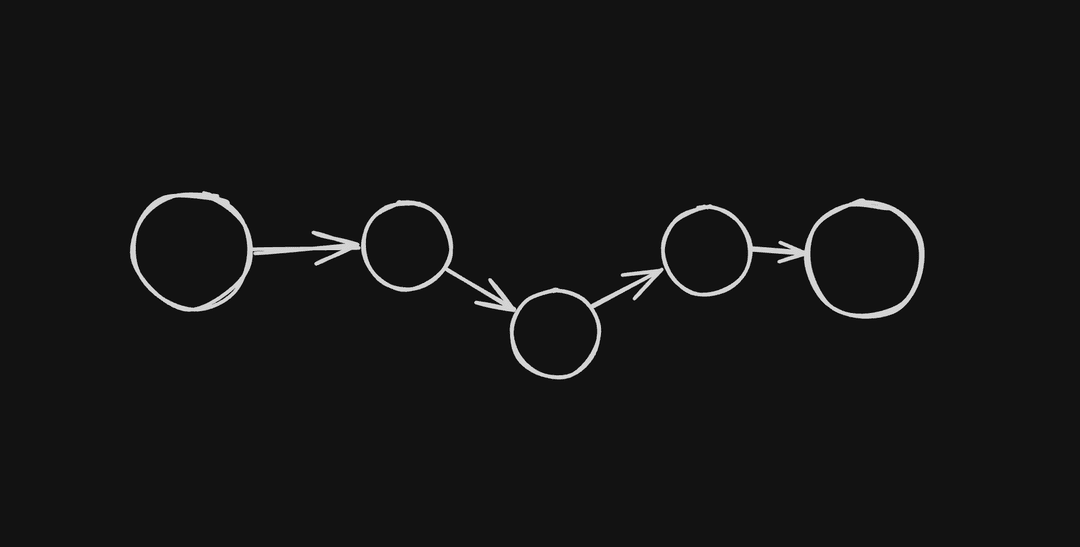
A good example of this is when I was building my own voice transcription system. I needed to build a system that could let the user select and download a model, take keyboard shortcuts, start transcribing, put the transcribed text at the user's cursor, and wrap all of this in a nice UI. That's a lot. So I broke it down into smaller tasks. First, I created an executable that would just download a model, nothing else. Then I created another one that would just record voice, nothing else. Then another one that would just transcribe pre-recorded audio. I completed them one by one like that before combining them at the end.
Highly related to this: your problem-solving skills and software engineering skills are still highly relevant in the world of agentic coding and Claude Code. It's able to solve a lot of problems on its own, but when you apply your general problem-solving and software engineering skills to it, it becomes a lot more powerful.
Tip 4: Using Git and GitHub CLI like a pro
Just ask Claude to handle your Git and GitHub CLI tasks. This includes committing (so you don't have to write commit messages manually), branching, pulling, and pushing.
I personally allow pull automatically but not push, because push is riskier - it doesn't contaminate the origin if something goes wrong with a pull.
For GitHub CLI (gh), there's a lot you can do. One thing I started doing more after using Claude Code is creating draft PRs. This lets Claude Code handle the PR creation process with low risk - you can review everything before marking it ready for review.
And it turns out, gh is pretty powerful. You can even send arbitrary GraphQL queries through it. For example, you can even find the exact times at which GitHub PR descriptions were edited:
⏺ Bash(gh api graphql -f query='
      query {
        repository(owner: "...", name: "...") {
          pullRequest(number: ...) {
            userContentEdits(first: 100) {
              nodes { editedAt editor { login } }
            }
          }
        }
      }')

⏺ Here's the full edit history for your PR description:

  | #  | Edited At (UTC)     | Editor |
  |----|---------------------|--------|
  | 1  | 2025-12-01 00:08:34 | ykdojo |
  | 2  | 2025-12-01 15:57:21 | ykdojo |
  | 3  | 2025-12-01 16:24:33 | ykdojo |
  | 4  | 2025-12-01 16:27:00 | ykdojo |
  | 5  | 2025-12-04 00:40:02 | ykdojo |
  ...
Disable commit/PR attribution
By default, Claude Code adds a Co-Authored-By trailer to commits and an attribution footer to PRs. You can disable both by adding this to ~/.claude/settings.json:
{
  "attribution": {
    "commit": "",
    "pr": ""
  }
}
Setting both to empty strings removes the attribution entirely. This replaces the older includeCoAuthoredBy setting, which is now deprecated.
Tip 5: AI context is like milk; it's best served fresh and condensed!
When you start a new conversation with Claude Code, it performs the best because it doesn't have all the added complexity of having to process the previous context from earlier parts of the conversation. But as you talk to it longer and longer, the context gets longer and the performance tends to go down.
So it's best to start a new conversation for every new topic, or if the performance starts to go down.
Tip 6: Getting output out of your terminal
Sometimes you want to copy and paste Claude Code's output, but copying directly from the terminal isn't always clean. Here are a few ways to get content out more easily:
/copycommand: The simplest option - just type/copyto copy Claude's last response to your clipboard as markdown- Clipboard directly: On Mac or Linux, ask Claude to use
pbcopyto send output straight to your clipboard - Write to a file: Have Claude put the content in a file, then ask it to open it in VS Code (or your favorite editor) so you can copy from there. You can also specify a line number, so you can ask Claude to open the specific line it just edited. For markdown files, once it's open in VS Code, you can use Cmd+Shift+P (or Ctrl+Shift+P on Linux/Windows) and select "Markdown: Open Preview" to see the rendered version
- Opening URLs: If there's a URL you want to examine yourself, ask Claude to open it in your browser. On Mac, you can ask it to use the
opencommand, but in general asking to open in your favorite browser should work on any platform - GitHub Desktop: You can ask Claude to open the current repo in GitHub Desktop. This is particularly useful when it's working in a non-root directory - for example, if you asked it to create a git worktree in a different directory and you haven't opened Claude Code from there yet
You can combine some of these together too. For example, if you want to edit a GitHub PR description, instead of having Claude edit it directly (which it might mess up), you can have it copy the content into a local file first. Let it edit that, check the result yourself, and once it looks good, have it copy and paste it back into the GitHub PR. That works really well. Or if you want to do that yourself, you can just ask it to open it in VS Code or give it to you via pbcopy so you can copy and paste it manually.
Of course, you can run these commands yourself, but if you find yourself doing it repetitively, it's helpful to let Claude run them for you.
Tip 7: Set up terminal aliases for quick access
Since I use the terminal more because of Claude Code, I found it helpful to set up short aliases so I can launch things quickly. Here are the ones I use:
cfor Claude Code (this is the one I use the most)chfor Claude Code with Chrome integrationgbfor GitHub Desktopcofor VS Codeqfor going to the project directory where I have most projects. From there I can manually cd into an individual folder to work on that project, or I can just launch Claude Code withcto let it basically have access to any project it needs to access.
To set these up, add lines like this to your shell config file (~/.zshrc or ~/.bashrc):
alias c='claude'
alias ch='claude --chrome'
alias gb='github'
alias co='code'
alias q='cd ~/Desktop/projects'
Once you have these aliases, you can combine them with flags: c -c continues your last conversation, and c -r shows a list of recent conversations to resume. These work with ch too (ch -c, ch -r) for Chrome sessions.
Tip 8: Proactively compact your context
There's a /compact command in Claude Code that summarizes your conversation to free up context space. Automatic compaction also happens when the full available context is filled. The total available context window for Opus 4.5 is currently 200k, and 45k of that is reserved for automatic compaction. About 10% of the total 200k is automatically filled with the system prompt, tools, memory, and dynamic context. But I found that it's better to proactively do it and manually tune it. I turned off auto-compact with /config so I have more context available for the main conversation and more control over when and how compaction happens.
The way I do this is to ask Claude to write a handoff document before starting fresh. Something like:
Put the rest of the plan in the system-prompt-extraction folder as HANDOFF.md. Explain what you have tried, what worked, what didn't work, so that the next agent with fresh context is able to just load that file and nothing else to get started on this task and finish it up.
Claude will create a file summarizing the current state of work:
⏺ Write(experiments/system-prompt-extraction/HANDOFF.md)
  ⎿  Wrote 129 lines to experiments/system-prompt-extraction/HANDOFF.md
     # System Prompt Slimming - Handoff Document
     ## Goal
     Reduce Claude Code's system prompt by ~45% (currently at 11%, need ~34% more).
     ## Current Progress
     ### What's Been Done
     - **Backup/restore system**: `backup-cli.sh` and `restore-cli.sh` with SHA256 verification
     - **Patch system**: `patch-cli.js` that restores from backup then applies patches
     ...
After Claude writes it, review it quickly. If something's missing, ask for edits:
Did you add a note about iteratively testing instead of trying to do everything all at once?
Then start a fresh conversation. For the fresh agent, you can just give the path of the file and nothing else like this, and it should work just fine:
> experiments/system-prompt-extraction/HANDOFF.md
In subsequent conversations, you can ask the agent to update the document for the next agent.
I've also created a /handoff slash command that automates this - it checks for an existing HANDOFF.md, reads it if present, then creates or updates it with the goal, progress, what worked, what didn't, and next steps. You can find it in the skills folder, or install it via the dx plugin.
Alternative: Use plan mode
Another option is to use plan mode. Enter it with /plan or Shift+Tab. Ask Claude to gather all the relevant context and create a comprehensive plan for the next agent:
I just enabled plan mode. Bring over all of the context that you need for the next agent. The next agent will not have any other context, so you'll need to be pretty comprehensive.
Claude will explore the codebase, gather context, and write a detailed plan. When it's done, you'll see options like:
Would you like to proceed?

❯ 1. Yes, clear context and auto-accept edits (shift+tab)
  2. Yes, auto-accept edits
  3. Yes, manually approve edits
  4. Type here to tell Claude what to change
Option 1 clears the previous context and starts fresh with the plan. The new Claude instance sees only the plan, so it can focus without the baggage of the old conversation. It also gets a link to the old transcript file in case it needs to look up specific details.
Tip 9: Complete the write-test cycle for autonomous tasks
If you want Claude Code to run something autonomously, like git bisect, you need to give it a way to verify results. The key is completing the write-test cycle: write code, run it, check the output, and repeat.
For example, let's say you're working on Claude Code itself and you notice /compact stopped working and started throwing a 400 error. A classic tool to find the exact commit that caused this is git bisect. The nice thing is you can let Claude Code run bisect on itself, but it needs a way to test each commit.
For tasks that involve interactive terminals like Claude Code, you can use tmux. The pattern is:
- Start a tmux session
- Send commands to it
- Capture the output
- Verify it's what you expect
Here's a simple example of testing if /context works:
tmux kill-session -t test-session 2>/dev/null
tmux new-session -d -s test-session
tmux send-keys -t test-session 'claude' Enter
sleep 2
tmux send-keys -t test-session '/context' Enter
sleep 1
tmux capture-pane -t test-session -p
Once you have a test like this, Claude Code can run git bisect and automatically test each commit until it finds the one that broke things.
This is also an example of why your software engineering skills still matter. If you're a software engineer, you probably know about tools like git bisect. That knowledge is still really valuable when working with AI - you just apply it in new ways.
Another example is simply writing tests. After you let Claude Code write some code, if you want to test it, you can just let it write tests for itself too. And let it run on its own and fix things if it can. Of course, it doesn't always go in the right direction and you need to supervise it sometimes, but it's able to do a surprising amount of coding tasks on its own.
Creative testing strategies
Sometimes you need to be creative with how you complete the write-test cycle. For example, if you're building a web app, you could use Playwright MCP, Chrome DevTools MCP, or Claude's native browser integration (through /chrome). I haven't tried Chrome DevTools yet, but I've tried Playwright and Claude's native integration. Overall, Playwright generally works better. It does use a lot of context, but the 200k context window is normally enough for a single task or a few smaller tasks.
The main difference between these two seems to be that Playwright focuses on the accessibility tree (structured data about page elements) rather than taking screenshots. It does have the ability to take screenshots, but it doesn't normally use them to take actions. On the other hand, Claude's native browser integration focuses more on taking screenshots and clicking on elements by specific coordinates. It can click on random things sometimes, and the whole process can be slow.
This might improve over time, but by default I would go with Playwright for most tasks that aren't visually intensive. I'd only use Claude's native browser integration if I need to use a logged-in state without having to provide credentials (since it runs in your own browser profile), or if it specifically needs to click on things visually using their coordinates.
This is why I disable Claude's native browser integration by default and use it through the ch shortcut I defined previously. That way Playwright handles most browser tasks, and I only enable Claude's native integration when I specifically need it.
Additionally, you can ask it to use accessibility tree refs instead of coordinates. Here's what I put in my CLAUDE.md for this:
# Claude for Chrome

- Use `read_page` to get element refs from the accessibility tree
- Use `find` to locate elements by description
- Click/interact using `ref`, not coordinates
- NEVER take screenshots unless explicitly requested by the user
In my personal experience, I've also had a situation where I was working on a Python library (Daft) and needed to test a version I built locally on Google Colab. The trouble is it's hard to build a Python library with a Rust backend on Google Colab - it doesn't seem to work that well. So I needed to actually build a wheel locally and then upload it manually so that I could run it on Google Colab. I also tried monkey patching, which worked well in the short term before I had to wait for the whole wheel to build locally. I came up with these testing strategies and executed them by going back and forth with Claude Code.
Another situation I encountered is I needed to test something on Windows but I'm not running a Windows machine. My CI tests on the same repo were failing because we had some issues with Rust on Windows, and I had no way of testing locally. So I needed to create a draft PR with all the changes, and another draft PR with the same changes plus enabling Windows CI runs on non-main branches. I instructed Claude Code to do all of that, and then I tested the CI directly in that new branch.
Tip 10: Cmd+A and Ctrl+A are your friends
I've been saying this for a few years now: Cmd+A and Ctrl+A are friends in the world of AI. This applies to Claude Code too.
Sometimes you want to give Claude Code a URL, but it can't access it directly. Maybe it's a private page (not sensitive data, just not publicly accessible), or something like a Reddit post that Claude Code has trouble fetching. In those cases, you can just select all the content you see (Cmd+A on Mac, Ctrl+A on other platforms), copy it, and paste it directly into Claude Code. It's a pretty powerful method.
This works great for terminal output too. When I have output from Claude Code itself or any other CLI application, I can use the same trick: select all, copy, and paste it back to CC. Pretty helpful.
Some pages don't lend themselves well to select all by default - but there are tricks to get them into a better state first. For example, with Gmail threads, click Print All to get the print preview (but cancel the actual print). That page shows all emails in the thread expanded, so you can Cmd+A the entire conversation cleanly. For asking questions about a YouTube video or summarizing it, you can click "Show transcript" on a YouTube video and then do Cmd+A or Ctrl+A.
This applies to any AI, not just Claude Code.
Tip 11: Invest in your own workflow
Personally, I've created my own voice transcription app from scratch with Swift. I created my own custom status line from scratch using Claude Code, this one with bash.
But you don't have to go overboard like that. Just taking care of your own CLAUDE.md, making sure it's as concise as possible while being able to help you achieve your goals - stuff like that is helpful. And of course, learning these tips, learning these tools, and some of the most important features.
All of these are investments in the tools you use to build whatever you want to build. I think it's important to spend at least a little bit of time on that.
Tip 12: Search through your conversation history
You can ask Claude Code about your past conversations, and it'll help you find and search through them. Your conversation history is stored locally in ~/.claude/projects/, with folder names based on the project path (slashes become dashes).
For example, conversations for a project at /Users/yk/Desktop/projects/claude-code-tips would be stored in:
~/.claude/projects/-Users-yk-Desktop-projects-claude-code-tips/
Each conversation is a .jsonl file. You can search through them with basic bash commands:
# Find all conversations mentioning "Reddit"
grep -l -i "reddit" ~/.claude/projects/-Users-yk-Desktop-projects-*/*.jsonl

# Find today's conversations about a topic
find ~/.claude/projects/-Users-yk-Desktop-projects-*/*.jsonl -mtime 0 -exec grep -l -i "keyword" {} \;

# Extract just the user messages from a conversation (requires jq)
cat ~/.claude/projects/.../conversation-id.jsonl | jq -r 'select(.type=="user") | .message.content'
Or just ask Claude Code directly: "What did we talk about regarding X today?" and it'll search through the history for you.
Tip 13: Multitasking with terminal tabs
When running multiple Claude Code instances, staying organized is more important than any specific technical setup like Git worktrees. I recommend focusing on at most three or four tasks at a time.
My personal method is what I would call a "cascade" - whenever I start a new task, I just open a new tab on the right. Then I sweep left to right, left to right, going from oldest tasks to newest. The general direction stays consistent, except when I need to check on certain tasks, get notifications, etc.
Here's what my setup typically looks like:

In this example:
- Leftmost tab - A persistent tab running my voice transcription system (always stays here)
- Second tab - Setting up a Docker container
- Third tab - Checking disk usage on my local machine
- Fourth tab - Working on an engineering project
- Fifth tab (current) - Writing this very tip
Tip 14: Git worktrees for parallel branch work
If you're working on multiple things at the same time in the same project and you don't want them to get conflicted, Git worktrees are a great way to do that. You can just ask Claude Code to create a git worktree and start working on it there - you don't have to worry about the specific syntax.
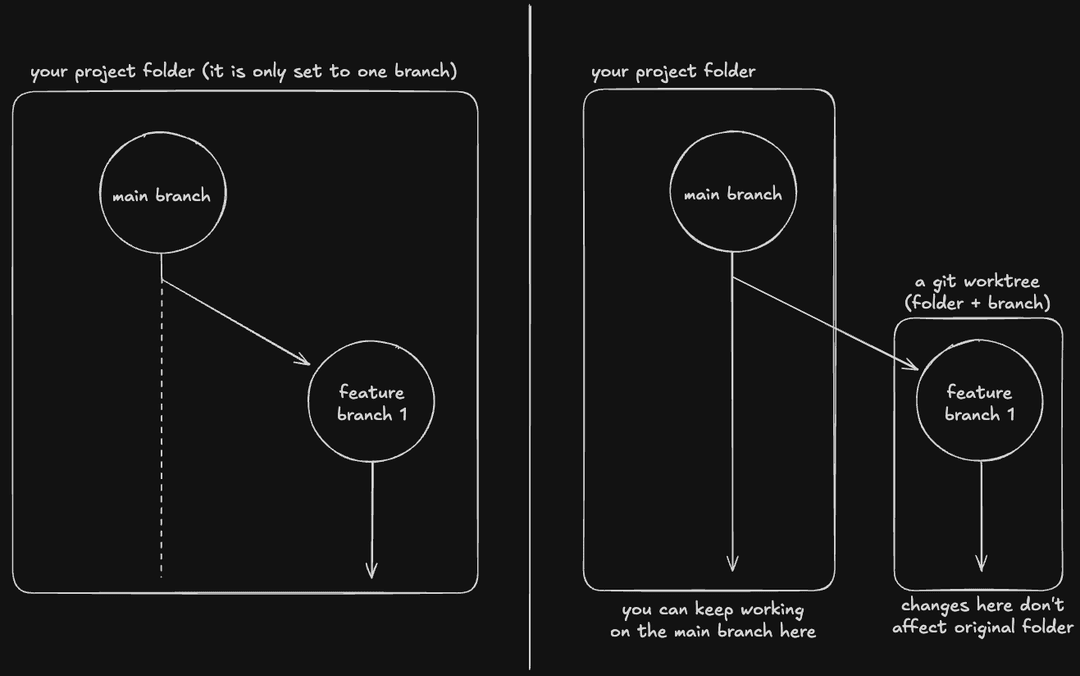
The basic idea is that you can work on a different branch in a different directory. It's essentially a branch + a directory.
You can add this layer of Git worktrees on top of the cascade method I discussed in the multitasking tip.
What are git worktrees?
A git worktree is just like any other git branch, but with a new directory specifically assigned to it.
So if you're working on, let's say, the main branch and feature-branch-1, then without git worktrees, you can only work on them one at a time because your project folder can only be set to one branch at a time.
However, with a git worktree, you can keep working on the main branch (or any other branch for that matter) in the original project folder, and at the same time work on feature-branch-1 in a new folder.
Tip 15: Manual exponential backoff for long-running jobs
When waiting on long-running jobs like Docker builds or GitHub CI, you can ask Claude Code to do manual exponential backoff. Exponential backoff is a common technique in software engineering, but you can apply it here too. Ask Claude Code to check the status with increasing sleep intervals - one minute, then two minutes, then four minutes, and so on. It's not programmatically doing it in the traditional sense - the AI is doing it manually - but it works pretty well.
This way the agent can continuously check the status and let you know once it's done.
(For GitHub CI specifically, gh run watch exists but outputs many lines continuously, which wastes tokens. Manual exponential backoff with gh run view <run-id> | grep <job-name> is actually more token-efficient. This is also a general technique that works well even when you don't have a dedicated wait command handy.)
For example, if you have a Docker build running in the background:

And it keeps going until the job completes.
Tip 16: Claude Code as a writing assistant
Claude Code is an excellent writing assistant and partner. The way I use it for writing is I first give it all the context about what I'm trying to write, and then I give it detailed instructions by speaking to it using my voice. That gives me the first draft. If it's not good enough, I try a few times.
Then I go through it line by line, pretty much. I say okay, let's take a look at it together. I like this line for these reasons. I feel like this line needs to move over there. This line needs to change in this particular way. I might ask about reference materials as well.
So it's this sort of back-and-forth process, maybe with the terminal on the left and your code editor on the right:

That tends to work really well.
Tip 17: Markdown is the s**t
Typically when people write a new document, they might use something like Google Docs or maybe Notion. But now I honestly think the most efficient way to go about it is markdown.
Markdown was already pretty good even before AI, but with Claude Code in particular, because it's so efficient as I mentioned with regards to writing, it makes the value of markdown higher in my opinion. Whenever you want to write a blog post or even a LinkedIn post, you can just talk to Claude Code, have it be saved as markdown, and then go from there.
A quick tip for this one: if you want to copy and paste markdown content into a platform that doesn't accept it easily, you can paste it into a fresh Notion file first, then copy from Notion into the other platform. Notion converts it to a format that other platforms can accept. If regular pasting doesn't work, try Command + Shift + V to paste without formatting.
Tip 18: Use Notion to preserve links when pasting
It turns out the reverse also works. If you have text with links from other places, let's say from Slack, you can copy it. If you paste it directly into Claude Code, it doesn't show the links. But if you put it in a Notion document first, then copy from there, you get it in markdown, which of course Claude Code can read.
Tip 19: Containers for long-running risky tasks
Regular sessions are more for methodical work where you control the permissions you give and review output more carefully. Containerized environments are great for --dangerously-skip-permissions sessions where you don't have to give permission for each little thing. You can just let it run on its own for a while.
This is useful for research or experimentation, things that take a long time and maybe could be risky. A good example is a Reddit research workflow with the reddit-fetch skill. Running that unsupervised is risky on your main system, but in a container, if something goes wrong, it's contained.
I even created SafeClaw to make running containerized Claude Code sessions easy. It lets you spin up multiple isolated sessions, each with a web terminal, and manage them all from a dashboard. It uses several customizations from this repo, including the DX plugin and status line.
There's also auto mode, which is a sensible default in general - Claude runs autonomously while a classifier reviews each command and only stops for risky ones. But this still doesn't remove the risks and the need for approval entirely, so for tasks where you want it to have complete independence, you can still use a container.
Advanced: Orchestrating a worker Claude Code in a container
You can take this further by having your local Claude Code control another Claude Code instance running inside a container. The trick is using tmux as the control layer:
- Your local Claude Code starts a tmux session
- In that tmux session, it runs or connects to the container
- Inside the container, Claude Code runs with
--dangerously-skip-permissions - Your outer Claude Code uses
tmux send-keysto send prompts andcapture-paneto read output
This gives you a fully autonomous "worker" Claude Code that can run experimental or long-running tasks without you approving every action. When it's done, your local Claude Code can pull the results back. If something goes wrong, it's all sandboxed in the container.
Advanced: Multi-model orchestration
Beyond just Claude Code, you can run different AI CLIs in containers - Codex, Antigravity CLI, or others. I tried OpenAI Codex for code review, and it works well. The point isn't that you can't run these CLIs directly on your host machine - you obviously can. The value is that Claude Code's UI/UX is smooth enough that you can just talk to it and let it handle the orchestration: spinning up different models, sending data between containers and your host. Instead of manually switching between terminals and copy-pasting, Claude Code becomes the central interface that coordinates everything.
Tip 20: The best way to get better at using Claude Code is by using it
Recently I saw a world-class rock climber being interviewed by another rock climber. She was asked, "How do you get better at rock climbing?" She simply said, "By rock climbing."
That's how I feel about this too. Of course, there are supplementary things you can do, like watching videos, reading books, learning about tips. But using Claude Code is the best way to learn how to use it. Using AI in general is the best way to learn how to use AI.
I like to think of it like a billion token rule instead of the 10,000 hour rule. If you want to get better at AI and truly get a good intuition about how it works, the best way is to consume a lot of tokens. And nowadays it's possible. I found that especially with Opus 4.5, it's powerful enough but affordable enough that you can run multiple sessions at the same time. You don't have to worry as much about token usage, which frees you up a lot.
Tip 21: Clone/fork and half-clone conversations
Sometimes you want to try a different approach from a specific point in a conversation without losing your original thread. The clone-conversation script lets you duplicate a conversation with new UUIDs so you can branch off.
Built-in alternatives (recent versions): Claude Code now has native forking:
/fork- forks the current session from within a conversation--fork-session- use with--resumeor--continue(e.g.,claude -c --fork-session)
Since --fork-session has no short form, you can add this function to your ~/.zshrc or ~/.bashrc to use --fs as a shortcut:
claude() {
  local args=()
  for arg in "$@"; do
    if [[ "$arg" == "--fs" ]]; then
      args+=("--fork-session")
    else
      args+=("$arg")
    fi
  done
  command claude "${args[@]}"
}
This intercepts all claude commands, expands --fs to --fork-session, and passes everything else through unchanged. Works with aliases too (see Tip 7): c -c --fs, ch -c --fs, etc.
The clone script below predates these built-in options, but the half-clone script below that remains unique for reducing context.
The first message is tagged with [CLONED <timestamp>] (e.g., [CLONED Jan 7 14:30]), which shows up both in the claude -r list and inside the conversation.
To set it up manually, symlink both files:
ln -s /path/to/this/repo/scripts/clone-conversation.sh ~/.claude/scripts/clone-conversation.sh
ln -s /path/to/this/repo/skills/clone ~/.claude/skills/clone
Or install via the dx plugin - no symlinks needed.
Then just type /clone (or /dx:clone if using the plugin) in any conversation and Claude will handle finding the session ID and running the script.
I've tested this extensively and the cloning works really well.
Half-clone to reduce context
When a conversation gets too long, the half-clone-conversation script keeps only the later half. This reduces token usage while preserving your recent work. The first message is tagged with [HALF-CLONE <timestamp>] (e.g., [HALF-CLONE Jan 7 14:30]).
To set it up manually, symlink both files:
ln -s /path/to/this/repo/scripts/half-clone-conversation.sh ~/.claude/scripts/half-clone-conversation.sh
ln -s /path/to/this/repo/skills/half-clone ~/.claude/skills/half-clone
Or install via the dx plugin - no symlinks needed.
Auto-suggest half-clone with a hook
Optionally, you can use a hook to automatically trigger /half-clone when your context gets too long. The check-context script runs after every Claude response and checks context usage. If it's over 85%, it tells Claude to run /half-clone, which creates a new conversation with only the later half so a new agent can continue there.
To set it up, first copy the script:
cp /path/to/this/repo/scripts/check-context.sh ~/.claude/scripts/check-context.sh
chmod +x ~/.claude/scripts/check-context.sh
Then add the hook to your ~/.claude/settings.json:
{
  "hooks": {
    "Stop": [
      {
        "hooks": [
          {
            "type": "command",
            "command": "~/.claude/scripts/check-context.sh"
          }
        ]
      }
    ]
  }
}
This requires auto-compact to be disabled (/config > Auto-compact > false), otherwise Claude Code may compact the context before the hook gets a chance to fire. When triggered, the hook blocks Claude from stopping and tells it to run /half-clone. The advantage over auto-compact is that half-clone is deterministic and fast - it keeps your actual messages intact instead of summarizing them.
Recommended permission for clone scripts
Both clone scripts need to read ~/.claude (for conversation files and history). To avoid permission prompts from any project, add this to your global settings (~/.claude/settings.json):
{
  "permissions": {
    "allow": ["Read(~/.claude)"]
  }
}
Tip 22: Use realpath to get absolute paths
When you need to tell Claude Code about files in a different folder, use realpath to get the full absolute path:
realpath some/relative/path
Tip 23: Understanding CLAUDE.md vs Skills vs Slash Commands vs Plugins
These are somewhat similar features and I initially found them pretty confusing. I've been unpacking them and trying my best to wrap my head around them, so I wanted to share what I learned.
CLAUDE.md is the simplest one. It's a bunch of files that get treated as the default prompt, loaded into the beginning of every conversation no matter what. The nice thing about it is the simplicity. You can explain what the project is about in a particular project (./CLAUDE.md) or globally (~/.claude/CLAUDE.md).
Skills are like better-structured CLAUDE.md files. They can be invoked by Claude automatically when relevant, or manually by the user with a slash (e.g., /my-skill). For example, you could have a skill that opens a Google Translate link with proper formatting when you ask how to pronounce a word in a certain language. If those instructions are in a skill, they only load when needed. If they were in CLAUDE.md, they'd already be there taking up space. So skills are more token-efficient in theory.
Slash Commands are similar to skills in that they're ways of packaging instructions separately. They can be invoked manually by the user, or by Claude itself. If you need something more precise, to invoke at the right time at your own pace, slash commands are the tool to use.
Skills and slash commands are pretty similar in the way they function. The difference is the intention of the design - skills are primarily designed for Claude to use, and slash commands are primarily designed for the user to use. However, they have ended up merging them, as I had suggested this change.
Plugins are a way to package skills, slash commands, agents, hooks, and MCP servers together. But a plugin doesn't have to use all of them. Anthropic's official frontend-design plugin is essentially just a skill and nothing else. It could be distributed as a standalone skill, but the plugin format makes it easier to install.
For example, I built a plugin called dx that bundles slash commands and a skill from this repo together. You can see how it works in the Install the dx plugin section.
Tip 24: Interactive PR reviews
Claude Code is great for PR reviews. The procedure is pretty simple: you ask it to retrieve PR information using the gh command, and then you can go through the review however you want.
You can do a general review, or go file by file, step by step. You control the pace. You control how much detail you want to look into and the level of complexity you want to work at. Maybe you just want to understand the general structure, or maybe you want to have it run tests too.
The key difference is that Claude Code acts as an interactive PR reviewer, not just a one-shot machine. Some AI tools are good at one-shot reviews (including the latest GPT models), but with Claude Code you can have a conversation.
Tip 25: Claude Code as a research tool
Claude Code is amazing for any sort of research. It's essentially a Google replacement or deep research replacement, but more advanced in a few different ways. Whether you're researching why certain GitHub Actions failed (which I've been doing a lot recently), doing sentiment or market analysis on Reddit, exploring your codebase, or exploring public information to find something - it's able to do that.
The key is giving it the right pieces of information and instructions about how to access those pieces of information. It might be gh terminal command access, or the container approach (Tip 19), or Reddit through the reddit-fetch skill, or private information through an MCP like Slack MCP, or the Cmd+A / Ctrl+A method (Tip 10) - whatever it is. Additionally, if Claude Code has trouble loading certain URLs, you can try using Playwright MCP or Claude's native browser integration (see Tip 9). For scientific research, I created a paper-search plugin for searching academic papers.
In fact, I was even able to save $10,000 by using Claude Code for research.
Tip 26: Mastering different ways of verifying its output
One way to verify its output if it's code is to have it write tests and make sure the tests look good in general. That's one way, but you can of course check the code it generates as it goes, just on the Claude Code UI. Another thing is you can use a visual Git client like GitHub Desktop for example. I personally use it. It's not a perfect product, but it's good enough for checking changes quickly. And having it generate a PR as I probably mentioned earlier in this post is a great way as well. Have it create a draft PR, check the content before turning it into a real PR.
Another one is letting it check itself, its own work. If it gives you some sort of output, let's say from some research, you can say "are you sure about this? Can you double check?" One of my favorite prompts is to say "double check everything, every single claim in what you produced and at the end make a table of what you were able to verify" - and that seems to work really well.
Tip 27: Claude Code as a DevOps engineer
I wanted to specifically create a separate tip for this because it's been really amazing for me. Whenever there are GitHub Actions CI failures, I just give it to Claude Code and say "dig into this issue, try to find the root cause." Sometimes it gives you surface level answers, but if you just keep asking - was it caused by a particular commit, a particular PR, or is it a flaky issue? - it really helps you dig into these nasty issues that are hard to dig into by hand. You would need to wade through a bunch of logs and that would be super painful to do manually, but Claude Code is able to handle a lot of that.
I've packaged this workflow as a /gha slash command - just run /gha <url> with any GitHub Actions URL and it will automatically investigate the failure, check for flakiness, identify breaking commits, and suggest fixes. You can find it in the skills folder, or install it via the dx plugin.
Once you identify what the particular problem was, you can just create a draft PR and go through some of the tips I mentioned earlier - check the output, make sure it looks good, let it verify its own outputs, and then turn it into a real PR to actually fix the issue. It's been working really well for me personally.
Tip 28: Keep CLAUDE.md simple and review it periodically
It's important to keep CLAUDE.md simple and as concise as possible. You can just start with no CLAUDE.md at all. And if you find that you keep telling Claude Code the same thing over and over again, then you can just add it to CLAUDE.md. I know there is an option to do that through the # symbol, but I prefer to just ask Claude Code to either add it to the project level CLAUDE.md or the global CLAUDE.md and it'll know what to edit exactly.
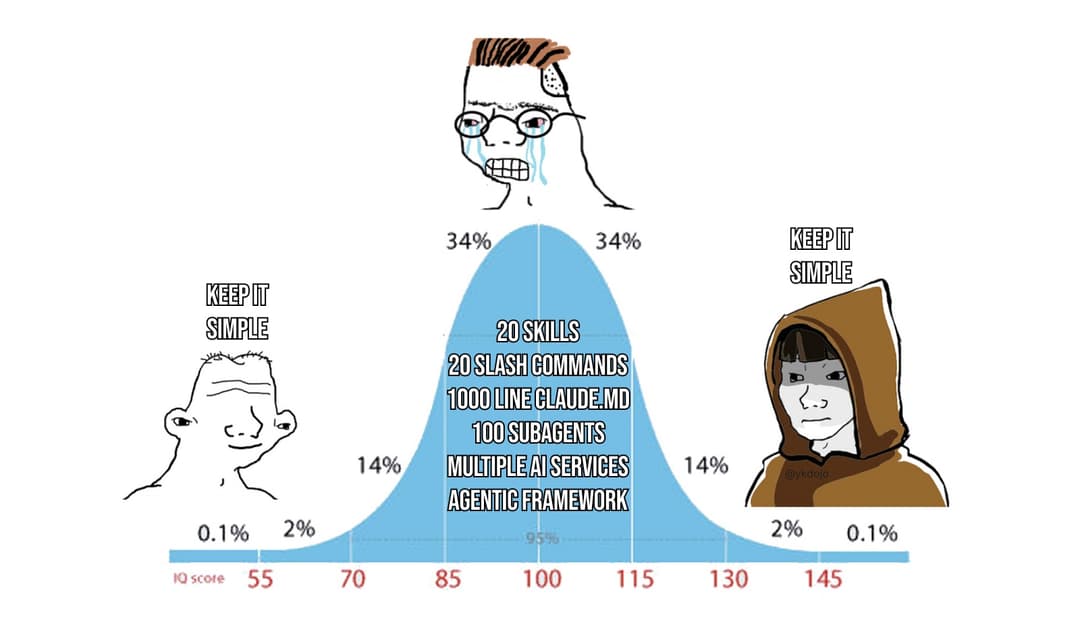
It's also important to periodically review your CLAUDE.md files because they can get outdated over time. Instructions that made sense some time ago might no longer be relevant, or you might have new patterns that should be documented. I created a skill for this called review-claudemd that analyzes your recent conversations and suggests improvements for your CLAUDE.md files.
Tip 29: Claude Code as the universal interface
I used to think with Claude Code, CLI is like the new IDE, and it's still true in a way. I think it's a great first place to open your project whenever you want to make quick edits and stuff like that. But depending on the severity of your project, you want to be more careful about the outputs than just staying at the vibe coding level.
But what's also true, the more general case of that, is that Claude Code is really the universal interface to your computer, the digital world, any sort of digital problem that you have. You can let it figure it out in many cases. For example, if you need to do a quick edit of your video, you can just ask it to do that - it'll probably figure out how to do that through ffmpeg or something similar. If you want to transcribe a bunch of audio files or video files that you have locally, you can just ask it to do that - it might suggest to use Whisper through Python. If you want to analyze some data that you have in a CSV file, it might suggest to use Python or JavaScript to visualize that. And of course with internet access - Reddit, GitHub, MCPs - the possibilities are endless.
It's also great for any operations you want to perform on your local computer. For example, if you're running out of storage, you can just ask it to give you some advice on how to clean that up. It'll look through your local folders and files, try to find what's taking up a lot of space, and then give you advice on how to clean them up - maybe delete particularly large files. In my case, I had some Final Cut Pro files that were really large that I should have cleaned up. Claude Code told me about it. Maybe it'll tell you to clean up unused Docker images and containers using docker system prune. Or maybe it'll tell you to clean up some cache that you never realized was still there. No matter what you want to do on your computer, Claude Code is the first place I go to now.
// faq
What is claude-code-tips?
43 tips for getting the most out of Claude Code, from basics to advanced - includes a custom status line script and Claude Code running itself in a container. Also includes the dx plugin.. It is open-source on GitHub.
Is claude-code-tips free to use?
claude-code-tips is open-source under the NOASSERTION license, so it is free to use.
What category does claude-code-tips belong to?
claude-code-tips is listed under devtools in the Claudeers registry of Claude-compatible tools.
// embed badge

[](https://claudeers.com/claude-code-tips)
// retro hit counter

[](https://claudeers.com/claude-code-tips)
// reviews
// guestbook
// related in Automation & Workflows
 🔓
🔓 🔓
🔓The API to search, scrape, and interact with the web at scale. 🔥
 🔓
🔓🌐 Make websites accessible for AI agents. Automate tasks online with ease.
 🔓
🔓Taste-Skill - gives your AI good taste. stops the AI from generating boring, generic slop