
aubergine
Mission control for your AI coding agents. Manage Claude Code, Codex, Cursor, and multiple terminals in one dashboard. It is a modern take on productivity tools
Install with your AI
Paste into Claude Code, Cursor, or any agent — it reads the repo and wires the tool into your project.
Install and set up aubergine (git-clone project) into my current project.
Found on https://claudeers.com/aubergine
Repo: https://github.com/thirstyeggplant/aubergine
Homepage/docs: https://thirstyeggplant.com
Detected install method: git-clone → git clone https://github.com/thirstyeggplant/aubergine
Category: productivity. Platforms: cli, api, desktop, web.
Read the repo's README for exact setup and env vars, then install it and wire it into my project.

Claudeers Health Verdict:
unknown; community-verified: false. Confirm the source before running anything.
git clone https://github.com/thirstyeggplant/aubergine
// compatibility
| Platforms | cli, api, desktop, web |
|---|---|
| Operating systems | — |
| AI compatibility | claude |
| License | MIT |
| Pricing | open-source |
| Language | TypeScript |
Aubergine
English · Español · Português · Français · Deutsch · 日本語 · 简体中文 · 한국어 · Bahasa Indonesia · हिन्दी · বাংলা · العربية
All your terminals, side by side. Bring your own agents. Aubergine puts all your terminals on one canvas in your browser. Run as many as you like, with the agents and models you already use, and see at a glance which one is waiting for you, which step each is on, and what each has written for you.
- Runs on your own computer, and nowhere else.
- Terminals keep running when you close the browser or restart Aubergine.
- Works with plain shells and with agents.
- Aubergine has no model of its own, holds no key and has no account.
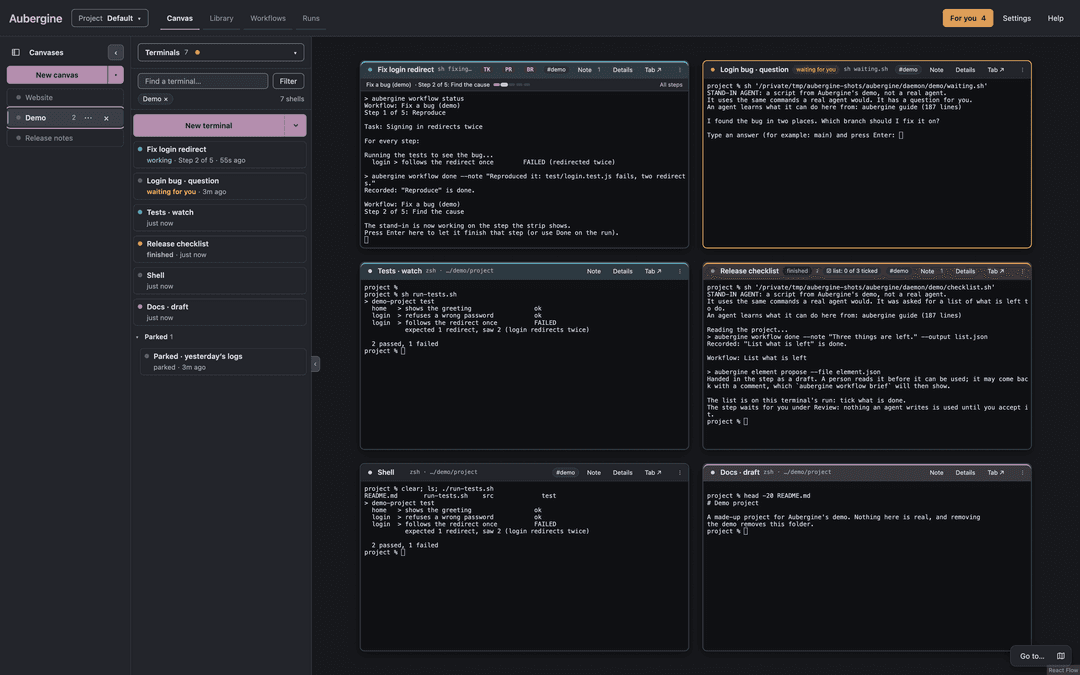
The demo that comes with Aubergine: stand-in agents, no real ones. More in What it looks like.
What it looks like
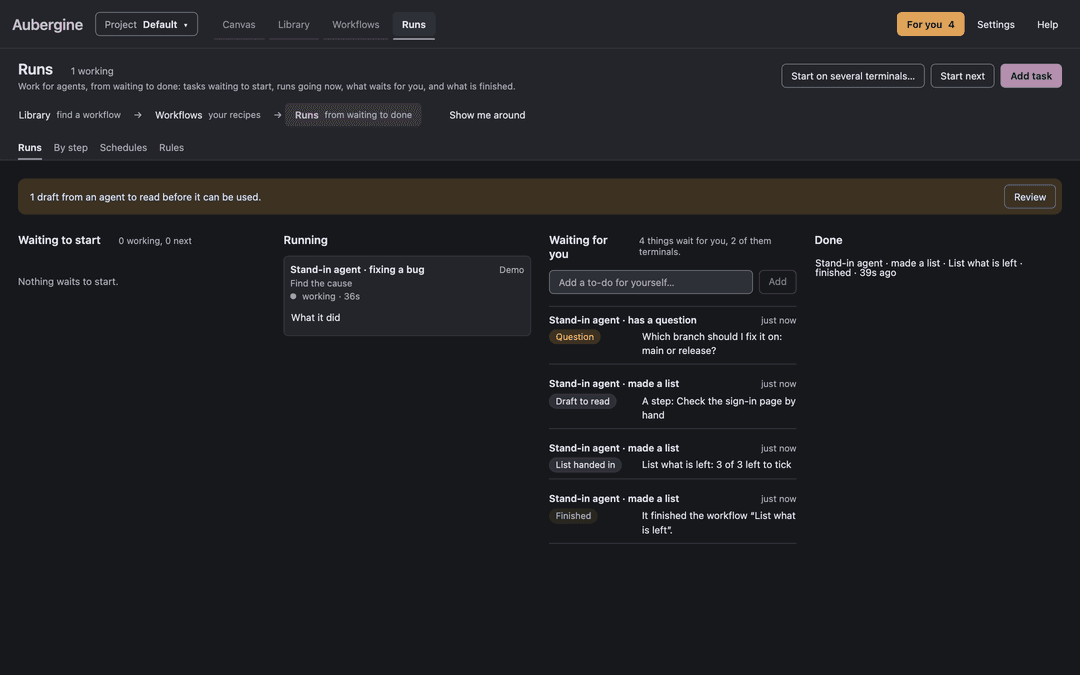 | 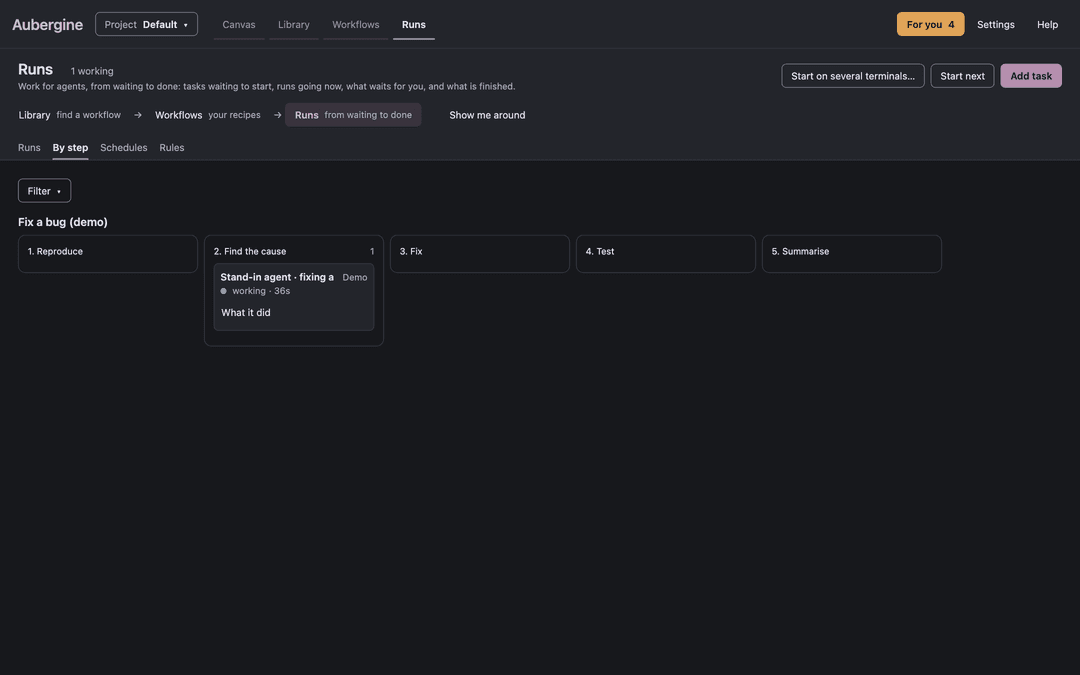 |
| Runs. Work moves left to right: waiting to start, running, waiting for you, done. | By step. Each workflow with a column for each step, and every run where it stands. |
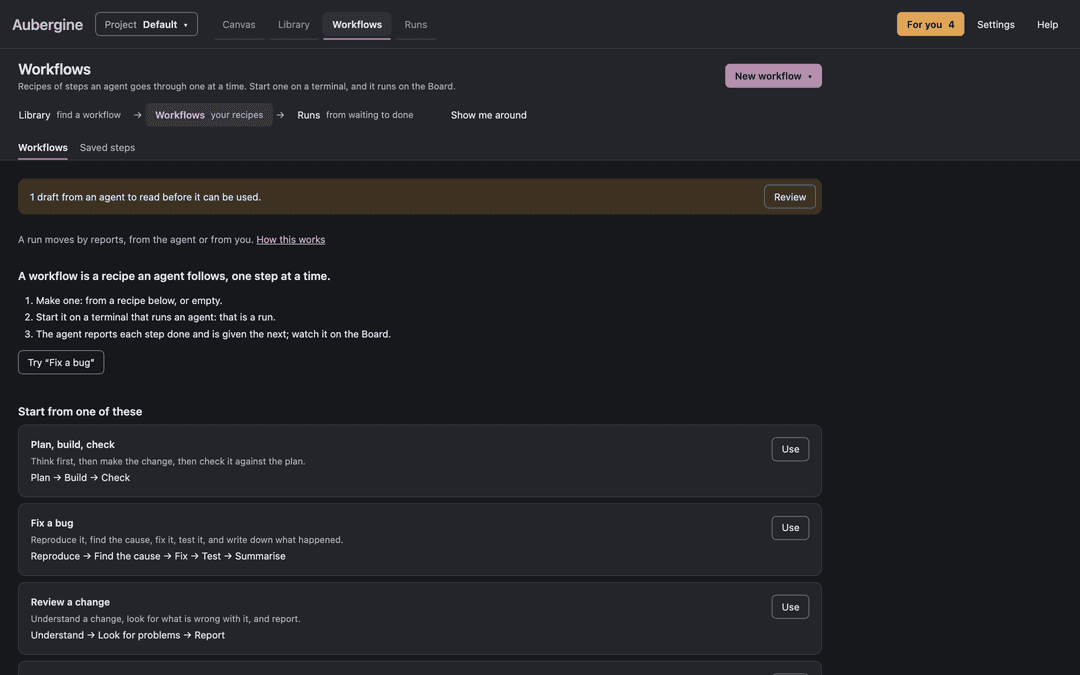 | 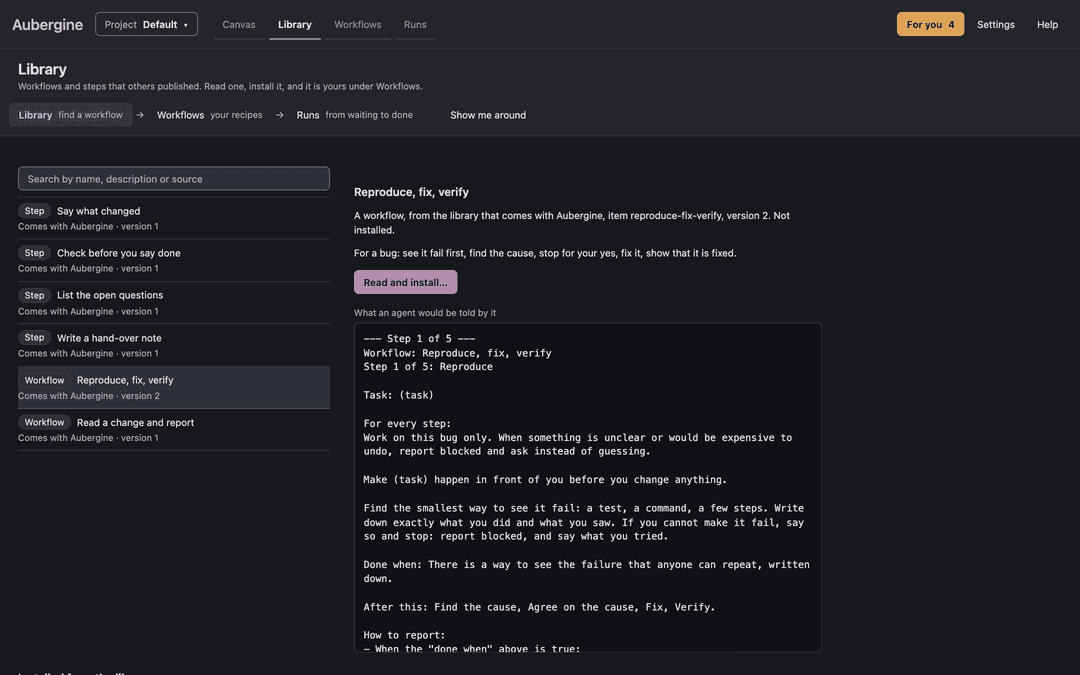 |
| Workflows. Lists of steps an agent goes through, one at a time. | Library. Read exactly what an agent would be told before you install anything. |
Start in two minutes
1. Install (macOS with tmux 3.2 or newer and Node.js 22 or newer; brew install tmux node gets both)
# Node.js 22 or newer
npm install -g @meatgarden/aubergine
Or with the installer, which also needs pnpm and builds from the source:
curl -fsSL https://raw.githubusercontent.com/thirstyeggplant/aubergine/main/install.sh | sh
2. Start it and open your browser
aubergine start --open
3. Click "Show me around" in the middle of the empty canvas.
It makes a canvas named "Demo" with a few stand-in agents and walks you round in eight short steps, about five minutes. Nothing in it is real, and Remove the demo takes it away again.
Something not right? Run aubergine doctor, or see If something goes wrong. The installer is described in full under Quick start.
Your first real session
| Step | Do this |
|---|---|
| 1. Add a terminal | Click New terminal, or press N |
| 2. Type in it | Click the terminal. One click is enough |
| 3. Start an agent | Press C for a new Claude Code terminal |
| 4. Arrange things | Drag a terminal by its title bar. Double-click the title to rename it |
| 5. See who needs you | The count at the top shows who is waiting. Press W to go to the next one |
| 6. Find anything | Press ⌘K and type part of a name, folder, note or output |
Already have terminals open elsewhere? Click Open elsewhere in the toolbar (or press O) and bring them in one at a time: Moving your existing terminals over.
Start agents from Aubergine, not by typing claude. Use New terminal ▾ → Claude Code (or press C). Aubergine then starts Claude Code with a few small hooks that tell it what the agent is doing, which is how a terminal shows waiting for you and how a workflow's agent is told to begin. If you type claude yourself in a plain terminal, it works like any program, but Aubergine sees only a shell busy running claude: no "waiting for you", and nothing is typed for it when you start a workflow there (the terminal says so). You can still tell it yourself to run aubergine workflow status, which works from inside any terminal here.
What you can do
| I want to… | How | Read more |
|---|---|---|
| Keep pieces of work apart | Canvases as tabs, and projects | Canvases, Projects |
| Know which agent needs me | The waiting count, W, desktop notifications | Agents: who is waiting for you? |
| See every terminal in one list | The side panel, with filters and tags (B) | Side panel and terminal list |
| Keep notes on a terminal | The notes beside it, or aubergine note "…" | Notes |
| Put a terminal away without stopping it | × on it parks it; Parked brings it back | Parking |
| Search what terminals printed | ⌘K, then type | Searching terminal output |
| Give an agent steps to follow | A workflow: an ordered list of steps, with a strip that shows where the agent is | Workflows |
| Use workflows others made | Browse the library and install | The library |
| Line up work for agents | The queue (Q) | The queue, and "For you" |
| Run something every morning | A schedule | Schedules |
| Run two agents on one repository | A working copy for each | Working copies |
| Let agents talk to each other | Messages | Messages between terminals |
| Run it on a server, in a container | An image and a web server for HTTPS in docker/, run once on a Mac with Colima | In a container |
| Use it from my phone or another computer | Off by default: an SSH tunnel, a private network, or a name and a proxy, then pair each browser | Using Aubergine from elsewhere |
| Let a script or agent use Aubergine | An API token, and the MCP server | API tokens, Terminal access, MCP server |
Commands you will use most
Every command is listed under Command line. These are the everyday ones.
Run Aubergine
| Command | What it does |
|---|---|
aubergine start --open | Start the server and open the browser, signed in |
aubergine open | Open the browser when the server is already running |
aubergine doctor | Check everything Aubergine needs, one line per check |
aubergine update | Get the latest version (installed with npm: it prints the npm command). Restart the server afterwards |
aubergine demo | Make the demo canvas (--remove takes it away) |
Terminals
| Command | What it does |
|---|---|
aubergine list | Every terminal with its state, command and folder |
aubergine new [name] | Start a new terminal on a canvas |
aubergine here | Put the terminal you are in on the canvas (--claude starts Claude Code in it) |
aubergine scan | List open terminals that are not on the canvas yet |
aubergine attach <name> | Show one of the canvas's terminals in this window of your terminal application |
aubergine note "…" | Inside a terminal: add a line to its notes |
Workflows
| Command | What it does |
|---|---|
aubergine workflow list | The workflows you have |
aubergine workflow new <name> | Make one (--template <template> starts from a template) |
aubergine workflow run <name> | Start a run on a terminal |
aubergine board | Every run that is going |
aubergine library list | What the library offers |
Keys (while no terminal has the keyboard; ? shows all of them)
| Key | What it does |
|---|---|
N / C | New terminal / new Claude Code terminal |
⌘K | Palette: go to anything, run any command |
W | Next terminal that is waiting for you |
B | Show or hide the side panel |
Q | The queue and "For you" |
P / U | Park the selected terminal / bring back the last parked one |
F / 0 | Zoom to fit / zoom to 100% |
Stop the server with Ctrl+C. Your terminals keep running; aubergine start brings them back.
Reference
The rest of this page is the reference: every section below stands on its own.
Quick start
You need macOS with tmux 3.2 or newer, Node.js 22 or newer, and pnpm. On Linux it has been run in containers only (see Install with npm); on Windows it runs only inside WSL 2, which has not been tried (see On Windows). With Homebrew on macOS, brew install tmux node pnpm gets all three.
The Node.js version. 22 is the lowest that works; anything newer is fine, and nothing older is. node -v says which one a terminal has. If you use nvm, that is the version nvm has chosen for that terminal, which may be older than the newest you have installed:
node -v                  # v22 or higher is fine
nvm install 22           # or a newer one, if this one is older
nvm alias default 22     # so new terminals use it too
npm install -g @meatgarden/aubergine
The installer and aubergine doctor both check this and say so when the version is too old.
1. Install Aubergine with one line:
curl -fsSL https://raw.githubusercontent.com/thirstyeggplant/aubergine/main/install.sh | sh
Prefer to read a script before running it? The same thing in two steps:
curl -fsSL https://raw.githubusercontent.com/thirstyeggplant/aubergine/main/install.sh -o install.sh
less install.sh        # read it; sh install.sh --dry-run shows what it would do and changes nothing
sh install.sh
What the installer does, and says before doing it:
- checks that Node.js, pnpm, tmux and git (or curl and tar) are there and new enough. If one is missing it tells you how to get it and stops, having changed nothing;
- puts the code in
~/.aubergine/app, installs its dependencies and builds the web app there; - links the
auberginecommand into a folder on yourPATHthat you can write to: Homebrew's if you have it, else~/.local/binor~/bin. If none of those is on yourPATHit uses~/.local/binand prints the one line to add to your shell's startup file.
What it does not do: it does not install Node.js, pnpm or tmux, it never uses sudo, it never edits your shell's startup files, and it touches nothing outside ~/.aubergine and that one link. Running it again updates the copy in place. AUBERGINE_HOME changes where it installs and AUBERGINE_REF which branch or tag.
2. Start the server and leave it running:
aubergine start
It prints something like this:
Aubergine is running at http://127.0.0.1:4600
First visit in a browser? Open this link once:
  http://127.0.0.1:4600/auth?token=…
3. Open the sign-in link once per browser. After that, http://127.0.0.1:4600 works on its own. Use 127.0.0.1 rather than localhost, since the sign-in is remembered per address. aubergine start --open does both steps: it starts the server and opens your browser signed in. With the server already running, aubergine open opens a signed-in browser.
4. Add a terminal. Choose New terminal (or press N), click the terminal, and type. An empty canvas offers three ways to begin: Show me around (the demo and its tour), New terminal, and Bring in a terminal I already have open. aubergine, typed by itself while nothing is on your canvas, says the same three.
If something is not right, aubergine doctor checks everything Aubergine needs, one line per check.
Install with npm
Aubergine is on npm as @meatgarden/aubergine: plain JavaScript and the built web app, with no development tools and no pnpm.
brew install tmux          # npm cannot install tmux; 3.2 or newer
npm install -g @meatgarden/aubergine
aubergine start --open
Node.js 22 or newer is needed. aubergine update and aubergine uninstall say the npm command to run (npm install -g @meatgarden/aubergine@latest, npm uninstall -g @meatgarden/aubergine); uninstall still removes start at login, and nothing of your data or terminals. Some versions of npm do not run a package's install scripts unless you allow them; Aubergine does not need its own. On macOS the terminal library (node-pty) comes ready-made. On Linux it has nothing ready-made and is compiled when it is installed, which needs its install script allowed, and Python 3, make and a C++ compiler. Linux has been run twice, both times in a container: the image built from a checkout in docker/ (see In a container), and on 2026-11-25 the published package 0.2.2, installed with npm install -g @meatgarden/aubergine on Ubuntu 24.04 (x86_64), where node-pty compiled in about 13 seconds with build-essential and python3 from apt, and the server, a terminal and the demo worked.
On Windows
Aubergine does not run on Windows itself: it needs tmux and a Unix shell. It can run inside WSL 2, the Linux that Windows provides, with the page opened in a browser on Windows. The steps are on the site: Install Aubergine on Windows with WSL. Its Linux steps were run on Ubuntu 24.04 in a container, not in WSL; nothing has been run on Windows yet. Start at login is macOS only, and Open on desktop has no setting for a Windows terminal app.
Updating an npm install is npm's, then restart the server; the steps are under Stopping, restarting and updating.
npm install -g @meatgarden/aubergine@latest
Building the package from a checkout: pnpm npm-package writes it to dist/npm, and pnpm npm-package --pack also writes the .tgz to dist/, which npm install -g ./dist/<file>.tgz installs. Releasing: bump version in daemon/package.json, merge it, then push a tag v<version> (git tag v0.1.1, git push origin v0.1.1). The workflow .github/workflows/publish.yml builds the package from that tag and publishes it; npm trusts that workflow (trusted publishing), so no npm token is stored anywhere. The same tag runs .github/workflows/publish-image.yml, which builds the container image for linux/amd64 and linux/arm64, tries each, and pushes it to GitHub's container registry as ghcr.io/thirstyeggplant/aubergine (the version and latest), signed in with the run's own token: no secret is stored for that either. Run by hand, that workflow builds and tries both and pushes nothing. Nothing else publishes either of them.
Manual install
The same result by hand, if you would rather not run the installer, or want the code somewhere of your own choosing to work on it.
1. Install the tools (skip any you already have). With Homebrew on macOS:
brew install tmux node pnpm
2. Get the code and its dependencies:
git clone https://github.com/thirstyeggplant/aubergine.git
cd aubergine
pnpm install
3. Build the web app and start the server:
pnpm build
pnpm start
4. Sign in. pnpm start opens your browser on the sign-in link by itself. To start the server without opening a browser, use pnpm serve. Either way the server prints the link, something like this:
Aubergine is running at http://127.0.0.1:4600
First visit in a browser? Open this link once:
  http://127.0.0.1:4600/auth?token=…
Open the /auth?token=… link once per browser. After that, http://127.0.0.1:4600 works on its own. Use 127.0.0.1 rather than localhost, since the sign-in is remembered per address.
5. Add a terminal. Choose New terminal (or press N), click the terminal, and type.
6. Install the aubergine command (optional, but the sections below on moving terminals over, notes and start at login use it).
With a manual install nothing links it for you (the installer does this step by itself). The command is the file bin/aubergine.mjs in this folder, and it stays here: installing means creating a link, a small pointer named aubergine, in a folder your shell already searches for commands (a folder on your PATH). Nothing is copied or moved. When you type aubergine, the shell finds the link and runs the file in this folder.
From the aubergine folder, with Homebrew:
ln -s "$PWD/bin/aubergine.mjs" "$(brew --prefix)/bin/aubergine"
Reading that command from left to right:
| Part | Meaning |
|---|---|
ln -s | create a link |
"$PWD/bin/aubergine.mjs" | what the link points to: the file in this folder ($PWD is the folder you are in) |
"$(brew --prefix)/bin/aubergine" | where the link goes and what it is called: aubergine, in Homebrew's command folder (/opt/homebrew/bin on Apple Silicon Macs), which is already on your PATH |
Without Homebrew, put the link in any folder that is on your PATH, for example:
mkdir -p ~/.local/bin
ln -s "$PWD/bin/aubergine.mjs" ~/.local/bin/aubergine
(If ~/.local/bin is not on your PATH yet, add export PATH="$HOME/.local/bin:$PATH" to your .zshrc and open a new terminal.)
Check it from any folder:
aubergine list
Because it is a link and not a copy:
- after
git pullthe command is already up to date, with nothing to reinstall; - if you move or delete this folder, the command stops working until you make the link again;
- to uninstall, delete the link:
rm "$(brew --prefix)/bin/aubergine". That removes only the pointer, never the file in this folder.
You can also skip the link and run it by path. From this folder that is node bin/aubergine.mjs list; from anywhere else, give the full path to the file, for example node ~/code/aubergine/bin/aubergine.mjs list if you cloned into ~/code.
Questions about the aubergine command
What has to be true for aubergine to work in a terminal? Two things. A file named aubergine has to exist in some folder, which is the link the installer makes, or the one from step 6 of the manual install. And that folder has to be on your PATH, the list of folders your shell searches when you type a command name. With Homebrew the second part is already done, because Homebrew's command folder was put on your PATH when Homebrew was installed. So only the link is missing.
Do I have to be inside this folder to use it? No. Once the link exists, aubergine list, aubergine here and the rest work from any folder. That is the point of aubergine here, which you run inside your other projects.
Then why does step 6 say "from the aubergine folder"? Only because that one command contains $PWD, which means "the folder I am in right now". Run from anywhere else, it would point the link at the wrong place. To run it from anywhere, write the path out, for example:
ln -s ~/code/aubergine/bin/aubergine.mjs "$(brew --prefix)/bin/aubergine"
What is $(brew --prefix)/bin/aubergine? It is not a command; it is the place the link is put and the name it is given. brew --prefix prints the folder Homebrew lives in, and $( … ) pastes that in. On an Apple Silicon Mac the whole thing becomes /opt/homebrew/bin/aubergine; on an Intel Mac, /usr/local/bin/aubergine. Asking Homebrew where it lives is what lets the same line work on both.
Does this folder have to stay where it is? Yes. The link is a pointer, so the command runs the code in this folder. It needs the folder to stay put, its dependencies installed (pnpm install), and, for most commands, the server running.
Is the command available inside terminals on the canvas? Only if you made the link. Terminals on the canvas use your normal PATH. Status and agent hooks do not depend on it, because they record the full path to the file, but typing aubergine note "…" yourself does.
Without admin rights
Nothing in Aubergine needs an administrator password. What can need one is getting its tools onto a managed computer.
The link. Creating a link never needs admin rights; it needs a folder you are allowed to write to. The installer picks such a folder by itself: it tries Homebrew's folder only if you can write to it, and otherwise uses ~/.local/bin or ~/bin in your own home. By hand, the Homebrew line in step 6 fails on a computer with no Homebrew, or where someone else installed it (permission denied). Use a folder in your own home instead, which always works:
mkdir -p ~/.local/bin
ln -s "$PWD/bin/aubergine.mjs" ~/.local/bin/aubergine
and make sure that folder is on your PATH (add export PATH="$HOME/.local/bin:$PATH" to your .zshrc and open a new terminal). Or make no link at all and run the command by its full path.
The tools.
| Tool | Without admin rights |
|---|---|
| Node.js | Install it into your home folder with a version manager such as nvm (nvm install 22, or newer). |
| pnpm | Its standalone installer puts it in your home folder. |
| tmux | The hard one: it has no per-user installer of its own. Ask your IT department for it, use a per-user package manager your company allows, or build it from source into your home folder. If tmux is somewhere unusual, point Aubergine at it with AUBERGINE_TMUX_BIN. |
Everything else stays in your account. The server listens on 127.0.0.1 only, its data is in your own application-data folder, and start at login is a per-user launchd agent.
Stopping, restarting and updating
-
Stop the server with Ctrl+C in the terminal where it runs. Your terminals on the canvas keep running; start the server again (
aubergine start) and reload the page to get them back. If you start it while it is already running, it says so and gives you the address instead of failing. -
End every terminal for good with
tmux -L aubergine kill-server. The canvas layout is kept, and each terminal gets a fresh shell the next time the server starts. -
Update to the latest version. How depends on how you installed it.
Installed with npm: npm updates it.
npm install -g @meatgarden/aubergine@latestaubergine updatechanges nothing on an npm install; it only prints that line. On Linux the update compiles the terminal library again, so it needs the same build tools as the first install (see Install with npm).Installed with the installer, or a checkout:
aubergine updateIt fetches the new code, installs dependencies and builds the web app. It refuses if you have changed the code in that folder. Running the installer again does the same, and is the way to update a copy that was installed without git. For a manual install you can equally run
git pull,pnpm install,pnpm buildyourself.Either way, the server that is running is still the old code. Restart it: Ctrl+C where it runs, then
aubergine start, then reload the page. Your terminals keep running through this. If it starts at login, runaubergine service installagain instead: it stops the old server and starts the new one. Run it with the sameAUBERGINE_PORTandAUBERGINE_DATA_DIR, if you set them, as when you first installed it, since it keeps the ones in effect. A terminal made before the update keeps its old shell integration until its shell is restarted (see If something goes wrong).aubergine versionsays which version is installed;npm view @meatgarden/aubergine versionsays the latest published. -
See what is installed:
aubergine versionprints the version, the commit, where the code is and where your data is. -
Start at login so you only ever open the browser: see
aubergine service installunder Command line. -
Uninstall with
aubergine uninstall. It removes the link and, after asking, the copy the installer made (and start at login, if it starts this copy). It never removes a folder you cloned yourself, never removes your data, and never ends your terminals; it prints the two commands that do those by hand, should you want that.
If something goes wrong
| What you see | What to do |
|---|---|
| "This browser is not signed in yet" | Open the sign-in link once in that browser. aubergine open --print prints it again. |
| A page saying tmux is missing or too old | Install or upgrade tmux (brew install tmux), then restart the server. |
| The server will not start because the port is taken | Use another port: AUBERGINE_PORT=4700 pnpm start. |
aubergine: command not found | The command is not linked onto your PATH yet: do step 6 above, or run node bin/aubergine.mjs from this folder. |
| "The web app has not been built yet" | Run pnpm build, then pnpm start again; start serves the built web app. |
| A terminal shows no status badges | Status needs zsh, and a terminal created before an update keeps its old shell. Park it and start a new one, or restart its shell. |
The server listens on 127.0.0.1 only, so it is reachable from this computer and nowhere else until you set up use from another device.
In a Chromium-based browser you can install the page as an app window (address bar → install), which lets more keyboard shortcuts reach the canvas.
Moving your existing terminals over
You probably have terminal tabs open already, some of them running agents. One thing cannot be done, by this or any tool: a program that is already running in another terminal cannot be moved into an Aubergine terminal. So moving over means three things: give each tab a terminal on the canvas in the same folder, carry agent conversations on inside those terminals, and make new tabs land on the canvas from now on.
Nothing here edits your dotfiles, and with one exception nothing stops, signals or changes a program you have running. The exception is Stop and resume, which asks one Claude Code agent to exit, only when you choose it for that agent and only after you confirm.
From the canvas
The quickest way is the Open elsewhere button in the canvas toolbar. It lists every terminal you have open in your terminal application and not in Aubergine: the terminal's name, its folder, what is running in it, and for a Claude Code tab the conversation's name and whether the agent is idle or busy. Refresh looks again; nothing is looked up while the panel is closed.
Each row has its own action, so you bring terminals over one at a time:
- Add to canvas, for a shell at its prompt or one running a command: a terminal on the canvas in the same folder. A command that is running stays where it is; start it again in the new terminal if you need it there.
- Fork to canvas, for a Claude Code tab: a copy of the conversation starts on the canvas, and the original keeps running until you exit it.
- Stop and resume here, for a Claude Code tab whose agent is idle: the original is asked to exit and the same conversation carries on on the canvas. It asks you first, and it is switched off, with the reason shown, while the agent is busy.
After an action the canvas goes to the new terminal, and the row tells you what to do with the old tab.
The same things can be done from the command line, described next. These steps use the aubergine command; install it first with step 6 of the quick start. The server must be running.
If you have not linked the command, every aubergine … below still works when you write it as node followed by the full path to bin/aubergine.mjs. Most of these commands are run from your other tabs, in their own folders, so a relative path will not do. For example, if you cloned into ~/code:
node ~/code/aubergine/bin/aubergine.mjs scan
node ~/code/aubergine/bin/aubergine.mjs here
A tab that is sitting at its prompt
In that tab:
aubergine here
This creates a terminal in the tab's current folder, named after the folder, puts it on the canvas, and turns the tab into a view of that terminal. The tab and the canvas now show the same shell. Close the tab whenever you like; the terminal stays on the canvas.
If the canvas is open in a browser, it pans to the new terminal and focuses it. If it is not open anywhere, your default browser opens on it. --no-open skips that.
Give it a name, or a command to start with, if you want:
aubergine here "api server" -- npm run dev
aubergine here starts a new shell; variables and shell history that only existed in the old shell's memory do not come along. The old shell is still underneath the view: if the terminal ends while the tab is open, you are back in it. Use exec aubergine here to replace the old shell completely.
A tab with a command still running
Leave it alone until the command finishes, or stop it yourself when it suits you. Then run aubergine here in that tab, adding the command after -- if you want it started again in the new terminal.
A running server or watcher cannot be carried over; it has to be started again inside the terminal.
A tab running Claude Code
The running agent itself cannot be moved, but its conversation can. Start with a look:
aubergine move
lists your Claude Code tabs: terminal, whether the agent is idle or busy, the conversation's name and its folder, followed by a ready-to-copy command for each one. It only reads. Then move the ones you want by terminal name, one at a time or several, or all of them:
aubergine move ttys004 --dry-run     # show the plan, change nothing
aubergine move ttys004
aubergine move --all
There are two ways to move, and the default is the careful one.
Copy (the default). A new terminal on the canvas starts in the same folder with a copy of the conversation. The original tab is not touched and keeps running. Exit the original (/exit) when you are ready; until you do, two agents with the same history are working in the same folder, so do not give both of them work.
Stop and resume (--stop). The original agent is asked to exit, and the same conversation carries on in a new terminal on the canvas:
aubergine move ttys004 --stop
- It only does this for an agent that is idle, checked again at the last moment. A busy one is refused; wait for its turn to end. (
--forceoverrides this and interrupts the agent's work.) - It asks you to confirm first (
--yesskips the question). - It asks the original process to exit once, politely, waits, and checks that it has gone. It is never forced. If it does not exit, nothing is started on the canvas for it and you are told.
- It only ever signals the exact processes you chose, each checked to still be the same Claude Code process.
Either way, the old tab cannot be turned into a view of the new terminal from outside. After --stop the tab is back at its shell prompt; run aubergine attach "<name>" there if you want it to show the terminal, or just close it.
aubergine move finds each conversation in the records Claude Code keeps for its running processes. That is an internal detail of Claude Code that may change; if a record cannot be read, the copy falls back to the most recent conversation in the folder and says so, and --stop is refused for that tab.
By hand
-
Let the agent finish its current turn.
-
Exit it (
/exit). -
In the same tab, in the same folder:
aubergine here --claude
This starts Claude Code in a new terminal on the canvas with --continue, so the conversation carries on where it stopped, now with its status on the canvas (working, waiting for you, finished).
The limit: --continue picks the most recent conversation for that folder. If two agents were working in the same folder, only the first aubergine here --claude gets the right one by itself. For the other, name the conversation yourself. Anything after -- goes to the agent in place of --continue:
aubergine here --claude -- --resume <conversation id>
aubergine here --claude -- --resume <conversation id> --fork-session
Other tabs: one, a few, or all at once
aubergine scan
lists your open terminals that are not on the canvas yet: the terminal's name, what is running in it, and its folder, followed by a ready-to-copy command for each one. It only reads.
To bring over just one or a few, name them:
aubergine import ttys004
Or take all of them:
aubergine import --dry-run
aubergine import
creates one terminal on the canvas per folder, grouped in a frame named "Imported", and prints what to do in each original tab: attach it if it is idle, or wait for its command or agent first. --dry-run shows the plan and changes nothing. Folders that already have a terminal are skipped; --all gives every tab its own terminal anyway. Your tabs are left exactly as they are.
New tabs from now on
aubergine shell-hook print
prints a few lines for your .zshrc. Add them yourself, at the end of the file. From then on a new tab of your terminal application starts inside a new terminal on the canvas, and closing the tab only detaches from it.
The lines cannot leave you without a shell. They do nothing inside Aubergine or tmux or in a non-interactive shell, and if the server is stopped, slow to answer, or anything else fails, the normal shell starts as usual (after a moment's wait, at most a few seconds).
For one plain tab on purpose, run AUBERGINE_DISABLE=1 zsh, or set AUBERGINE_DISABLE=1 in the environment of a terminal profile.
Each new tab makes a new terminal, so park or end the ones you no longer need.
Going back
- Remove the lines between the two
auberginemarkers from your.zshrc; new tabs are plain again. AUBERGINE_DISABLE=1switches the lines off without removing them.- Sessions are ordinary tmux sessions on their own socket. With the server stopped you can still reach every one:
tmux -L aubergine ls, thentmux -L aubergine attach -t <id>with an ID from that list. - Ending the terminals (from the canvas, or
tmux -L aubergine kill-server) leaves nothing running.
Use
The demo and the tour
aubergine demo, or Show me around on an empty canvas, makes a canvas named "Demo" with a small scene on it: a shell with some output, a stand-in agent part-way through the "Fix a bug" workflow, one that is waiting with a question, one that has handed in a checklist and proposed a step for you to review, and a parked terminal. A tour of eight steps points at each in turn and waits for you to try it.
- Nothing in it is real. The stand-ins are short scripts in
daemon/demo/, labelled as stand-ins where they run. They use the same commands a real agent uses (aubergine workflow,aubergine note, the hooks), so they also show that those work. They react: answer the one that is waiting and it carries on and reports that it has finished; press Enter in the first one's terminal, or Done on its run, and the strip moves. - It touches nothing of yours. It adds a canvas and its terminals, working in a folder of its own inside Aubergine's data folder. No workflow, saved step or token is added. Making it twice makes one.
- Removing it removes all of it and nothing else:
aubergine demo --remove, Remove the demo on its canvas, or the last step of the tour. The canvas, its terminals, their runs, the draft and the folder go; so does a step you accepted from a stand-in's draft. Its runs are no longer among the past runs, and what became of its draft is no longer under "Decided lately". A terminal of your own that you put on the demo's canvas is moved to another canvas, still running. - The tour can be skipped step by step, put away ("Not now") and taken up again from the palette ("Take the tour") or from ?, or put away for good. Whether you finished it is remembered in your browser only; nothing about it is sent anywhere or recorded.
? in the toolbar lists the same eight things as one-line reminders. Show me beside a line points at the thing on the canvas you are looking at.
Canvas
- New terminal (or
N), at the top of the list of terminals in the side panel, adds a terminal in free space near the middle of the view, on the canvas you are looking at. With the panel folded it is the + on the rail, which opens out to the whole button when you point at it. ▾ beside it makes something else: an agent, a terminal in a folder or a working copy, a frame. - Drag a node by its title bar; resize it from its edges; double-click the title to rename it.
- Drag the background to pan; scroll or pinch to zoom. Fit (or
F) shows everything; the percentage (or0) returns to 100%. The map in the corner also pans and zooms. It starts folded: the map button (a picture of a map) beside Go to… brings it out and folds it away again, and the browser remembers which. While shown, it steps aside by itself when the terminal you are typing in lies under it. - + Frame adds a labeled frame. Drag a frame by its label and the terminals inside it move along.
- The dot in a title bar gives a node or frame a color: one of thirteen, or Your own… for any color.
- The title bar shows the running command and current folder of each terminal.
Projects
One server can hold several projects. A project is a control room of its own: its own canvases (the tabs), its own terminals, its own queue and "For you" list, its own schedules and rules. Use one per piece of work you want to keep apart: a client, a product, a side project.
- The switcher is at the top left, before the tabs. It names the project you are looking at; its menu lists the others, each with the number of things that wait on you there, so nothing that waits is out of sight. The count beside "waiting" at the top of the canvas is for every project, and "next waiting" takes you to whichever project it is in.
- New project… asks for a name and, if you like, the folder its terminals start in. A new project has one empty canvas. With a folder set, a new terminal, a task that gets a terminal of its own and a working copy start there unless they name another.
- Everything on screen is of the project you are in: the tabs, the side panel, the Queue screen, the Board, schedules and rules. Where a screen can show more, it says so: the owner's list and the Board have Every project, and the terminal list has All projects; rows then name their project.
- Each project has its own address (
/p/<project>/c/<canvas>), so a browser tab or window can stay on one. Older addresses (/c/<canvas>) still lead to the right place. The browser remembers the canvas you last had open in each project. - A canvas opens in a new browser tab from its tab: ⋯, then Open in new browser tab, or click the tab the way you open a link in a new tab (with the middle button, or with ⌘ or Ctrl held). Each browser tab can then show a canvas of its own. The palette has the same as Open the canvas in a new browser tab.
- How tasks start is per project: the limit, Hold and "Start by itself" of one project do not touch another.
- A canvas moves to another project from its tab (⋯, then Move to another project) or with
aubergine project move-canvas. Its terminals go with it, with their runs and working copies, and so do the tasks that wait for one of its terminals. A task for "any free agent", rules and schedules stay where they were. The last canvas of a project does not move. - Projects… lists them: rename, color, folder, order; Archive, Reopen, Remove for good. An archived project is out of the switcher and starts nothing: no task, no schedule, no rule. Archiving a project whose terminals are running asks first whether to park them or end them. A project is removed only when it holds nothing, and the last open project stays.
What is shared between projects
Canvases, terminals, tasks, schedules and rules always belong to one project. Four kinds of thing are shared with every project unless you say otherwise: workflows, saved steps, library sources (and what was installed from them), and API tokens. Sharing… in the switcher's menu is the page for it:
- For each kind, what new ones are: shared with every project, or kept to the project they are made in.
- For each existing thing, where it belongs. Make a workflow one project's own and it is listed and run only there.
- A run that is going is never stopped by moving anything. A new run does not start from a workflow or a step its project cannot see. A schedule or a rule that runs such a step stops, and says so once on your list.
- Settings are for the whole server, not for a project: the settings file, the keys, the limits.
Sending a project to someone: a project as a file
A project can be written out as a file and read in somewhere else: on a teammate's computer, or on another machine of yours. The file is a copy of the project at one moment. Nothing links the two afterwards; a change on one side does not reach the other.
What is in the file: the project's name and color; its canvases with their tabs, frames and the layout of their terminals; for each terminal its name, tags, pinned note and where it starts; the project's rules and schedules; and the workflows and saved steps they need.
What is never in it: tasks and what is on your list, runs and their notes, the log of notes, messages, tokens, settings, working copies, what a terminal showed or ran, and anything of your computer: no path, no user name, no ID. Folders are written as named places ("main", "docs"), with only the last part of the path as a hint.
The teammate case, from start to end:
- You export. Projects, then Export… on the project (or
aubergine project export "Garden site" garden.project.json). The browser saves a file. If something could not be written (a parked terminal, a rule whose terminal is parked) the page says what. - You send the file however you send files.
- They read it in. Projects, then Read in a project file… (or
aubergine project import garden.project.json). The Review screen shows everything the file holds before anything is made: every workflow, step and schedule task in full, as an agent would be told it; how many canvases, terminals, rules and schedules it makes; which terminals were an agent's; what its steps say they need. - They choose: the project's name (it must not be one they already have), where each place is on their computer (a folder that exists, or left unset), and whether what the file calls shared becomes shared with all their projects or the new project's own.
- They accept, and the project is there: the same canvases, frames, notes, workflows, rules and schedules.
What reading a file in does not do:
- It starts nothing. Each terminal is made with a Start button and no shell, unless "Start the terminals" was ticked. Importing a project of twenty terminals does not start twenty shells.
- It never starts an agent. A terminal that was an agent's is made as a plain shell and says which agent it was meant for; they start the agent themselves, with their own tools.
- Schedules and rules arrive switched off. They switch on the ones they want. Tasks start only when started; automatic starting is off.
- No path from the file is used. A terminal whose place is unset starts in the home folder and says so.
- It is made in one step: if any part cannot be made, nothing is.
A file is other people's instructions for agents. The review is where you read them; nothing else checks them.
Templates are the same file, marked as a template: Save as template on the Projects page keeps one (without the pinned notes) in templates/ in the data folder, and New project from a template… in the switcher lists yours and the two that come with Aubergine:
- Feature work: one piece of work on one repository. Two agent terminals (one builds, one reviews), a plain shell, a workflow that stops for your approval before finishing, and a rule that notifies you when a task needs you.
- Morning list: a list of what is open for you every weekday at 08:30. One agent terminal, the step that gathers the list, and its schedule. The agent there needs whatever connections your list comes from; the template brings none.
A project from a template goes through the same review, and starts nothing either.
aubergine project export "Garden site" garden.project.json
aubergine project import garden.project.json --place main=~/work/garden   # prints all of it, then asks
aubergine project templates
aubergine project new "Mornings" --template "Morning list"
The format is written down in docs/project-file.md.
Projects and API tokens
A token reaches every project unless you limit it when you make it ("projects": {"kind": "projects", "projectIds": […]}, or aubergine token create … --project <name>). A limited token is kept to those projects for every scope, reading included: it does not see another project's canvases, terminals, tasks, rules, schedules or runs, nor things that are another project's own, and it hears nothing of them on the stream of changes. Things shared with every project it sees. To it, a thing of another project is simply not there. An agent's own credential sees its own project.
Making, changing, archiving and removing a project, moving a canvas, and what is shared are yours alone: no token and no agent can do any of it.
From the command line
aubergine project list
aubergine project new "Garden site" --folder ~/work/garden
aubergine project use "Garden site"          # commands that name no project mean this one from now on
aubergine task list --project "Garden site"  # or say it once for one command
aubergine project move-canvas "Main" --to "Garden site"
aubergine project archive "Garden site" --park
--project <name> works on list, new, canvas, task, todo, rule, schedule and board. Without it, and without project use, a command means the first project. Typed inside a terminal on a canvas, a command is about that terminal's project and --project is refused.
Canvases
You can have several canvases, shown as tabs along the top: one per project, say, or one for long-running jobs. You start with one, named Main.
- New canvas adds a canvas and shows it. The arrow beside it has New canvas in a new browser tab, which shows the new canvas in a tab of its own and leaves this one as it is. Double-click a tab to rename it, drag it to reorder, and use its dot to give it a color.
- The button at the start of the bar chooses how the canvases are shown: Tabs; One list, the name of the canvas you are looking at, which opens a list of every canvas with what waits on each; or A column on the left, the tabs one under another at the left of the window, before the side panel, as a browser's vertical tabs are. ‹ in the column's head folds it to a narrow rail with a dot in each canvas's color (press one to go there) and + for a new canvas; › opens it again, and the browser remembers which. A new browser starts with A column on the left. Your browser remembers the choice; the palette has it too (Show the canvases as tabs, a list or a column, which goes to the next one).
- Each canvas has its own address (
/c/<id>), so you can bookmark one, or keep two browser windows on two canvases. Opening the plain address returns to the canvas you looked at last. Each canvas remembers its own pan and zoom in each browser. - A terminal is on one canvas at a time. Move in its title bar puts it on another canvas; the shell is not touched.
- Only the canvas you are looking at keeps live terminals. Shells on the others keep running all the same.
- A tab shows how many of its terminals are waiting for you, and a dot when one has output you have not seen. The waiting queue, the palette (⌘K) and the Parked list cover every canvas, say which canvas a terminal is on, and take you there.
- × on a tab closes the canvas. That never ends a shell: if terminals are on it you choose between moving them to another canvas and parking them. The last canvas cannot be closed.
- A parked terminal is on no canvas. Restoring it puts it on the canvas you are looking at, in its old spot if that was on this canvas and is still free.
// faq
What is aubergine?
Mission control for your AI coding agents. Manage Claude Code, Codex, Cursor, and multiple terminals in one dashboard. It is a modern take on productivity tools. It is open-source on GitHub.
Is aubergine free to use?
aubergine is open-source under the MIT license, so it is free to use.
What category does aubergine belong to?
aubergine is listed under productivity in the Claudeers registry of Claude-compatible tools.
// embed badge

[](https://claudeers.com/aubergine)
// retro hit counter

[](https://claudeers.com/aubergine)
// reviews
// guestbook
// related in Productivity
 🔓
Agent skills for Obsidian. Teach your agent to use Obsidian CLI and open formats including Markdown, Bases, JSON Canvas.
 🔓
Open source repository of plugins primarily intended for knowledge workers to use in Claude Cowork
 🔓
Garry's Opinionated OpenClaw/Hermes Agent Brain
 🔓
An open-source alternative to Claude Cowork (powered by opencode)